






How to Connect a Bluetooth Speaker to Your TV
The built-in speakers on most modern televisions, particularly the sleek, slim models, often leave much to be desired. Thin cabinets simply don't have the space for the powerful drivers needed to produce rich, immersive sound. This can leave dialogue muffled, action scenes flat, and your overall viewing experience lacking. Fortunately, there's a brilliantly simple and wireless solution: connecting a bluetooth speaker. This guide will walk you through the entire process, from checking your TV's compatibility to troubleshooting common issues, helping you unlock a dramatically better audio experience from your favourite films and shows.

Understanding Bluetooth Compatibility with Your Television
Before you rush to pair your devices, it's crucial to determine whether your television supports Bluetooth audio connectivity. This is the most important step, as not all TVs have this capability built-in.

Checking Your TV's Built-in Bluetooth Capabilities
The process for checking Bluetooth functionality varies by brand, but the general principles are the same. You will need to navigate your TV's settings menu using your remote control.
- Locate the Settings Menu: Press the 'Home' or 'Settings' button on your remote.
- Find the Sound or Audio Section: Look for a menu option labelled 'Sound', 'Audio', or 'Sound Output'.
- Look for Bluetooth Options: Within the sound output settings, see if there is an option for 'Bluetooth', 'Bluetooth Audio', or 'Wireless Speakers'. If you see these options, your TV likely has built-in Bluetooth. If the only options are 'TV Speaker' or 'Optical/HDMI ARC', it probably does not.
You can also consult your TV's user manual or perform a quick online search for your TV's model number (usually found on a sticker on the back) followed by "Bluetooth support".
Solutions for TVs Without Native Bluetooth
Don't worry if your television is missing this feature. You haven't hit a dead end. The most effective and reliable solution is to use a Bluetooth transmitter. This small, affordable device plugs into your TV's audio output port—usually a 3.5mm headphone jack or an optical (TOSLINK) port—and broadcasts a Bluetooth signal for your speaker to connect to. It effectively adds Bluetooth functionality to any TV, making it an incredibly versatile tool.
A Step-by-Step Guide to Pairing Your Devices
Once you have confirmed your TV supports Bluetooth or have set up a transmitter, you can begin the pairing process. Follow these steps carefully for a seamless connection.
Preparing Your Bluetooth Speaker
First, you need to ensure your bluetooth speaker is ready to be discovered by your TV.
- Charge Your Speaker: Ensure it has enough battery life to complete the pairing process and your viewing session.
- Enable Pairing Mode: Most speakers will automatically enter pairing mode when turned on if they aren't already connected to another device. If not, you will usually need to press and hold a dedicated 'Bluetooth' or 'Pairing' button until an indicator light begins to flash rapidly. Consult your speaker's manual for specific instructions.
- Position the Speaker: Place the speaker within a clear line of sight of your TV (or the Bluetooth transmitter), ideally no more than 3 metres away during the initial pairing to avoid any dropouts.
Initiating the Connection from Your TV
With your speaker in pairing mode, it's time to tell your TV to find it.
- Navigate to Bluetooth Settings: On your TV, go back to Settings > Sound > Sound Output and select the option to choose a 'Bluetooth Speaker' or 'Bluetooth Device'.
- Start the Search: Your TV will now scan for available devices. This may take a moment.
- Select Your Speaker: A list of discoverable devices will appear on screen. Look for the name of your bluetooth speaker (e.g., "soundcore Rave 3s" or similar) and select it using your remote.
- Complete the Pairing: After selection, your TV will attempt to connect. You may see a confirmation message on the TV screen, and the speaker's indicator light will typically turn solid or change colour, indicating a successful connection.
Optimising Your Audio Setup for the Best Experience
A successful connection is just the beginning. To get the most out of your new setup, consider these tips for optimal performance and placement.
Ideal Speaker Placement for Immersive Sound
Where you put your bluetooth speaker has a huge impact on sound quality. Avoid tucking it away on a crowded shelf or in a corner.
- Centralise the Sound: For the most cohesive experience, place the speaker directly below or above your television, centred with the screen. This helps to create the illusion that the sound is coming directly from the picture.
- Consider Elevation: Placing the speaker on a stand or shelf at ear level when you are seated will provide the most direct and clear audio path.
- Mind the Walls: For speakers with passive radiators (which enhance bass), ensure they have a few inches of clearance from walls to allow the bass frequencies to develop properly without becoming boomy or muffled.
Managing Audio Sync and Latency Issues
A common issue with Bluetooth audio is latency (or lag), where the audio is slightly out of sync with the video. This can be incredibly distracting.
- Use the Correct Codec: If your TV and speaker support advanced Bluetooth codecs like aptX Low Latency, this can dramatically reduce sync issues. Check your device specifications.
- Enable Game Mode: Some TVs have an audio/video sync setting or a 'Game Mode' that can reduce processing delay. Try enabling this even for watching TV.
- TV Audio Delay Settings: Dig into your TV's advanced sound settings. Many models have an 'Audio Delay' or 'Lip Sync' adjustment slider that allows you to manually delay the video to match the audio, correcting the sync problem.
A Premium Party Speaker for Your TV
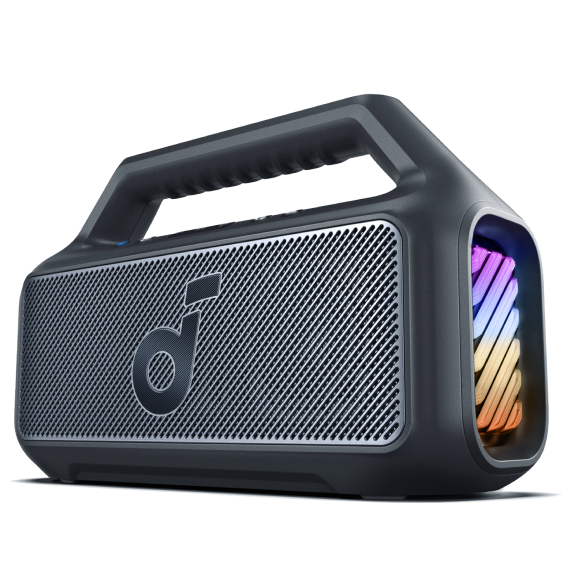
For those looking to truly transform their living room into a cinematic experience or the life of the party, a powerful and versatile bluetooth speaker is key. soundcore Rave 3s is engineered for exactly this purpose. It boasts a formidable 200W of power, delivering room-filling, punchy audio with deep bass that brings movie soundtracks and music to life. Its dedicated tweeters ensure crystal-clear dialogue, so you'll never miss a crucial line of plot.
This AI-driven party speaker delivers immersive sound through a sophisticated audio system featuring a 6.5" woofer and three 2.5" full-range drivers, producing enough powerful, booming audio to fill even a basketball court with vibrant energy. The experience is enhanced by a captivating beat-synced light show that transforms any space into a dynamic dance floor, with customisable lighting effects to match any mood or occasion.
For aspiring vocalists, Rave 3s comes equipped with dual wireless microphones featuring crystal-clear vocal reproduction and built-in controls. The innovative AI vocal removal technology lets you transform any song from any streaming app into an instant karaoke track with a single click, removing original vocals in real time while allowing you to adjust vocal levels for perfect duets or solos.
Through the intuitive soundcore app, you maintain total creative control with the ability to customise EQ settings, dynamic lighting patterns, vocal effects, and reverb levels—all from your smartphone.
Beyond movies, its built-in light show and karaoke-friendly sound profile make it a perfect all-in-one entertainment hub. Connecting Rave 3s to your TV via Bluetooth provides an effortless and high-quality audio upgrade that is miles ahead of standard TV speakers. With an IPX4 splashproof rating, it confidently withstands spills and splashes, making it ideal for lively gatherings. Plus, with up to 12 hours of playtime on a single charge, the party doesn't have to stop, ensuring your entertainment continues uninterrupted from day to night.

Troubleshooting Common Connection Problems
Even with the best preparation, you might occasionally encounter hiccups. Here’s how to solve the most frequent problems.
Dealing with Unstable Connections and Dropouts
Bluetooth signals can be interrupted by physical obstacles and wireless interference.
- Reduce Interference: Other wireless devices like Wi-Fi routers, cordless phones, and microwave ovens can interfere with the Bluetooth signal. Try moving your router or speaker to minimise conflict.
- Check for Obstacles: Ensure there is a clear path between your TV (or transmitter) and the speaker. Solid walls and large metal objects can significantly weaken the signal.
- Power Cycle: The classic IT fix often works. Turn off both your TV and the bluetooth speaker, wait 30 seconds, and then turn them back on again. This can clear out temporary glitches.
What to Do When Your Devices Won't Pair
If your TV fails to find your speaker, don't panic.
- Double-Check Pairing Mode: Ensure your speaker is truly in pairing mode—the indicator light should be flashing rapidly.
- Distance: Move the speaker much closer to the TV for the initial pairing.
- Forget and Re-pair: If it has connected before but is now having issues, go into your TV's Bluetooth settings, 'Forget' or 'Remove' the speaker, and then start the pairing process from scratch.
- Consult Manuals: Refer to the troubleshooting section of both your TV and speaker manuals for device-specific advice.
Conclusion
Connecting a bluetooth speaker to your TV is a straightforward and highly effective way to revolutionise your home entertainment audio. By first verifying your TV's compatibility, carefully following the pairing steps, and optimising your speaker's placement, you can overcome the limitations of built-in TV speakers and enjoy a rich, powerful, and immersive soundscape for all your content. Whether you're watching a blockbuster film, binge-watching a series, or streaming music, this simple wireless upgrade makes all the difference.


