






How to Connect iPhone to Multiple Bluetooth Speakers Step by Step
An iPhone cannot natively stream the same Bluetooth audio to multiple standard Bluetooth speakers at the same time. To create a multi-speaker setup, you need an alternative connection method. The best method depends on your hardware. You can use AirPlay 2 over Wi-Fi, soundcore PartyCast, AmpMe, or an external Bluetooth transmitter.
This guide explains how to connect an iPhone to multiple Bluetooth speakers, covers key limitations, and introduces soundcore speakers designed for multi-speaker setups.

Understanding How iPhones Can Connect to Multiple Bluetooth Speakers
Getting multiple speakers working with an iPhone depends on more than simply pairing each device. Before learning how to connect multiple Bluetooth speakers to an iPhone, it helps to understand how iOS handles Bluetooth audio. You should also know which features support shared playback and where compatibility limits may apply.
Bluetooth Technology Basics
Bluetooth connects your iPhone to a speaker using short-range wireless radio signals. Newer Bluetooth standards can improve range, stability and power efficiency, while Bluetooth LE Audio also enables technologies such as Auracast. Auracast can broadcast audio from one source to multiple compatible receivers. However, Apple has not currently enabled Auracast broadcasting support on iPhone, so it is not a direct option for multi-speaker playback.
Multi-Speaker Playback Technologies on iPhone
iPhones do not natively support playing audio through multiple standard Bluetooth speakers simultaneously. Instead, multi-speaker playback relies on technologies designed to link compatible speakers. AirPlay 2 uses Wi-Fi to send audio from an iPhone to multiple compatible speakers on the same network.
Brand-specific systems work differently. With technologies such as soundcore PartyCast, the iPhone usually connects to one speaker via Bluetooth. That speaker then links with other compatible speakers for synchronised playback.
Using Apps and Tools to Connect Multiple Speakers
When an iPhone does not directly support multiple audio outputs, third-party apps, speaker-specific tools and external Bluetooth hardware can provide alternatives. Apps such as AmpMe can synchronise playback across compatible phones connected to speakers.
External Bluetooth transmitters or splitters, such as Avantree’s DualCast, take a different approach by supporting multiple Bluetooth audio connections, allowing two speakers to pair with the transmitter instead of directly with the iPhone. This offers another way to create a multi-speaker setup, although the extra hardware requires power and adds some bulk.
How to Connect Multiple Bluetooth Speakers to an iPhone
There are several ways to play audio from an iPhone through multiple speakers, depending on the technology your devices support. The methods below cover AirPlay 2, soundcore PartyCast, AmpMe and external Bluetooth transmitters.
Connect Multiple Bluetooth Speakers on iPhone via AirPlay 2
For AirPlay 2-compatible speakers, here is how to connect multiple Bluetooth speakers to an iPhone:
- Connect your iPhone and speakers to the same Wi-Fi network.
- Start playing audio on your iPhone.
- Open Control Centre.
- Tap the AirPlay icon in the playback panel.
- Select each compatible speaker you want to use.
- Adjust the volume for individual speakers through Control Centre if needed.
Connect Multiple soundcore Speakers via PartyCast
For compatible soundcore PartyCast speakers, follow these general steps for compatible PartyCast models:
- Turn on the first speaker and connect it to your iPhone via Bluetooth.
- Press and hold the PartyCast button for 3 to 5 seconds until the speaker enters PartyCast pairing mode, as indicated by the model-specific LED behaviour. On models without a dedicated PartyCast button, press and hold the Bluetooth button instead.
- Turn on the second compatible speaker and make sure it is not connected to the iPhone via Bluetooth.
- Press and hold the PartyCast or Bluetooth button on the second speaker for 3 to 5 seconds until the speaker enters pairing mode according to the model-specific instructions.
- Activate the linking function on the secondary speaker according to the instructions for your specific soundcore model.
- Wait until the indicator light shows that the speakers have successfully linked according to the model-specific indicator.
- Repeat the process with additional compatible PartyCast speakers if needed.
The required connection steps may vary by soundcore model, so check the relevant soundcore Support guide for your speaker.
Connect Multiple Speakers with AmpMe
AmpMe uses multiple iPhones rather than connecting several speakers directly to one iPhone:
- Install AmpMe on the iPhone and the other phones you want to use.
- Pair each phone with one Bluetooth speaker.
- Open AmpMe on the main iPhone and create a party.
- Join the same party from the other phones.
- Start playing audio from the host device.
- Adjust synchronisation in AmpMe if playback becomes slightly out of sync.
Connect Two Speakers with Avantree DualCast
If your iPhone and speakers do not support a built-in multi-speaker option, an external Bluetooth transmitter or splitter can provide another way to connect two speakers:
- Connect a compatible transmitter to the iPhone using the required adapter.
- Put the transmitter into Bluetooth pairing mode.
- Pair the first Bluetooth speaker with the transmitter.
- Activate pairing mode again and connect the second speaker.
- Start playing audio from the iPhone.
- Check that both speakers are receiving audio through the transmitter.
What Are the Limitations of Connecting Multiple Bluetooth Speakers to iPhone?
Connecting multiple Bluetooth speakers to an iPhone has limitations that may affect compatibility, synchronisation and playback quality. Common challenges include:
- Audio delay: Different speakers may process sound at different speeds, creating noticeable timing differences.
- Connection stability: Distance, walls, and other obstacles can weaken Bluetooth signals and cause dropouts.
- Battery drain: Using multiple wireless connections can consume more power, shortening listening time.
- Audio quality: Wireless transmission may involve compression, particularly when bandwidth is limited.
- Compatibility: Some speakers require specific linking modes, apps, or manufacturer features to work together.
For better results, keep speakers within their recommended range, update their firmware, and use compatible linking technology.
Choosing the Right Speakers for Multi-Device Pairing
Not every Bluetooth speaker is suitable for multi-device playback. If you want to connect multiple Bluetooth speakers to one iPhone, choose models with compatible pairing technology, reliable connectivity, and long battery life.
soundcore Rave 3S: For karaoke-focused gatherings and interactive entertainment
Thesoundcore Rave 3S is designed for users who want a party speaker with built-in karaoke features. Its dual wireless microphones and vocal-focused functions make it suitable for users who host singing sessions, family activities, or social events where interaction is important.
- 200W peak output helps provide louder sound coverage for group gatherings.
- TWS pairing allows two speakers to be combined for stereo playback.
- Two wireless microphones support karaoke without additional microphone equipment.
- AI Vocal Removal and Auto Guide Vocal features help users create karaoke-style sessions.
- IPX4 water resistance supports use in indoor spaces and covered outdoor areas.

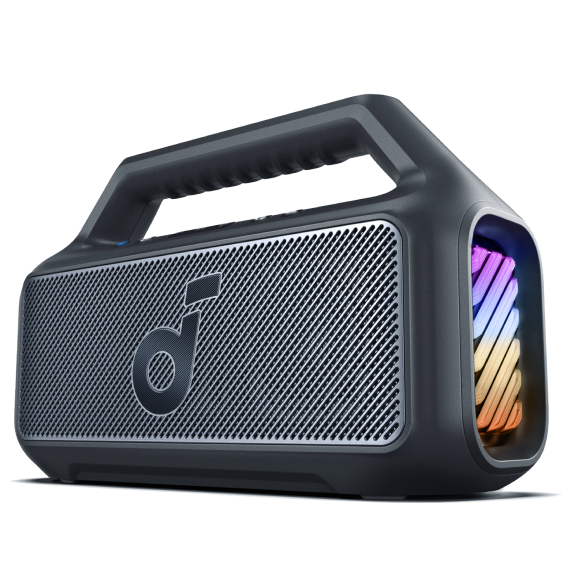
soundcore Boom 2 Plus: For outdoor multi-speaker setups and longer playback
Thesoundcore Boom 2 Plus is built for outdoor listening scenarios where portability, durability, and playback time are important. It is suitable for users who need extended music playback during outdoor activities, gatherings, or trips.
- PartyCast 2.0 enables connection with compatible soundcore speakers for wider sound coverage.
- Up to 20 hours of playtime supports longer outdoor activities without frequent charging.
- IPX7 waterproof protection helps handle outdoor environments and water exposure.
- BassUp 2.0 enhances low-frequency sound for music with stronger bass impact.
- 140W peak power output provides sound suitable for open outdoor spaces.

Conclusion
To choose the best method for how to connect iPhone to multiple Bluetooth speakers, start with what your iPhone and speakers already support. AirPlay 2 suits compatible AirPlay 2-enabled devices, PartyCast expands supported soundcore setups, AmpMe works across multiple phones, and an external transmitter can connect two Bluetooth speakers without relying on native multi-speaker output.
Whichever method you use, keep in mind that multi-speaker setups may have limitations, including audio delay, connection instability, higher battery use, reduced audio quality and compatibility issues.
FAQs
Can I connect multiple speakers to an iPhone without Wi-Fi?
Yes, but not through native iPhone Bluetooth output to multiple standard speakers. Without Wi-Fi, you can use compatible manufacturer-specific speaker-linking technologies such as soundcore PartyCast, where the iPhone connects to one speaker via Bluetooth and that speaker links to additional compatible speakers. An external dual-link Bluetooth transmitter can also provide another option. AirPlay 2, however, requires the iPhone and speakers to be on the same Wi-Fi network.
How many Bluetooth speakers can an iPhone connect to?
An iPhone can pair with multiple Bluetooth accessories over time, but it does not natively play audio through multiple standard Bluetooth speakers at the same time. For multi-speaker playback, the number of speakers you can connect to depends on the technology involved, such as AirPlay 2, PartyCast or another compatible speaker-linking system.
Why can’t my iPhone play through two Bluetooth speakers?
An iPhone cannot normally play the same audio through two standard Bluetooth speakers at once because iOS does not natively support simultaneous multi-speaker Bluetooth output. To play audio through multiple speakers, you need a supported alternative such as AirPlay 2, a manufacturer-specific linking feature, or a compatible external Bluetooth transmitter.
Do multiple Bluetooth speakers need to be the same brand?
Not necessarily, but using speakers from the same brand and compatible range can make multi-speaker playback easier. Matching models are more likely to support the same linking technology, helping maintain synchronised audio. Different brands may use varying connection methods, which can cause compatibility issues, delays, or inconsistent playback when paired together.


