









$20
OFF
soundcore V30i
Color:
$69.99

Hurry!Offer Ends Soon

$20 OFF
Code: WS24FKUSWLSB
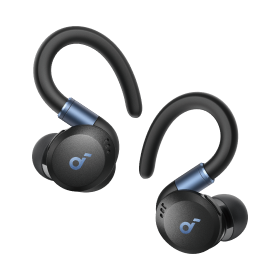
- Ultra Comfortable: Experience the lightweight comfort of our open-ear sport headphones. Featuring a non-intrusive design and soft, flexible ear hooks for a perfect fit—ensuring that you can wear them all day without discomfort.
- Enhanced Awareness: Remain aware of your surroundings, such as public transit announcements and oncoming cars. Stay in touch with the world around you thanks to the open design of soundcore V30i open-ear sport earbuds.
- Open Listening, Robust Bass: soundcore V30i open-ear workout headphones feature a 14.2mm bio-material diaphragm that emboldens bass for an audio experience that always hits the right beat.
- IPX5 Water Resistant with SweatGuard: soundcore V30i waterproof headphones use nano-coating and a unique chamber design for complete protection. Crafted to ensure that critical areas, such as the chipsets and battery compartment, remain sealed.
- All-Day Companion: Enjoy 12 hours of play on a single charge, extending to a total of 36 hours with the charging case. Better yet, a quick 10-minute charge delivers an impressive 3 hours of listening.
- Products with electrical plugs are designed for use in the US. Outlets and voltage differ internationally and this product may require an adapter or converter for use in your destination. Please check compatibility before purchasing.
- TCO Certified: For Better Sustainability.
Services and benefits
Want More Perks?
1. Priority Shipping2. Member Pricing on Selected Products 3. Birthday Gift4. Unlock Benefits with soundcoreCredits Learn More
Delivery Method

soundcore V30i
$69.99


FAQ
Specification
Bluetooth V5.3
SBC and AAC
Up to 8 Bluetooth devices at one time.
10m/33ft
Earbuds: IPX5
Charging case: Non-waterproof
Note:
- Do not place the earbuds and the charging case into a washing machine.
- Make sure that the earbuds and the charging case are dry before charging.
Charging case: Non-waterproof
Note:
- Do not place the earbuds and the charging case into a washing machine.
- Make sure that the earbuds and the charging case are dry before charging.
The charging case does not support wireless charging.
The earbuds support fast charging, with 10 minutes of charging providing around 3 hours of battery life. The charging case does not support fast charging.
soundcore V30i does not feature Multipoint connection.
soundcore V30i does not feature wearing detection.
Around 200ms.
The maximum sound pressure is 90dB.
Battery Related
70mAh for each of the left and right earbuds, about 2 hours for a full charge.
500mAh, about 2 hours for a full charge.
The earbuds can be fully recharged a total of 2 times with a full-power charging case.
At 50% volume, the earbuds can last for about 12 hours when listening to music. With the charging case, the total battery life is around 36 hours.
The earbuds can last for about 8.5 hours during calls.
A certified charger and charging cable with 5V/1A or above are required.
Operation and Usage
The earbuds will give a low battery voice prompt when the battery level is at approximately 10%, and this will occur every 15 minutes.
No.
- Delete the pairing history from your Bluetooth device first.
- Place the earbuds in the charging case and leave the case open.
- Press and hold the reset button on the charging case for 10 seconds until the LED indicator on the charging case flashes red three times. At this time, your earbuds have been successfully reset.
- Place the earbuds in the charging case and leave the case open.
- Press and hold the reset button on the charging case for 10 seconds until the LED indicator on the charging case flashes red three times. At this time, your earbuds have been successfully reset.
- Place both earbuds back into the charging case, with the case lid open.
- Press and hold the charging case button for 3 seconds. The charging case LED indicator will start to scroll, and the earbuds will disconnect from the current connection and enter pairing mode.
- Turn on Bluetooth on your device and then pair it with soundcore V30i.
- Press and hold the charging case button for 3 seconds. The charging case LED indicator will start to scroll, and the earbuds will disconnect from the current connection and enter pairing mode.
- Turn on Bluetooth on your device and then pair it with soundcore V30i.
1. When the earbuds are placed back into the charging case and the lid is closed, they will automatically power off and the Bluetooth connection will be disconnected.
2. If the earbuds are not connected to Bluetooth, they will automatically power off after 30 minutes. (The automatic power-off time can be customized in the soundcore app).
2. If the earbuds are not connected to Bluetooth, they will automatically power off after 30 minutes. (The automatic power-off time can be customized in the soundcore app).
Yes, you can use a single earbud. However, you cannot perform operations such as pairing, resetting, or customizing the EQ in mono mode.
The volume adjustment function is disabled by default, but you can enable it via the soundcore app and customize the touch controls.
The left and right earbuds do not support pairing with different devices.
- Stop charging and check if there is any moisture or sweat in the charging port of the charging case.
- Try cleaning the charging port before attempting to charge again.
- Try cleaning the charging port before attempting to charge again.
Please select "soundcore V30i" as the output for calls on your phone.
1. Do not leave the earbuds unused for a long time. It is recommended to use them at least once a month. The battery life can be significantly affected if the earbuds are left completely discharged.
2. Try not to use the earbuds until the remaining battery is only 20% or until it shuts down due to low battery before charging. This can also greatly impact the battery life.
3. The charging case should not be left in a low battery state for a long period of time. Please regularly charge the case.
4. Clean the charging contact pins promptly after use.
5. Store the earbuds on a dry desktop. If they accidentally come into contact with liquid, dry them with a hairdryer on the cool setting.
2. Try not to use the earbuds until the remaining battery is only 20% or until it shuts down due to low battery before charging. This can also greatly impact the battery life.
3. The charging case should not be left in a low battery state for a long period of time. Please regularly charge the case.
4. Clean the charging contact pins promptly after use.
5. Store the earbuds on a dry desktop. If they accidentally come into contact with liquid, dry them with a hairdryer on the cool setting.
- Remove the insulation stickers covering the charging pins on the earbuds.
- Ensure that the earbuds are fully charged and powered on.
- Reset the earbuds per the following steps:
Place the earbuds in the charging case and leave the case open. Press and hold the reset button on the charging case for 10 seconds until the LED indicator on the charging case flashes red three times. At this time, your earbuds have been successfully reset.
- Try these earbuds with another device.
- Use a Q-tip with a bit of rubbing alcohol or a small, clean brush to gently clean the metal mesh filter.
- Ensure that the earbuds are fully charged and powered on.
- Reset the earbuds per the following steps:
Place the earbuds in the charging case and leave the case open. Press and hold the reset button on the charging case for 10 seconds until the LED indicator on the charging case flashes red three times. At this time, your earbuds have been successfully reset.
- Try these earbuds with another device.
- Use a Q-tip with a bit of rubbing alcohol or a small, clean brush to gently clean the metal mesh filter.
You can turn on/off the prompt tone in the "More Settings" page of the soundcore app.
You can go to the "Controls" interface in the soundcore app, select the "Settings" icon in the upper right corner, and then turn on/off the Control Lock. Please note that after enabling the Control Lock function, the touch controls and touch prompt tone of the earbuds will be temporarily disabled.
Touch Control Related
1. Place both earbuds into the charging case at the same time and close the lid, then open it again to reconnect.
2. If this doesn't work, please reset them as per the following steps:
- Place the earbuds in the charging case and leave the case open.
- Press and hold the reset button on the charging case for 10 seconds until the LED indicator on the charging case flashes red three times. At this time, your earbuds have been successfully reset.
2. If this doesn't work, please reset them as per the following steps:
- Place the earbuds in the charging case and leave the case open.
- Press and hold the reset button on the charging case for 10 seconds until the LED indicator on the charging case flashes red three times. At this time, your earbuds have been successfully reset.
1. Try to clean the touch area to avoid accidental touches caused by sweat accumulation.
2. Disable the Single Press option in the control settings of the soundcore app.
2. Disable the Single Press option in the control settings of the soundcore app.
1. Confirm if you have correctly touched the effective area. The effective touch area is located in the elongated section of the earbuds Logo decoration cover.
2. Check if the touch control function has been turned off in the "Control Device" of the app. If this function has been turned off, try to turn on the button function and confirm again.
3. If the above troubleshooting is not successful, please try to reset the earbuds by following these steps:
- Delete the pairing history from your Bluetooth device first.
- Place the earbuds in the charging case and leave the case open.
- Press and hold the reset button on the charging case for 10 seconds until the LED indicator on the charging case flashes red three times. At this time, your earbuds have been successfully reset.
2. Check if the touch control function has been turned off in the "Control Device" of the app. If this function has been turned off, try to turn on the button function and confirm again.
3. If the above troubleshooting is not successful, please try to reset the earbuds by following these steps:
- Delete the pairing history from your Bluetooth device first.
- Place the earbuds in the charging case and leave the case open.
- Press and hold the reset button on the charging case for 10 seconds until the LED indicator on the charging case flashes red three times. At this time, your earbuds have been successfully reset.
By default, double-clicking on the right side pauses playback, double-clicking on the left side skips to the next track. Single-clicking and long-pressing have no default functions, you need to set functions in the soundcore app.
Wearing Related
1. Try adjusting the fit of the earbuds to achieve the best wearing position.
2. Try slightly expanding the earhooks to reduce any pressure they may be causing.
2. Try slightly expanding the earhooks to reduce any pressure they may be causing.
Try adjusting the fit of the earbuds to achieve the best wearing position.
App Related
1. Download and upgrade the soundcore app to V3.39 or above. If you already have the app, it is recommended to uninstall it and then download it again. Overwriting installation is not recommended.
2. Pair your earbuds with your phone. Currently, the soundcore app does not support computers.
3. Open the app and select "Add Device". The app will automatically connect to the earbuds. The first time you enter the app, you must agree to enable location permissions.
4. If the connection fails, click "Set Up Manually" > "Other" > "soundcore V30i" on the page to check whether it can be added manually. If you can't find the corresponding model on this page, you can take a screenshot and contact soundcore customer service.
5. For iOS phones, go into the region of the system, switch to United States, while for Andriod phones, switch the system language to English (United States).
6. If it still fails, please uninstall and reinstall the app and log in again.
2. Pair your earbuds with your phone. Currently, the soundcore app does not support computers.
3. Open the app and select "Add Device". The app will automatically connect to the earbuds. The first time you enter the app, you must agree to enable location permissions.
4. If the connection fails, click "Set Up Manually" > "Other" > "soundcore V30i" on the page to check whether it can be added manually. If you can't find the corresponding model on this page, you can take a screenshot and contact soundcore customer service.
5. For iOS phones, go into the region of the system, switch to United States, while for Andriod phones, switch the system language to English (United States).
6. If it still fails, please uninstall and reinstall the app and log in again.
Sound Related
1. Use a Q-tip with a bit of rubbing alcohol or a small, clean brush to gently clean the metal mesh filter.
2. Put both earbuds into the charging case at the same time, close the cover, and then open it to reconnect.
3. If it still doesn't work, please delete the pairing history from your Bluetooth device and then reset them per the following tips:
Place the earbuds in the charging case and leave the case open. Press and hold the reset button on the charging case for 10 seconds until the LED indicator on the charging case flashes red three times. At this time, your earbuds have been successfully reset.
4. Try them with another device to see if the problem persists.
2. Put both earbuds into the charging case at the same time, close the cover, and then open it to reconnect.
3. If it still doesn't work, please delete the pairing history from your Bluetooth device and then reset them per the following tips:
Place the earbuds in the charging case and leave the case open. Press and hold the reset button on the charging case for 10 seconds until the LED indicator on the charging case flashes red three times. At this time, your earbuds have been successfully reset.
4. Try them with another device to see if the problem persists.
These earbuds do not have a noise reduction feature, allowing users to better perceive their surroundings. However, this design is affected by environmental noise, and when the environmental noise is too loud, it will affect the sound effect of the earbuds. Therefore, please avoid using them in outdoor scenarios where the noise level is high.
1. Confirm whether the audio channel is set to Stereo Mode when listening to music or watching videos on the PC.
2. Check if the volume of the player has been adjusted to the maximum level. (The volume of the player and the system volume need to be adjusted separately.)
2. Check if the volume of the player has been adjusted to the maximum level. (The volume of the player and the system volume need to be adjusted separately.)
1. Use a Q-tip with a bit of rubbing alcohol or a small, clean brush to gently clean the metal mesh filter. This is best done when sound is playing through your earbuds at max volume.
2. If possible, please try to use a bulb blower to clean the earbuds - air will be pushed into the port/filter and any dust/dirt inside the earbuds will loosen, then use a cotton swab or toothpick to remove them.
3. If using an Android phone, check if the volume sync setting is turned on in the Bluetooth settings.
4. If using an iOS phone, please go to "Sounds & Haptics", then "Headphone Safety" and turn off the Reduce Loud Sounds feature.
5. Turn the volume down one notch on your phone. Then turn up the volume of both your phone and earbuds with the music/video to the maximum.
2. If possible, please try to use a bulb blower to clean the earbuds - air will be pushed into the port/filter and any dust/dirt inside the earbuds will loosen, then use a cotton swab or toothpick to remove them.
3. If using an Android phone, check if the volume sync setting is turned on in the Bluetooth settings.
4. If using an iOS phone, please go to "Sounds & Haptics", then "Headphone Safety" and turn off the Reduce Loud Sounds feature.
5. Turn the volume down one notch on your phone. Then turn up the volume of both your phone and earbuds with the music/video to the maximum.
Kindly note that upon the initial connection to a PC, the headphone volume is set to default at 100% due to the computer's inability to synchronize the volume to the headphones. Once the volume is adjusted, the headphones will register the current volume setting.
1. Set the volume balance between the left and right earbud in the soundcore app.
2. Reset the earbuds as per the following steps:
- Place the earbuds in the charging case and leave the case open.
- Press and hold the reset button on the charging case for 10 seconds until the LED indicator on the charging case flashes red three times. At this time, your earbuds have been successfully reset.
3. Use a Q-tip with a bit of rubbing alcohol or a small, clean brush to gently clean the metal mesh filter. If possible, please try to use a bulb blower to clean the earbuds—air will be pushed into the port/filter and any dust/dirt inside the earbuds will loosen, then use a cotton swab or toothpick to remove them.
4. Make sure the earbuds are worn at the correct angle.
2. Reset the earbuds as per the following steps:
- Place the earbuds in the charging case and leave the case open.
- Press and hold the reset button on the charging case for 10 seconds until the LED indicator on the charging case flashes red three times. At this time, your earbuds have been successfully reset.
3. Use a Q-tip with a bit of rubbing alcohol or a small, clean brush to gently clean the metal mesh filter. If possible, please try to use a bulb blower to clean the earbuds—air will be pushed into the port/filter and any dust/dirt inside the earbuds will loosen, then use a cotton swab or toothpick to remove them.
4. Make sure the earbuds are worn at the correct angle.
1. Confirm whether your phone has the absolute volume feature disabled.
2. You can try setting different EQs in the soundcore app or customizing EQ settings.
2. You can try setting different EQs in the soundcore app or customizing EQ settings.
Troubleshooting Related
1. Remove the insulation stickers covering the charging pins on the earbuds.
2. Try charging the case first to ensure it has power left.
3. Clean the charging pins with a dry cloth and an alcohol-based disinfectant. This is to ensure all charging contact pins on the earbuds and charging case are completely clean and dry of sweat and water. Then put the earbuds correctly into the case.
4. Put the earbuds in the charging case, close the cover first, wait for 6 seconds, and then open the cover to see if the earbuds turn on again.
5. Charge your charging case with a different charging cable and wall charger, and make sure the charging case has enough power.
2. Try charging the case first to ensure it has power left.
3. Clean the charging pins with a dry cloth and an alcohol-based disinfectant. This is to ensure all charging contact pins on the earbuds and charging case are completely clean and dry of sweat and water. Then put the earbuds correctly into the case.
4. Put the earbuds in the charging case, close the cover first, wait for 6 seconds, and then open the cover to see if the earbuds turn on again.
5. Charge your charging case with a different charging cable and wall charger, and make sure the charging case has enough power.
1. Please confirm whether the insulation stickers on the earbuds have been removed. After confirming that the insulation stickers have been removed, put the earbuds back into the case, close the lid, then open the lid and try to connect again.
2. Try to reset the earbuds:
Place the earbuds in the charging case and leave the case open. Press and hold the reset button on the charging case for 10 seconds until the LED indicator on the charging case flashes red three times. At this time, your earbuds have been successfully reset.
2. Try to reset the earbuds:
Place the earbuds in the charging case and leave the case open. Press and hold the reset button on the charging case for 10 seconds until the LED indicator on the charging case flashes red three times. At this time, your earbuds have been successfully reset.
1. Try using a different charging cable and power outlet to ensure the issue is not with the power source.
2. Check the charging ports on both the case and the cable for any dust or debris that might be hindering the charging process. You can clean the ports gently with a soft, dry cloth.
3. Ensure that the earbuds are properly placed in the case. They should fit snugly and make contact with the charging points.
2. Check the charging ports on both the case and the cable for any dust or debris that might be hindering the charging process. You can clean the ports gently with a soft, dry cloth.
3. Ensure that the earbuds are properly placed in the case. They should fit snugly and make contact with the charging points.
Please confirm whether the left balance or right balance has been turned on in the Bluetooth preference settings of your MacBook. If it has been turned on, please try again after turning off the left balance/right balance.
1. Make sure you have raised both the volume of the earbuds and the connected device to the maximum level.
2. Make sure you're wearing the earbuds in the correct position.
3. Try switching to the phone mic and making a call to see if the problem still persists.
4. Upgrade the soundcore app and firmware to the latest version.
2. Make sure you're wearing the earbuds in the correct position.
3. Try switching to the phone mic and making a call to see if the problem still persists.
4. Upgrade the soundcore app and firmware to the latest version.
1. Confirm whether the earbud speaker is blocked. If there is a blockage, please try to use a Q-tip with a bit of rubbing alcohol or a small, clean brush to gently clean it.
2. If you are only using one earbud, ensure that the other earbud is in the charging case.
3. Ensure that you are wearing the earbuds in the correct position. If the earbuds are not worn properly on your ears, you may not achieve the correct call performance.
4. Ensure that the audio output device selected is "soundcore V30i" and turn up the volume on your device.
5. If you make a call through an app, try using your phone to make a call instead to see if the problem persists.
6. Try testing your earbuds with a different Bluetooth device in a different environment to see if there is any difference.
2. If you are only using one earbud, ensure that the other earbud is in the charging case.
3. Ensure that you are wearing the earbuds in the correct position. If the earbuds are not worn properly on your ears, you may not achieve the correct call performance.
4. Ensure that the audio output device selected is "soundcore V30i" and turn up the volume on your device.
5. If you make a call through an app, try using your phone to make a call instead to see if the problem persists.
6. Try testing your earbuds with a different Bluetooth device in a different environment to see if there is any difference.
1. If you only want to listen to audio on the computer, select "soudcore v30i" for the computer audio. If you need to adjust the volume, adjust both the software and the computer volume.
2. If you need to use a conference app on your computer such as Zoom/Microsoft Teams, please set the input and output of the software as stated below:
- Microphone for software: soudcore V30i Hands-Free
- Speaker for app: soudcore V30i Hands-Free
If you need to adjust the volume, use the app. If you cannot adjust the volume on the app, please select "soudcore V30i Hands-Free" as the output on your computer and adjust the volume.
3. If you need to use an audio and video app on your computer and you cannot set the input and output via the app, open the computer audio settings and choose the following settings:
Input: soudcore V30i Hands-Free
Output: soudcore V30i Hands-Free
2. If you need to use a conference app on your computer such as Zoom/Microsoft Teams, please set the input and output of the software as stated below:
- Microphone for software: soudcore V30i Hands-Free
- Speaker for app: soudcore V30i Hands-Free
If you need to adjust the volume, use the app. If you cannot adjust the volume on the app, please select "soudcore V30i Hands-Free" as the output on your computer and adjust the volume.
3. If you need to use an audio and video app on your computer and you cannot set the input and output via the app, open the computer audio settings and choose the following settings:
Input: soudcore V30i Hands-Free
Output: soudcore V30i Hands-Free
1. Clean the charging pins with a dry cloth and an alcohol-based disinfectant. This is to ensure all charging contact pins on the earbuds and charging case are completely clean and dry of sweat and water. Then put the earbuds correctly into the case.
2. Put the earbuds in the charging case, close the cover first, wait for 6 seconds, and then open the cover.
2. Put the earbuds in the charging case, close the cover first, wait for 6 seconds, and then open the cover.
Please note that this doesn't necessarily mean there is an issue with the earbuds, but may have something to do with the connected device and environment. Bluetooth signals may be influenced by obstructions, such as walls, pillars, home appliances, Wi-Fi, and more. To ensure a stable connection, we recommend avoiding such obstructions:
We kindly ask you to try the following troubleshooting as they have often proven to help:
1. Try reducing the distance between your right earbud and your audio device, like having your audio device in your right pocket or keeping it on your right side. Your right earbud is the master (main) earbud. It connects to your audio device and to the left earbud.
2. Reset the earbuds as per the following steps:
- Delete the pairing history from your Bluetooth device.
- Place the earbuds in the charging case and leave the case open. Press and hold the reset button on the charging case for 10 seconds until the LED indicator on the charging case flashes red three times. At this time, your earbuds have been successfully reset.
3. Reset your Bluetooth connection by turning off the Bluetooth from your device (phone/tablet/etc.) for at least 10 seconds and then turning it back on. Please note, turning Bluetooth off and back on quickly will not reset the connection.
4. Try closing any other apps you are not using on your device.
5. Test the earbuds by listening to downloaded music/videos.
6. Please try with another device (phone/tablet/etc.) and see if the issue is the same.
We kindly ask you to try the following troubleshooting as they have often proven to help:
1. Try reducing the distance between your right earbud and your audio device, like having your audio device in your right pocket or keeping it on your right side. Your right earbud is the master (main) earbud. It connects to your audio device and to the left earbud.
2. Reset the earbuds as per the following steps:
- Delete the pairing history from your Bluetooth device.
- Place the earbuds in the charging case and leave the case open. Press and hold the reset button on the charging case for 10 seconds until the LED indicator on the charging case flashes red three times. At this time, your earbuds have been successfully reset.
3. Reset your Bluetooth connection by turning off the Bluetooth from your device (phone/tablet/etc.) for at least 10 seconds and then turning it back on. Please note, turning Bluetooth off and back on quickly will not reset the connection.
4. Try closing any other apps you are not using on your device.
5. Test the earbuds by listening to downloaded music/videos.
6. Please try with another device (phone/tablet/etc.) and see if the issue is the same.
It's important to note that there may be a slight delay when using any type of Bluetooth audio device, which is a common limitation of Bluetooth technology. In most cases this delay is minimal and should not impact your experience. However, it's worth mentioning that the delay can be influenced by various factors such as the
Bluetooth audio device itself, the connected device, the audio source, the specific application being used, and even the network conditions.
To fix this issue, please try the following:
1. "Forget" the earbuds in your device's Bluetooth history. Reboot your Bluetooth device such as your phone or computer.
2. Make sure the charging case has enough power, and reset the earbuds as per the steps below:
- Place the earbuds in the charging case and leave the case open.
- Press and hold the reset button on the charging case for 10 seconds until the LED indicator on the charging case flashes red three times. At this time, your earbuds have been successfully reset.
3. Test your earbuds with a different Bluetooth device, app, and/or downloaded music/videos to see if the problem still persists.
4. Make sure the Bluetooth device and earbuds are within Bluetooth range, and there is no signal interference between them.
To fix this issue, please try the following:
1. "Forget" the earbuds in your device's Bluetooth history. Reboot your Bluetooth device such as your phone or computer.
2. Make sure the charging case has enough power, and reset the earbuds as per the steps below:
- Place the earbuds in the charging case and leave the case open.
- Press and hold the reset button on the charging case for 10 seconds until the LED indicator on the charging case flashes red three times. At this time, your earbuds have been successfully reset.
3. Test your earbuds with a different Bluetooth device, app, and/or downloaded music/videos to see if the problem still persists.
4. Make sure the Bluetooth device and earbuds are within Bluetooth range, and there is no signal interference between them.
First and foremost, the open-sound headphones are designed to deliver a more natural and expansive soundstage, coupled with a comfortable wearing experience. This design permits some ambient noise to seep in, allowing you to stay aware of your surroundings while indulging in your music. This feature proves particularly useful for outdoor activities or situations where it's crucial to be mindful of environmental sounds.
However, a byproduct of this design is the "sound leakage" issue. It's not a flaw in the product's quality, but rather a natural occurrence associated with the open-sound design. This might result in others hearing some sound at high volumes, but under normal volumes, this should seldom happen.
However, a byproduct of this design is the "sound leakage" issue. It's not a flaw in the product's quality, but rather a natural occurrence associated with the open-sound design. This might result in others hearing some sound at high volumes, but under normal volumes, this should seldom happen.
Daily Maintenance of Headphones
1. Ensure the earbuds are clean. You should clean your earbuds after exercising or sweating to avoid bacterial growth.
2. The materials of our headphones are carefully selected, but a select few people may have an adverse reaction to some specific materials. If you experience any unusual discomfort, or your skin feels irritated while wearing soundcore V30i earbuds, immediately stop using them and contact soundcore customer support for further assistance.
2. The materials of our headphones are carefully selected, but a select few people may have an adverse reaction to some specific materials. If you experience any unusual discomfort, or your skin feels irritated while wearing soundcore V30i earbuds, immediately stop using them and contact soundcore customer support for further assistance.
To clean the earbuds: Regularly use rubbing alcohol and a cotton swab to clean the sound outlet and charging pins. If possible, please try to use a bulb blower to clean the earbuds - air will be pushed into the port/filter, and the dust/dirt inside the earbuds will loosen, then use a cotton swab or toothpick to remove them.
To clean the charging case: Use regular cleaning wipes or a soft cloth with rubbing alcohol to gently clean the charging case.
To clean the charging case: Use regular cleaning wipes or a soft cloth with rubbing alcohol to gently clean the charging case.
Documents & Drivers
Bluetooth V5.3
SBC and AAC
Up to 8 Bluetooth devices at one time.
10m/33ft
Earbuds: IPX5
Charging case: Non-waterproof
Note:
- Do not place the earbuds and the charging case into a washing machine.
- Make sure that the earbuds and the charging case are dry before charging.
Charging case: Non-waterproof
Note:
- Do not place the earbuds and the charging case into a washing machine.
- Make sure that the earbuds and the charging case are dry before charging.
The charging case does not support wireless charging.
The earbuds support fast charging, with 10 minutes of charging providing around 3 hours of battery life. The charging case does not support fast charging.
soundcore V30i does not feature Multipoint connection.
soundcore V30i does not feature wearing detection.
Around 200ms.
The maximum sound pressure is 90dB.
Specs
| Drivers | 14.2mm, Bio-Material |
| Playtime | 12H/36H |
| Sound | Robust Bass |
| Water Resistance | IPX5, SweatGuard |
| Fast Charging | 10M = 3H |
| Calls | 4 Mics with AI |
| Weight | 9.3g (0.33 oz) |
| Control | Touch Control |
| Secure Fit | Open-Ear Hook, Open Comfort |


