






How to Connect Your Bluetooth Speaker with a Laptop
There's nothing quite like the rich, room-filling sound of a quality Bluetooth speaker to transform your laptop's audio experience. Whether you're watching movies, listening to music, or hosting video calls, connecting an external speaker can make all the difference. Yet for many, the pairing process feels like navigating a maze of settings and menus.
If you've ever struggled to connect your devices or wondered why the connection drops unexpectedly, you're not alone. The good news is that pairing your Bluetooth speaker with your laptop is actually quite straightforward once you know the steps. This comprehensive guide will walk you through the entire process for every major operating system, troubleshoot common problems, and help you choose the perfect speaker for your needs.
Before You Begin: Preparation Steps
Before diving into the pairing process, taking a few preparatory steps can save you time and frustration. Proper preparation ensures a smooth connection experience and helps avoid common pitfalls that disrupt the pairing process.
First, ensure your Bluetooth speaker is sufficiently charged. A low battery can cause intermittent connectivity or prevent pairing altogether. Most speakers have indicator lights that show battery status—typically solid for charged and blinking for low power.
Next, position your speaker within 3-10 feet of your laptop during the initial pairing. Bluetooth has an effective range of up to 30 feet, but keeping devices close during setup improves reliability. Remove any physical obstructions between the devices and minimize interference from other wireless devices like routers, microwaves, or cordless phones.
Finally, check that your laptop's Bluetooth capability is functional. Most modern laptops have built-in Bluetooth, but some older models may require a USB Bluetooth adapter. You can usually verify this in your device's specifications or network settings.
How to Pair with Windows Laptops
Windows laptops are among the most common devices people use with Bluetooth speakers. The process is similar across Windows 10 and Windows 11, with only minor interface differences.
Start by turning on your Bluetooth speaker and putting it into pairing mode. This typically involves pressing and holding the power button or a dedicated Bluetooth button until an indicator light begins flashing. Consult your speaker's manual for specific instructions, as the process varies by manufacturer.
On your Windows laptop, click the Start button and select Settings (the gear icon). Navigate to "Devices" and then "Bluetooth & other devices." Ensure Bluetooth is toggled to "On," then click "Add Bluetooth or other device." Select "Bluetooth" from the options that appear.
Windows will now scan for available devices. When your speaker appears in the list, click on its name to initiate pairing. The laptop may display a pairing code or simply connect automatically. Once connected, you should see "Connected" or "Paired" next to your speaker's name in the device list.
To test the connection, play audio from any application on your laptop. The sound should now come through your Bluetooth speaker instead of the laptop's built-in speakers. If not, check your sound output settings by clicking the speaker icon in the system tray and selecting your Bluetooth device from the available options.
How to Pair with MacBooks and Mac Computers
Apple's macOS offers a particularly streamlined approach to Bluetooth pairing, with the process remaining largely consistent across recent versions of the operating system.
- Begin by activating pairing mode on your Bluetooth speaker—usually by holding the power or Bluetooth button until a light flashes. On your Mac, click the Apple menu in the top-left corner and select "System Preferences" (or "System Settings" in newer versions). Choose "Bluetooth" from the options.
- In the Bluetooth settings window, ensure Bluetooth is enabled. Your Mac will automatically begin scanning for nearby devices. When your speaker appears in the list, click the "Connect" button next to its name. Some speakers may require you to confirm pairing on both devices, while others connect automatically.
- Once successfully paired, your Bluetooth speakerwill appear in the list of devices with "Connected" displayed beside it. The connection should now be active for all system sounds and applications.
- For quick access in the future, you can optionally check the box "Show Bluetooth in menu bar." This adds a Bluetooth icon to the top-right of your screen where you can quickly switch between audio output devices without navigating through system preferences.
How to Pair with Chromebooks
Chromebooks have gained significant popularity for their simplicity and affordability, and their Bluetooth pairing process reflects this user-friendly approach.
- After putting your Bluetooth speaker into pairing mode, click the time area in the bottom-right corner of your Chromebook's screen. This opens the quick settings panel. Select the gear icon to access full settings, or click the Bluetooth icon directly if it's visible.
- In the Bluetooth settings, ensure Bluetooth is enabled. Your Chromebook will display "Now discoverable" and begin scanning for devices. When your speaker appears in the list under "Available devices," click on its name to initiate pairing.
- Unlike some systems, Chromebooks typically don't require confirmation codes for standard Bluetooth speakers. The connection establishes automatically once you select the device. You'll see your speaker's name move to the "Paired devices" section once successfully connected.
To verify the connection is working, play a video or music file. The audio should route through your external speaker. You can adjust volume levels independently using either your Chromebook's volume controls or those on the speaker itself.
Troubleshooting Common Connection Issues
Even with proper procedure, Bluetooth connections can sometimes be temperamental. Understanding common issues and their solutions can save considerable frustration when your devices won't cooperate.
One of the most frequent problems is the Bluetooth speaker not appearing in your laptop's list of available devices. This usually stems from the speaker not being in proper pairing mode. Double-check that the pairing indicator is active, and consult your speaker's manual for specific instructions. Some speakers automatically exit pairing mode after a short period, so you may need to reactivate it.
If your devices pair but audio continues playing through the laptop speakers, the issue likely lies with output settings. On Windows, right-click the speaker icon in the system tray and select "Open Sound settings." Under "Output," ensure your Bluetooth speaker is selected as the default device. On Mac, click the volume control in the menu bar while holding the Option key to see all available output devices, then select your speaker.
Intermittent connectivity or audio dropouts often result from distance or interference. Move your devices closer together and away from potential sources of wireless interference. Low battery on either device can also cause unstable connections, so ensure both are adequately charged.
When all else fails, the classic troubleshooting step of turning devices off and on again remains surprisingly effective. Power cycle both your laptop and Bluetooth speaker, then attempt pairing again. If problems persist, try removing the speaker from your laptop's list of paired devices and establishing a fresh connection.
Optimizing Your Bluetooth Audio Experience
Once successfully connected, a few simple adjustments can significantly enhance your listening experience through your Bluetooth speaker.
Positioning matters more than many realize. Place your speaker on a solid surface rather than a soft one like a bed or couch, as hard surfaces help project sound more effectively. If possible, position the speaker at ear level when seated at your laptop for optimal audio quality.
Most operating systems offer audio enhancement features worth exploring. Windows includes a "Sound Enhancement" option in sound properties that can improve clarity. macOS provides an equalizer in the Music app that affects system-wide audio. Third-party equalizer applications are also available for more granular control over your sound profile.
Be mindful of latency—the slight delay between video and audio that sometimes occurs with Bluetooth connections. For watching videos, this can be particularly noticeable. Some media players include audio delay adjustment features to resynchronize the elements. For professional audio work or gaming, you may want to consider a wired connection to eliminate latency entirely.
Recommended Bluetooth Speaker: soundcore Boom 2
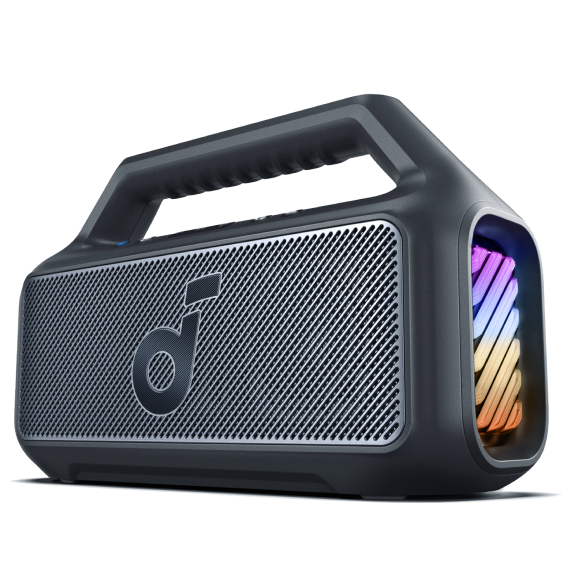
If you're in the market for a versatile wireless Bluetooth speaker that delivers exceptional performance across various scenarios, the soundcore Boom 2 stands out as an excellent choice. This powerful portable speaker combines impressive audio capabilities with practical features that make it ideal for both home and outdoor use.
The Boom 2 delivers an astonishing 80W Max Booming Bass experience, thanks to its racetrack subwoofer that provides added depth and clarity. With BassUp™ 2.0 technology, you can tweak the bass EQ and increase the output from 60W to a staggering 80W max, ensuring you feel the power in every song.
For balanced audio, the 2.1 Stereo Clarity system combines a 50W racetrack subwoofer with dual 15W tweeters, delivering crisp highs and deep bass balanced by smart crossover technology. The result is an immersive audio experience that does justice to your favorite music, podcasts, and movies.
Practicality shines through with its all-day battery life—the Boom 2 keeps the beats playing for 24 hours on a single charge. Even better, the built-in power bank lets you keep your phone powered up wherever you are, making it perfect for extended outings.
Durability is another strong suit, with an IPX7 waterproof and floatable design that handles any adventure. You can listen worry-free at the beach, by the pool, or in the rain. Plus, with customizable pro EQ, you can find the perfect sound for any song or vibe. PartyCast 2.0 technology allows you to connect up to 100+ speakers to take the party to the next level.

Maintaining Your Bluetooth Connection
A stable Bluetooth connection requires occasional maintenance to ensure continued reliability. Keeping your devices' software updated is crucial, as manufacturers regularly release improvements to Bluetooth functionality and compatibility.
On your laptop, check for operating system updates regularly. For Windows, this means visiting Windows Update; for Mac, the App Store's Updates section; and for Chromebooks, the About Chrome OS section in settings. Similarly, check your Bluetooth speaker manufacturer's website or app for any firmware updates that might enhance performance or connectivity.
If you use multiple Bluetooth devices with your laptop, managing them proactively can prevent conflicts. Most operating systems allow you to prioritize connected devices or set default behaviors. When not using your Bluetooth speaker, consider disconnecting it through your laptop's Bluetooth settings rather than simply turning off the speaker, as this can create a cleaner reconnection process later.
For security purposes, be mindful of where you pair your devices. Bluetooth connections in public spaces can potentially be vulnerable, though the risk for audio devices is generally low. Avoid pairing with unfamiliar devices, and if your speaker supports multiple device memory, periodically review and remove old connections you no longer use.
Conclusion
Pairing a Bluetooth speaker with your laptop opens up a world of enhanced audio possibilities, from immersive movie watching to powerful music listening. While the process varies slightly between Windows, Mac, and Chromebook systems, the fundamental principles remain the same: enable pairing mode on your speaker, access Bluetooth settings on your laptop, and select your device from the available list.
With the troubleshooting tips provided, you should be able to overcome common connection issues that might arise. And by following the optimization suggestions, you can ensure the best possible audio experience from your setup.
The soundcore Boom 2 represents an excellent choice if you're seeking a versatile, powerful Bluetooth speaker that delivers both exceptional sound quality and practical features for various listening scenarios. Its combination of booming bass, all-day battery life, and waterproof design makes it equally suitable for home entertainment and outdoor adventures.
Whether you're enhancing your work-from-home setup, creating a party atmosphere, or simply enjoying better audio quality for everyday listening, connecting a quality Bluetooth speaker to your laptop is a simple upgrade with significant rewards.


