






How Do You Connect Alexa to a Bluetooth Speaker?
If you're wonderinghow do you connect Alexa to a Bluetooth speaker, the good news is that the process is quick and works with most Bluetooth speakers.
You can pair your speaker through the Alexa app or by using simple voice commands, allowing you to enjoy richer sound for music, podcasts, audiobooks, and more while continuing to control playback with Alexa.
This guide explains both setup methods step by step, shows how to reconnect or remove a paired speaker, covers common connection issues, and shares what to look for when choosing a Bluetooth speaker that works well with Alexa.

Key Points
- Most Amazon Echo devices can pair with compatible Bluetooth speakers for improved audio quality.
- You can connect Alexa to a Bluetooth speaker using either the Alexa app or simple voice commands.
- Alexa continues to listen for voice requests through the Echo device's built-in microphones, not the Bluetooth speaker.
- Pairing a Bluetooth speaker enhances music, podcasts, and audiobook playback without replacing Alexa's smart features.
- Once paired, Alexa will usually reconnect to the previously used Bluetooth speaker automatically when it's available.
What You Need Before You Start
Before learning how to connect Alexa to a Bluetooth speaker, it's worth checking that both devices are ready.
Taking a minute to confirm compatibility, Bluetooth settings, and software updates can help the connection process go more smoothly.
Checklist:
- An Amazon Echo device that supports Bluetooth audio output, such as an Echo, Echo Dot, or Echo Show.
- A Bluetooth speaker with pairing mode enabled and sufficient battery life.
- The Amazon Alexa app installed on your Android or iOS device and signed in to your Amazon account.
- Bluetooth enabled on the speaker and the mobile device you'll use for setup.
- Devices within Bluetooth range, typically up to 10 metres.
- The latest firmware or software updates installed on your Echo device, Bluetooth speaker, and the Alexa app, where available.
Understanding How Alexa Works with Bluetooth Speakers
Before learning how to connect Alexa to a Bluetooth speaker, it helps to understand how the two devices work together.
Your Echo device continues to listen for voice commands and process requests, while the connected Bluetooth speaker simply plays the audio.
Alexa features such as timers, reminders and smart home controls continue to work normally through your Echo.
This means you should keep your Echo device within hearing distance, even after pairing.
Alexa routines, timers, reminders, and smart home controls continue to work as normal because the Echo remains the device running Alexa.
|
Device |
Role |
|
Echo Device |
Listens for voice commands, runs Alexa, and processes requests. |
|
Bluetooth Speaker |
Plays audio from Alexa, including music, podcasts, and responses. |
|
Alexa App |
Manages Bluetooth pairing, device settings, and connected accessories. |
How to Connect Alexa to a Bluetooth Speaker Using the Alexa App
Using the Alexa app is the easiest way to pair a Bluetooth speaker, especially if you're connecting it for the first time.
If you're wondering how to connect Alexa to a Bluetooth speaker, follow these simple steps to complete the setup.
According to the Amazon Alexa Help Centre, Echo devices can pair with compatible Bluetooth speakers through the Alexa app or Alexa voice commands.
Following the official setup process can help ensure a smooth connection.
Turn on your Bluetooth speaker: Make sure it has enough battery or is connected to a power source.
- Put the speaker into pairing mode: Most Bluetooth speakers have a dedicated Bluetooth button or require you to press and hold the power button. If you're unsure, check the manufacturer's instructions.
- Open the Amazon Alexa app: Launch the app on your Android or iOS device and sign in to your Amazon account if prompted.
- Tap Devices: You'll find this at the bottom of the screen.
- Select your Echo device: Choose the Echo you want to pair with your Bluetooth speaker.
- Open BluetoothDevices: Depending on your Alexa app version, this option may appear within your Echo device's settings.
- Tap Pair A NewDevice: Alexa will search for nearby Bluetooth devices.
- Select your Bluetooth speaker: Choose it from the list of available devices.
- Wait for the confirmation: The Alexa app or your Echo device will notify you once the pairing is complete.
- Test the connection: Ask Alexa to play music, a podcast, or your favourite radio station. If the audio plays through your Bluetooth speaker, the setup was successful.
For the most reliable pairing, keep your Echo device and Bluetooth speaker within a few metres of each other.
Once they're connected, you can move the speaker within its supported Bluetooth range for everyday use.
Connect Alexa with Voice Commands
If you've paired your Bluetooth speaker with your Echo device before, you don't need to open the Alexa app every time.
Once you know how to connect Alexa to a Bluetooth speaker, voice commands let you reconnect or disconnect your speaker in just a few seconds, making it a convenient option for everyday use.
|
Voice Command |
When to Use It |
|
"Alexa, pair Bluetooth." |
Puts your Echo into Bluetooth pairing mode so you can connect a new speaker or another Bluetooth audio device. |
|
"Alexa, connect." |
Reconnects your Echo to the last paired Bluetooth speaker if it's nearby and switched on. For users asking how do I connect Alexa to a Bluetooth speaker without reopening the Alexa app, this is the quickest option. |
|
"Alexa, connect my speaker." |
Asks Alexa to connect to your previously paired Bluetooth speaker. If you've paired multiple devices, Alexa may ask which one you'd like to use. |
|
"Alexa, disconnect." |
Ends the current Bluetooth connection while your Echo continues working through its built-in speaker. |
|
"Alexa, stop Bluetooth." |
Turns off the active Bluetooth audio connection, allowing audio to play through the Echo speaker instead. |
How to Reconnect, Disconnect, or Forget a Paired Bluetooth Speaker
Once your Bluetooth speaker has been paired, you can manage the connection at any time without going through the full setup again.
Whether you want to switch speakers, stop using Bluetooth temporarily, or remove a saved device, Alexa offers a few simple options.
Reconnect Your Bluetooth Speaker
If you've used the speaker before, Alexa will often reconnect to it automatically when both devices are switched on and within Bluetooth range.
If this doesn't happen, you can reconnect in either of these ways:
● Using voice commands: Say "Alexa, connect" or "Alexa, connect my speaker."
● Using the Alexa app: Go to Devices > Echo & Alexa > your Echo device > Bluetooth Devices, then select your paired speaker.
If you're learning how to connect Alexa to a Bluetooth speaker after the initial setup, reconnecting is usually much faster than pairing a new device.
Disconnect a Bluetooth Speaker
You may want to disconnect your Bluetooth speaker if you're moving it to another room or want your Echo to play audio through its built-in speaker again.
You can disconnect by:
● Saying "Alexa, disconnect."
● Opening the Alexa app, selecting your Echo device, and disconnecting the paired Bluetooth speaker.
Forget a Bluetooth Speaker
If you no longer want your Echo to remember a Bluetooth speaker, you can remove it from the paired devices list.
To forget a device:
- Open the Alexa app.
- Go to Devices > Echo & Alexa.
- Select your Echo device and open Bluetooth Devices.
- Choose the paired speaker and tap Forget Device.
If you decide to use the speaker again later, you'll simply need to pair it again as a new Bluetooth device.
|
Action |
Alexa App |
Voice Command |
|
Reconnect |
✔ |
✔ |
|
Disconnect |
✔ |
✔ |
|
Forget Device |
✔ |
✖ |
Common Problems and Fixes for Alexa Bluetooth Connections
If Alexa can't find or stay connected to your Bluetooth speaker, a few simple troubleshooting steps usually resolve the issue.
Whether you're learning how to connect Alexa to a Bluetooth speaker for the first time or reconnecting a previously paired device, identifying the cause can save you time.
|
Problem |
Possible Cause |
Solution |
|
Speaker not found |
The speaker isn't in pairing mode. |
Put the speaker back into pairing mode, then search for it again in the Alexa app. |
|
Won't reconnect |
Another phone, tablet, or Bluetooth device is already connected to the speaker. |
Disconnect the speaker from the other device, then ask Alexa to reconnect or use the Alexa app. |
|
Audio cuts out |
The Echo and speaker are too far apart, or there's wireless interference. |
Move the devices closer together and keep them away from sources of interference such as Wi-Fi routers or microwaves. |
|
Wrong speaker connects |
Multiple Bluetooth devices are saved to your Echo. |
Open the Alexa app, select the correct speaker, or remove unused paired devices and pair the speaker again. |
|
Alexa says Bluetooth is unavailable |
Bluetooth isn't working correctly on the Echo or speaker. |
Restart both devices and make sure Bluetooth is enabled before trying again. |
How to Choose the Right Bluetooth Speaker for Alexa
Not every Bluetooth speaker delivers the same experience with Alexa. If you're researching how to connect Alexa to a Bluetooth speaker, it's also worth choosing a speaker that offers a reliable wireless connection and quality sound for everyday listening.
When comparing Bluetooth Speakers, look for these key features:
● Bluetooth 5.0 or later: Provides a faster, more stable connection with better wireless range.
● Reliable connectivity: Helps reduce audio dropouts and keeps your speaker connected to your Echo device.
● Long battery life: Ideal for extended listening sessions without frequent recharging.
● Clear, balanced sound: Look for speakers that deliver crisp vocals, detailed mids, and powerful bass for music, podcasts, and audiobooks.
● Water resistance: An IPX-rated speaker is a good choice if you'll use it in the garden, by the pool, or on camping trips.
● Portable design: A lightweight speaker is easier to move between rooms or take on the go.
● Fast charging: Minimises downtime so your speaker is ready when you need it.
● Multi-device pairing: Makes it easier to switch between your Echo, phone, tablet, or other compatible devices without repeatedly pairing.
Recommended soundcore Bluetooth Speakers
Whether you're listening to music at home, catching up on podcasts, or asking Alexa to play your favourite playlist, the right Bluetooth speaker can make a noticeable difference.
Here are two excellent options to pair with your Alexa-enabled Echo device.
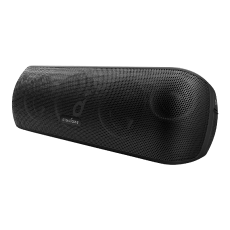
soundcore Motion X600 – Premium Bluetooth Speaker for Immersive Home Audio
The soundcore Motion X600 is an excellent choice for Alexa users who want richer, more immersive sound at home. It allows you to keep Alexa voice control through your Echo device while upgrading your music, podcast, and audiobook experience.
- Spatial Audio technology: Creates a wider soundstage, making music feel more open and immersive throughout the room.
- 50W maximum output: Delivers powerful sound with clear vocals, detailed mids, and rich bass for everyday entertainment.
- Bluetooth 5.3 connectivity: Provides a stable wireless connection with compatible Echo devices for seamless Alexa-enabled listening.
- Up to 12 hours of battery life: Supports extended listening sessions without frequent recharging.
- IPX7 waterproof rating: Helps protect the speaker from water exposure, making it suitable for indoor use and occasional outdoor listening.
- Premium portable design with USB-C charging: Makes it easy to move between rooms while offering convenient charging support.
Best for: Living rooms, bedrooms, home offices, and users who want immersive sound without sacrificing portability.

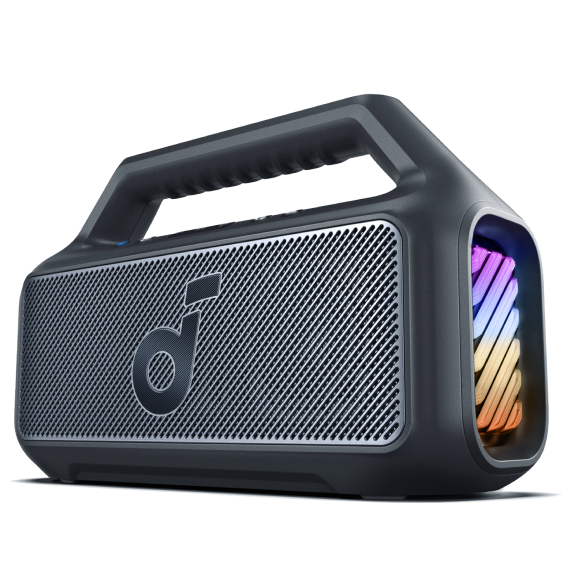
soundcore Boom 2 – Powerful Bass Bluetooth Speaker for Home and Outdoor Use
The soundcore Boom 2 is ideal for Alexa users who want louder, bass-focused audio for larger spaces, garden gatherings, and outdoor entertainment. It works with compatible Echo devices via Bluetooth while delivering a more powerful listening experience.
- Up to 80W Max BassUp™ output: Delivers powerful bass and higher volume while maintaining clear vocals.
- BassUp™ technology: Enhances low-frequency performance for a more impactful music experience.
- Bluetooth 5.3 connectivity: Enables a reliable wireless connection with compatible Alexa-enabled Echo devices.
- Up to 24 hours of battery life: Supports extended listening sessions for outdoor events and weekend activities.
- IPX7 waterproof rating: Helps protect the speaker from water, making it suitable for gardens, poolside use, and outdoor entertainment.
- Customisable EQ via the soundcore app with USB-C charging: Allows users to personalise sound settings and recharge conveniently.
Best for: Garden parties, outdoor gatherings, larger living spaces, and users who prefer stronger bass performance.

Conclusion
Learning how to connect Alexa to a Bluetooth speaker is simpler than it might seem. Whether you pair your speaker through the Alexa app for the first time or reconnect it later using voice commands, the process only takes a few minutes.
To get the best listening experience, it's worth choosing a speaker with reliable Bluetooth connectivity, strong sound quality, and features that suit your everyday needs.
With the right setup and a quality Bluetooth speaker, you can enjoy all the convenience of Alexa with audio that brings your favourite content to life.
FAQs
Why won't Alexa connect to bluetooth speakers?
Alexa may not connect if the Bluetooth speaker isn't in pairing mode, is already connected to another device, or is out of range. Restart both your Echo device and the speaker, make sure Bluetooth is enabled, and try pairing again through the Alexa app if the connection doesn't happen automatically.
How do I put Alexa in pairing mode for Bluetooth?
You can say "Alexa, pair Bluetooth" to put your Echo device into pairing mode. Alternatively, open the Alexa app, select Devices > Echo & Alexa > your Echo device > Bluetooth Devices, then tap Pair A New Device.
Can I pair any Bluetooth speaker to Alexa?
Most Bluetooth speakers that support the standard Bluetooth audio profile can be paired with an Alexa-enabled Echo device. While compatibility is generally broad, some speaker-specific features may only be available when using the manufacturer's own app or ecosystem.


