






How to Connect 2 Bluetooth Speakers: Easy Setup Guide for Any Device
Whether you're hosting a party, watching a film or simply want fuller, more immersive sound, using two speakers can make a noticeable difference.
The good news is that it's often possible to connect 2 Bluetooth speakers, but the setup depends on your device and your speakers' features.
In this guide, we'll walk you through the easiest ways to pair two Bluetooth speakers on Android, iPhone, Windows and Mac, so you can enjoy richer audio in just a few simple steps.

Quick Answer: Can You Connect 2 Bluetooth Speakers at the Same Time?
Yes. You can connect 2 Bluetooth speakers at the same time, but it depends on both your device and your speakers.
Some phones, such as select Samsung Galaxy models, support Dual Audio, while many Bluetooth speakers offer features like True Wireless Stereo (TWS) or Party Mode for pairing multiple speakers.
Windows and Mac computers may also support two-speaker playback, though the setup often requires different methods.
Since not all devices and speakers support connecting multiple Bluetooth speakers, the exact steps vary based on your hardware.
How Connecting Multiple Bluetooth Speakers Actually Works
There are three main ways to connect multiple Bluetooth speakers: Through your device's built-in Bluetooth features, your speakers' pairing technology, or software-based solutions.
The best option depends on the device you're using and whether your speakers support features like Dual Audio, True Wireless Stereo (TWS) or Party Mode.
Native Dual Audio on Phones and Tablets
Some smartphones and tablets can stream audio to two Bluetooth speakers at the same time using built-in features.
For example, select Samsung Galaxy devices support Dual Audio, allowing you to play sound through two paired Bluetooth speakers simultaneously. Other Android phones vary by manufacturer, while iPhones have more limited Bluetooth audio support and often rely on compatible speaker features or apps instead.
Newer Bluetooth standards, such as LE Audio and Auracast™, are also making it easier to share audio across multiple compatible devices. However, because support is still expanding, many phones can only connect to one Bluetooth speaker at a time.
|
Device/Feature |
Supports Two Speakers? |
Notes |
|
Samsung Dual Audio |
Yes |
Available on select Galaxy devices |
|
Standard Android |
Sometimes |
Depends on the manufacturer and model |
|
iPhone/iPad |
Limited |
Often relies on compatible speakers or apps |
Speaker-to-Speaker Pairing (TWS & Party Mode)
Many Bluetooth speakers can pair directly with each other, removing the need for your phone to manage multiple audio connections.
This is one of the easiest ways to connect multiple Bluetooth speakers, especially when using compatible models.
True Wireless Stereo (TWS) links two compatible speakers as dedicated left and right channels, creating a wider, more immersive stereo soundstage.
Party Mode, on the other hand, plays the same audio through multiple speakers at once, making it ideal for larger spaces or outdoor gatherings.
These features typically work best when pairing speakers from the same brand or product line, helping ensure better synchronisation and lower audio latency. For example, compatible soundcore speakers use PartyCast to connect multiple speakers for a more powerful listening experience.
App-Based Grouping and Computer Workarounds
If you're wondering how to connect multiple speakers with Bluetooth, some manufacturers make the process much easier with companion apps.
These apps can help you group compatible speakers, enable multi-speaker features and keep your devices updated with the latest firmware.
Computers can also play audio through two Bluetooth speakers, but the setup isn't always as straightforward.
Windows and macOS use different audio management tools, and standard Bluetooth software may not support simultaneous playback without additional configuration.
If your speakers include built-in pairing features like TWS or Party Mode, those options are usually the quickest and most reliable way to enjoy audio across multiple speakers.
Compatibility Checklist Before You Start
Before you try to connect 2 Bluetooth speakers, take a moment to check that everything is ready. A few quick checks can help prevent pairing issues and make the setup process much smoother:
- Both Bluetooth speakers are fully charged.
- Bluetooth is enabled on your phone, tablet or computer.
- You're using the same speaker model (recommended for TWS or Party Mode).
- Your speakers are running the latest firmware.
- Both speakers are within Bluetooth range of your device.
- Disconnect any existing Bluetooth audio connections that could interfere with pairing.
- Your speakers support features such as True Wireless Stereo (TWS) or Party Mode.
Tip: Using two identical Bluetooth speakers usually delivers the best stereo performance, more reliable pairing and the simplest setup.
How to Connect 2 Bluetooth Speakers Using Speaker Pairing Mode
If your speakers support True Wireless Stereo (TWS) or Party Mode, this is one of the easiest ways to connect 2 Bluetooth speakers. While the exact steps may vary by brand and model, the process is generally similar.
- Turn on both Bluetooth speakers. Make sure they're charged and within range of each other.
- Pair one speaker with your phone, tablet or computer through the Bluetooth settings.
- Enable TWS or Party Mode by pressing the designated pairing button or following the instructions in your speaker's companion app.
- Wait for the speakers to sync. Most speakers will play a tone or display an indicator light once the connection is successful.
- Start playing audio to confirm that sound is coming through both speakers.
- Adjust the volume using your device or the controls on the speakers until you're happy with the sound.
If you want to disconnect the speakers, turn off TWS or Party Mode using the pairing button or app, or simply unpair the speakers from your device's Bluetooth settings.
If you experience connection issues, restarting the speakers or resetting the pairing process usually resolves the problem.
How Do You Connect 2 Bluetooth Speakers on a Samsung Galaxy Phone?
Many Samsung Galaxy phones include Dual Audio, a feature that lets you stream audio to two Bluetooth speakers simultaneously. If your device supports it, here's how to set it up:
1. Pair your first Bluetooth speaker through Settings > Connections > Bluetooth.
2. Pair your second Bluetooth speaker using the same menu.
3. Open Bluetooth settings and tap the More options (three-dot) menu, if available.
4. Select Advanced settings.
5. Turn on Dual Audio.
6. Choose both paired speakers and start playing your audio.
The exact menu names may vary depending on your Galaxy model and One UI version. If you can't find the Dual Audio option, refer to Samsung's official UK support guide for the latest Bluetooth connection instructions.
iPhone and iPad Options for Two-Speaker Playback
While iPhones and iPads don't offer a universal feature for streaming audio to any two Bluetooth speakers, you can still enjoy two-speaker playback with compatible devices.
Many Bluetooth speakers support True Wireless Stereo (TWS) or Party Mode, allowing them to pair together while your iPhone or iPad connects to just one speaker.
If your speakers support AirPlay 2, you can also stream audio to multiple compatible speakers directly from your Apple device.
Some manufacturers also provide companion apps that simplify speaker pairing and manage multi-speaker features.
Keep in mind that not all Bluetooth speakers support simultaneous playback on iPhone or iPad. Before getting started, check whether your speakers support TWS, Party Mode, AirPlay 2 or another multi-speaker feature.
What About Android Phones That Don't Have Dual Audio?
If your Android phone doesn't support Dual Audio, you can still connect multiple Bluetooth speakers using alternative methods.
Many Bluetooth speakers include built-in features like True Wireless Stereo (TWS) or Party Mode, while some manufacturers offer companion apps that make pairing compatible speakers quick and easy. If you're asking how do I connect multiple Bluetooth speakers, these alternatives are the most reliable options.
Another option is to use a Bluetooth transmitter that supports multiple audio outputs, although setup may be more involved and compatibility can vary.
As newer devices adopt Bluetooth LE Audio and Auracast™, connecting multiple speakers is expected to become easier and more widely supported.
|
Option |
Easy to Set Up |
Stereo Sound |
|
True Wireless Stereo (TWS) |
✓ |
✓ |
|
Party Mode |
✓ |
No |
|
Bluetooth transmitter |
Moderate |
Sometimes |
How to Connect Multiple Bluetooth Speakers on Windows and Mac
Windows
Windows lets you pair multiple Bluetooth speakers, but playing audio through both simultaneously often requires additional configuration.
After pairing your speakers through Settings > Bluetooth & devices, you may need to enable Stereo Mix (if available) or adjust your audio output settings to route sound to multiple devices.
Some third-party software can also help manage audio across multiple speakers. However, compatibility varies depending on your Windows version, Bluetooth adapter and speaker models, so these solutions may not work in every setup.
Mac
On macOS, you can play audio through multiple speakers by creating a Multi-Output Device in Audio MIDI Setup. Once your Bluetooth speakers are paired, open the Audio MIDI Setup app, create a Multi-Output Device and select the speakers you'd like to use together. For detailed steps, see Apple's official UK support guide.
Recommended soundcore Bluetooth Speakers
If you're looking to connect 2 Bluetooth speakers, choosing models with built-in stereo pairing or PartyCast can make setup much easier. Explore the Bluetooth speakers collection and find speakers designed for immersive multi-speaker listening.
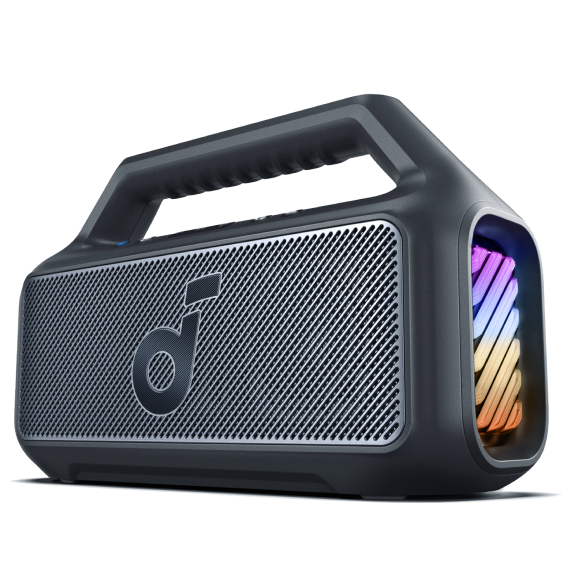
soundcore Rave 3S – High-Power Party Speaker
The soundcore Rave 3S is designed for users who want powerful sound coverage at parties, events and outdoor gatherings. With PartyCast support, compatible soundcore speakers can be connected together to create a larger audio setup without complicated Bluetooth configurations.
- 200W max output power for powerful, room-filling sound
- AI-powered vocal enhancement to make voices clearer during karaoke and parties
- PartyCast support for connecting multiple compatible soundcore speakers
- Long-lasting battery life for extended entertainment sessions
- Dynamic lighting effects to create a more immersive party atmosphere
For anyone looking to connect multiple Bluetooth speakers for celebrations or larger spaces, the Rave 3S provides the power and flexibility needed for bigger sound.

soundcore Boom 2 Plus – Portable Bass Speaker for Outdoor Entertainment
The soundcore Boom 2 Plus The soundcore Boom 2 Plus is built for outdoor listening, combining strong bass performance with a portable and durable design. It supports PartyCast, allowing users to expand their setup by pairing compatible soundcore speakers together.
- 140W max output power for powerful outdoor sound
- BassUp™ 2.0 technology for deeper, more impactful bass
- IPX7 waterproof protection for outdoor adventures and poolside use
- Up to 20 hours of playtime for longer trips and gatherings
- PartyCast support for multi-speaker setups
If you enjoy outdoor parties, camping, or garden gatherings, the Boom 2 Plus makes it simple to create a wider sound experience by pairing compatible speakers.

The table below compares the key features of these recommended speakers to help you choose the right option for your listening needs.
|
Model |
Best For |
Stereo Pairing |
PartyCast |
|
Rave 3S |
Parties and events |
✓ |
✓ |
|
Boom 2 Plus |
Outdoor entertainment |
✓ |
✓ |
Whether you're hosting a party or enjoying music outdoors, choosing speakers with built-in multi-speaker features makes pairing simpler and delivers a more immersive listening experience.
Conclusion
There are several ways to connect 2 Bluetooth speakers, whether your device supports Dual Audio, your speakers offer True Wireless Stereo (TWS) or Party Mode, or you're using built-in tools on Windows or Mac. The best method depends on your phone, computer and speaker features, but choosing compatible speakers can make the setup process much simpler while delivering a more immersive listening experience.
Ready to create a bigger, more immersive sound setup? Explore soundcore Bluetooth speakers with PartyCast and stereo pairing support to build your ideal multi-speaker experience.
FAQs
Can I connect 2 Bluetooth speakers to one phone?
Yes, you can connect 2 Bluetooth speakers to one phone if your device or speakers support the feature. Some Samsung Galaxy phones offer Dual Audio, while many Bluetooth speakers use True Wireless Stereo (TWS) or Party Mode to pair two compatible speakers. The available method depends on your phone and speaker model.
How do I connect multiple Bluetooth speakers?
To connect multiple Bluetooth speakers, first check whether your speakers support TWS, Party Mode or a companion app. Pair one speaker with your phone, then follow the manufacturer's instructions to link the second speaker. Some devices, such as select Samsung Galaxy phones, also support Dual Audio for simultaneous playback.
Why won't my Bluetooth speakers connect together?
Bluetooth speakers may fail to connect if they don't support multi-speaker pairing, are running outdated firmware or are already connected to another device. Make sure both speakers are compatible with TWS or Party Mode, fully charged and within Bluetooth range before trying again.
Can I connect two different brands of Bluetooth speakers?
In most cases, no. Multi-speaker features such as TWS and Party Mode are typically designed to work between compatible speakers from the same brand or product line. While some third-party apps or newer Bluetooth technologies may allow broader compatibility, the best performance usually comes from using matching speakers.


