






Can I Connect a Bluetooth Speaker to My Firestick: A Simple Guide
If your TV sounds thin or dialogue gets lost during films, a portable speaker can be an easy upgrade without changing your whole setup. If you’re asking, “Can I connect a Bluetooth speaker to my Firestick?”, the answer is yes on compatible Fire TV Stick models.
Pairing only takes a few steps, and once connected, your Fire TV audio plays through the speaker instead of relying on the TV’s built-in speakers. This guide walks through the setup, what to do if the sound lags behind the picture, common connection fixes, and what to look for in a speaker for everyday streaming.

Quick Answer: Connecting a Bluetooth Speaker to Your Fire Stick
Yes. Compatible Fire TV Stick models can pair with Bluetooth speakers, so you can send streaming audio wirelessly to an external speaker. Amazon UK’s Fire TV device guidance lists Bluetooth speaker support on current Fire TV Stick 4K models.
The exact menus can vary slightly by model and Fire OS version, but the basic process is straightforward.
- Go to Settings: Open Controllers & Bluetooth Devices.
- Add the speaker: Choose Other Bluetooth Devices, then Add Bluetooth Devices.
- Pair and test: Put the speaker into pairing mode, select it on screen, then play a short video to confirm the audio is coming through.
What You Need Before You Start
A quick check before pairing prevents most of the usual connection problems. You do not need any special Bluetooth adapter if your Fire TV Stick model already supports Bluetooth audio.
- A compatible Fire TV Stick: Make sure the device is powered, connected to your TV and online.
- Your Fire TV remote: You will use it to open the Bluetooth settings and select the speaker.
- A charged Bluetooth speaker: Keep it within a few metres of the TV during the first pairing.
- Pairing mode switched on: The exact button sequence varies by speaker, so use its manual if the Bluetooth indicator is not flashing.
- No competing connection: If the speaker keeps reconnecting to a phone, tablet or laptop, disconnect that device first so the Fire TV Stick can find it cleanly.
How to Connect a Bluetooth Speaker to Your Fire Stick Step by Step
Once the speaker is ready, the setup normally takes only a minute or two. The route below follows the Bluetooth menu used in Amazon’s current UK Fire TV guidance for Fire TV Stick and Fire TV Cube devices.
1. Navigating to Bluetooth Settings
Start from the Fire TV home screen with your remote to hand.
- Press the Home button, move to the top menu, and open Settings.
- Select Controllers & Bluetooth Devices.
- Choose Other Bluetooth Devices, then Add Bluetooth Device.
The Fire Stick now scans for nearby devices and lists them on screen.
2. Pairing and Confirming the Connection
With the scan running, turn the speaker on and press its Bluetooth or pairing button until the indicator shows it is discoverable. Its name should appear in the Fire TV list after a few seconds. Select it with the remote and wait for the connection confirmation.
If the speaker does not appear, disconnect it from any phone or laptop it was using and scan again.
3. Play Something and Check the Audio
Open a streaming app and play a short clip with clear dialogue. The sound should now come through the Bluetooth speaker. Set a comfortable level using the speaker’s own volume controls first.
Depending on the Fire TV model, remote and connected audio device, the Fire TV volume buttons may not control every generic Bluetooth speaker in the same way, so the speaker controls remain the most reliable fallback.
Why Is There Audio Delay When Using a Bluetooth Speaker?
A small delay can happen because Bluetooth audio has to be encoded, transmitted, buffered and decoded before it reaches the speaker.
Music may sound completely normal, but films, live sport and close-up dialogue make even a short lip-sync mismatch much easier to notice. The good news is that Fire TV includes a built-in adjustment for this on supported devices.
- Start with AV Sync Tuning. Go to Settings > Display & Audio > Audio > AV Sync Tuning. Move the slider until the on-screen flash and tone line up. This is the first setting to try if speech looks slightly ahead of or behind the picture.
- Keep the speaker reasonably close: A strong, unobstructed Bluetooth link helps avoid dropouts and extra instability.
- Use a wired fallback if sync is critical: If your TV has a compatible audio output and your speaker has AUX-in, a wired TV-to-speaker connection can be more predictable for dialogue-heavy films or live sport.
Troubleshooting: Speaker Not Showing Up or Connection Dropping
Most pairing problems come down to discoverability, an old connection taking priority, or the devices simply needing a fresh start. Work through the fixes below from the simplest to the more disruptive steps.
- The speaker does not appear: Put it back into pairing mode and make sure it is not already connected to another phone, tablet or computer.
- The Fire TV can see it but will not connect: Remove or forget the speaker from the Fire TV list, restart both devices and pair again from scratch.
- Audio drops out: Move the speaker closer to the TV area and remove large obstacles between the speaker and Fire TV Stick.
- The connection is unstable after a while: Make sure the speaker has enough charge and update its firmware through the manufacturer’s app if an update is available.
- Audio works but is out of sync: Use Fire TV’s AV Sync Tuning rather than repeatedly re-pairing the speaker.
- Nothing changes after re-pairing: Restart the Fire TV from Settings > My Fire TV > Restart, then try the connection again.
Can You Use TV Speakers and a Bluetooth Speaker at the Same Time?
For a standard Fire TV Stick Bluetooth connection, the practical expectation is that audio is routed to the paired Bluetooth device rather than duplicated through the TV speakers at the same time. Fire TV itself is not designed as a generic dual-output splitter for a TV speaker plus a separate Bluetooth speaker.
If simultaneous playback is important, check the television’s own audio-output settings. Some TVs have manufacturer-specific options for playing through more than one output, while others switch off the internal speakers as soon as an external audio device is selected. In that case, the limitation comes from the TV and audio routing, not from the Bluetooth speaker.
How to Disconnect or Switch Bluetooth Speakers
Switching audio back to the TV or moving to another speaker takes only seconds.
- To disconnect, simply switch the speaker off; the Fire Stick returns audio to the TV.
- To remove it for good, go to Settings > Controllers & Bluetooth Devices > Other Bluetooth Devices, highlight the speaker, and select the unpair option.
- To switch speakers, unpair or switch off the current one, then pair the new speaker using the same steps as before.
The Fire Stick keeps several devices in memory, so you can rotate between them without starting over each time.
Recommended Bluetooth Speakers for Fire TV Streaming
If you want a Bluetooth speaker that can do more than sit beside the TV, these two options cover very different uses: one is built for big home-entertainment scale, while the other is easier to carry between rooms and outdoors.
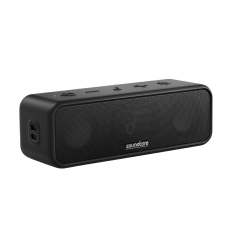
soundcore Rave 3S
For larger living rooms, film nights and home parties, the soundcore Rave 3S is the more cinematic choice. Its 200W output gives action scenes and music far more scale than built-in TV speakers, while the AUX input gives you a useful, wired fallback from a compatible TV if Bluetooth lip-sync is not quite right. It also doubles as a full party and karaoke speaker when the screen goes off.
Best for: Larger rooms, family film nights, backyard movie setups and households that want one speaker for TV audio, music and karaoke.
Here is what you can expect in everyday use:
- 200W output with a 6.5-inch woofer and three 2.5-inch full-range drivers: adds the scale and bass impact that helps films, concerts and party playlists feel more substantial in a larger room.
- Bluetooth 5.3 plus AUX input: gives you wireless convenience for Fire TV listening and a wired TV-to-speaker option when you want a more predictable sync path.
- Customised Pro EQ and BassUp: lets you reshape the sound for the content, whether you want more impact for an action film or a more balanced presentation for everyday viewing.
- Up to 12 hours of playtime: covers long film sessions or an evening party without needing the speaker to stay plugged in.

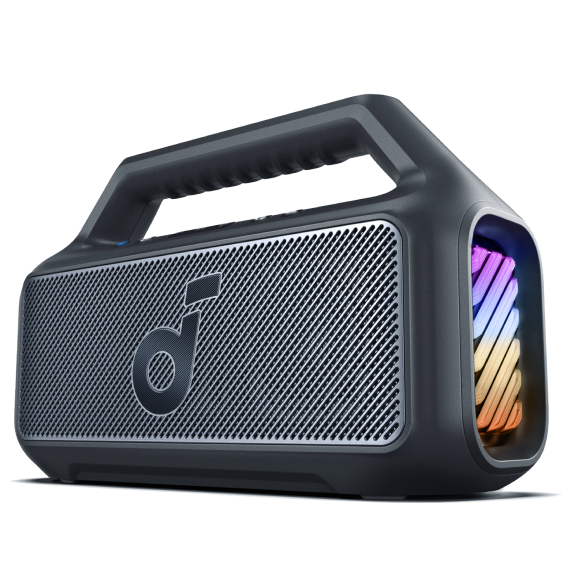
soundcore Boom 2 Plus
If you want Fire TV audio that can move from the living room to the garden, the soundcore Boom 2 Plus is the more flexible pick.
It reaches up to 140W with BassUp 2.0, but its bigger advantage is portability: a carry-friendly design, up to 20 hours of playtime and IPX7 waterproofing make it useful well beyond the TV. AUX-in also gives you a wired option from a compatible television when you prefer that route for video.
Best for: People who want one powerful speaker for Fire TV, garden listening, weekends away and outdoor gatherings. It suits homes where the speaker is likely to move around rather than stay permanently beside the television.
Here is what you can expect in everyday use:
- 100W standard output, up to 140W with BassUp 2.0: provides enough headroom for larger rooms and outdoor listening without needing to keep the volume near maximum.
- Dual 50W woofers and dual 20W tweeters: separate low and high frequencies more clearly, helping sound stay fuller and less congested when films or music get busy.
- Bluetooth 5.3, SBC/AAC support and AUX-in: gives you flexible wireless playback plus a wired fallback; the codec support is useful for compatibility, but it should not be treated as a guarantee of zero lip-sync delay.
- Up to 20 hours of playtime: is useful if the speaker moves between TV viewing, garden music and a full day out. Actual runtime varies with volume, BassUp and lighting.
- IPX7 waterproof and floatable design: makes it a practical choice around the garden, pool or unpredictable UK weather once you are finished watching indoors.

Conclusion
So, can I connect a Bluetooth speaker to my Firestick? On compatible Fire TV Stick models, yes - and the setup is usually quick. Pair the speaker from the Bluetooth device menu, test a dialogue-heavy clip, then use AV Sync Tuning if the picture and sound do not quite match.
For a permanent TV setup, prioritise clear sound and a wired fallback. If you also want music around the house or garden, portability, battery life and weather resistance become more important. The right speaker should make Fire TV sound better without making the setup more complicated.
FAQs
How to control volume of Bluetooth speaker connected to Firestick?
Once your speaker is paired, use the volume buttons on your Fire TV remote to raise or lower the sound; they control the connected Bluetooth speaker directly. You can also adjust the volume on the speaker itself. If the levels feel off, set the speaker to mid-level first, then fine-tune with the remote for balanced, comfortable output.
Why won’t my soundbar work with my Firestick?
Most soundbars connect to your TV, not the Fire Stick, so they use the TV's audio output rather than Bluetooth. A Fire Stick pairs with only one Bluetooth audio device at a time and cannot split sound to a wired soundbar as well. Connect the soundbar through your TV's HDMI ARC or optical port, then set the TV as the audio source.
Does Amazon Fire Stick have Bluetooth audio?
Yes. Every current Amazon Fire TV Stick supports Bluetooth audio output, letting you stream sound to wireless speakers, headphones, or earbuds. You pair a device under Settings, then Controllers & Bluetooth Devices, then Other Bluetooth Devices. Once connected, the Fire Stick sends all audio to that device automatically and reconnects to it whenever both are powered on.


