








How to Put Earbuds in Pairing Mode: A Complete Guide
Many newer smartphones no longer feature a 3.5 mm headphone jack, which may leave you feeling compelled to switch to wireless Bluetooth earbuds—whether in-ear, open-ear, or canal-type models. But can anyone simply connect Bluetooth earbuds and start listening to music straight away, or is this a task reserved for tech-savvy individuals? The good news is that using Bluetooth earbuds is remarkably straightforward. And we are happy to explain everything to you.
How to Put Bluetooth Earbuds in Pairing Mode
If you are unsure how to connect wireless earbuds to your smartphone, do not worry—we will explain everything.
To connect Bluetooth earbuds:
- Remove the earbuds from the case.
- Hold the power button until the LED starts flashing.
- Open the charging case.
- Remove the earbuds from the case and place them back inside.
- Press the pairing button on the charging case.
- Press the pairing button on the earbuds.
How to Connect Wireless Earbuds to TV, Laptop, or Phone?
The specific buttons (and how long to hold them) vary depending on the earbud model, but the method for entering pairing mode is usually as follows:
Go to your phone's settings and select the Bluetooth menu. Check that Bluetooth is activated.
Next, switch the earbuds to pairing mode. If you are unsure which button to press, consult the user manual. Typically, the power button also serves as the Bluetooth button, though there may be a separate button.
Once switched on, most earbuds automatically enter pairing mode.
Press and hold the pairing button for a few seconds, and the LED lights on the earbuds should start flashing, signalling readiness to connect to your phone or other device.
Return to your phone—the earbud name should appear in the list of available devices in the Bluetooth menu. Simply select it, and the connection will be established within seconds.
If it does not work the first time, try again (although this is usually unnecessary).
Precautions When Connecting Bluetooth Earbuds
Your earbuds may not have appeared on the list because manufacturers sometimes give them difficult-to-decipher names, such as abbreviations, codes, or very generic terms that include the company name but not the model.
Other devices available for pairing may appear on the list, such as a computer or phone belonging to someone nearby. The connection will only be established with the device you select.
Earbuds Pairing Troubleshooting Checklist
If your earbuds won't enter pairing mode or appear in your Bluetooth list, work through these steps:
- Clear old pairing records — Go to your device's Bluetooth settings and "Forget" or "Unpair" the earbuds. Corrupted bond records are the #1 cause of pairing failures.
- Check battery level — Earbuds with low battery may power on but lack the energy to broadcast discovery signals. Ensure both earbuds and the case have adequate charge.
- Eliminate interference — Bluetooth operates at 2.4 GHz, the same frequency as Wi-Fi, microwaves, and other wireless devices. Move away from potential sources of interference during pairing.
- Resolve TWS sync conflicts — If only one earbud appears, the left-right sync may be broken. Place both earbuds back in the case, close the lid for 10 seconds, then reopen.
- Factory reset — Hold the setup button on the charging case for 10–15 seconds until the LED flashes amber then white. This erases all bonding data and restores factory defaults.
- Update firmware — Use the soundcore app to check for firmware updates. Firmware bugs can cause pairing mode to malfunction even when hardware is functioning correctly.
Which Bluetooth Earbuds Should You Choose
Once the devices are paired, you can start listening to music immediately. From the earbuds themselves, you will be able to adjust the volume, skip to the next track, and play music. Most models also support voice assistant functionality.
If you do not yet own your own earbuds, it is worth considering Bluetooth models from soundcore. They are characterised by excellent sound quality, and switching to pairing mode is truly simple and takes only a moment.
soundcore Space A40
This earbud model enables easy switching between music playback, phone calls, and other activities thanks to the ability to connect to two Bluetooth devices simultaneously. With transparency mode, you do not lose contact with your surroundings during use. The charging case for the Space A40 wireless noise-cancelling earbuds supports both wireless charging and USB-C charging.
soundcore Liberty 4 Pro
The soundcore Liberty 4 Pro model uses seven sensors to detect noise from all directions, providing up to three times more effective noise cancellation. These earbuds generate rich, nuanced hi-fi sound, ideal for listening to music, podcasts, and watching films. The case is equipped with a touch panel that allows easy adjustment of the noise cancellation level. Additionally, the earbuds support fast charging—just five minutes of charging provides up to four hours of playback.
soundcore C40i
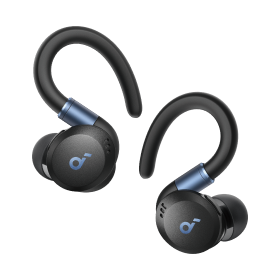
The soundcore C40i earbuds feature an open-ear design that sits comfortably outside the ear canal, allowing you to stay aware of your surroundings whilst enjoying your audio. With Bluetooth 5.3 connectivity, they provide a stable and reliable wireless connection. The lightweight design ensures comfort during extended wear, making them ideal for daily commutes, workouts, or casual listening.
Conclusion
If you are having trouble pairing your earbuds, there are several methods you can try to restore their functionality. For Android phones, you can reset Bluetooth in the settings menu. For iOS or iPadOS devices, you may need to restart your phone or tablet to disconnect all paired devices. If that does not help, try resetting the earbuds.
If your current pair is worn out or you do not yet own any earbuds, it is worth considering soundcore wireless Bluetooth earbuds, which offer excellent sound quality and long battery life.
Frequently Asked Questions About Putting Earbuds in Pairing Mode
Why won't my earbuds connect?
This problem may occur because the earbuds are out of range or not in pairing mode. To properly pair your earbuds, ensure they are near the device and switched to pairing mode according to the manufacturer's instructions—usually by holding the appropriate button. If pairing issues persist, resetting the earbuds may be necessary.
How do I reset Bluetooth earbuds?
First, make sure the earbuds are switched off. If they are not, hold the power button until they turn off. Once they are off, hold the power button for about 10 seconds. This will activate pairing mode on the earbuds.
Next, open the settings menu on your phone or other device and select "Bluetooth", then select your earbuds from the list of available devices. If everything goes smoothly, the earbuds should pair with your device.
How do I make my earbuds discoverable?
After placing the earbuds in your ears, close the charging case. Open it again after 5–6 seconds. The earbuds will automatically enter Bluetooth pairing mode. If they are already paired with another device, place them in your ears and hold the touch panels for a moment to activate pairing mode.


