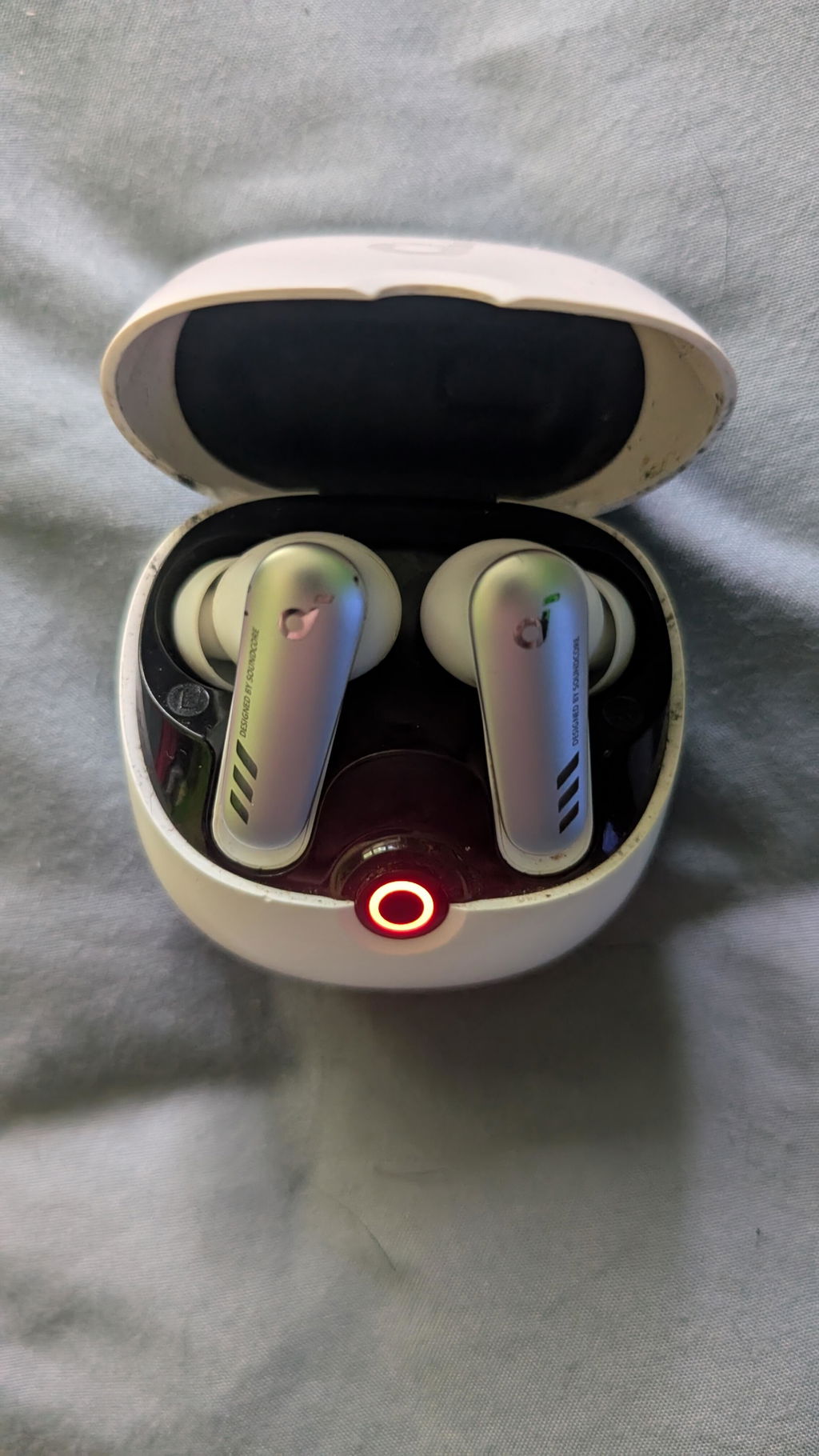
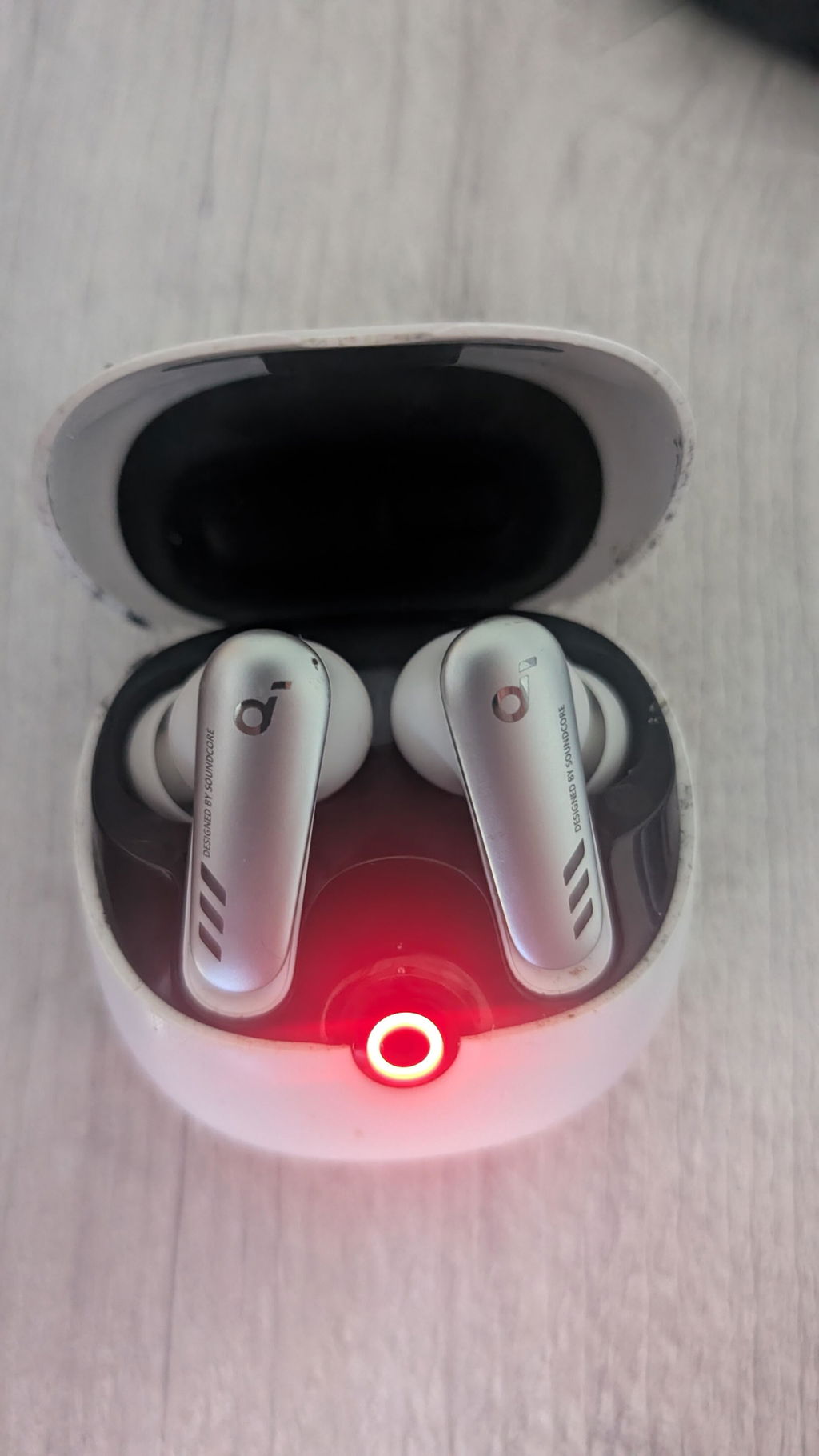
VR P10 | Wireless Gaming Earbuds
True-Wireless Earbuds for Meta Quest 2
Color
-
Made for Meta Quest 2
-
Multi-Platform compatibility
- Seamless gameplay with <30ms low latency
- 2.4GHz high-speed wireless connection
- LC3 codec for fast audio transfer
- Simultaneous Bluetooth and dongle connection
- Thumping sound with 11mm driver and BassUp™️
- Unlimited playtime with pass-through charging
Shipping Info
Standard Shipping
Place your order now for estimated delivery within 3-7 business days.
Free
Next-Day Shipping
Place your order now for estimated delivery 1-2 business days.
$9.99
Members only
Express Shipping
Place your order now for estimated delivery within 1-3 business days.
$6.99
Members only
See available shipping areas here.
Express shipping is only available to registered users who are logged in.
Services and benefits
Want More Perks?
1. Priority Shipping2. Member Pricing on Selected Products 3. Birthday Gift4. Unlock Benefits with soundcoreCredits Learn More
30 Days Price Match
Payment Method
Delivery Method

VR P10 | Wireless Gaming Earbuds
Sold Out


FAQ
How-To Videos
Operation
When you turn the earbuds on: there is no battery voice prompt
Low battery: when the battery is at 10%, there will be a voice prompt every 15 mins.
The gap on the back of the charging case is designed to ensure the smooth opening and closing of the case.
1. Put both earbuds back into the charging case with the charging case open.
2. Press and hold the button on the charging case for more than 10 seconds until the indicator light on the charging case turns red and flashes 3 times, which means that VR P10 has been successfully reset.
Put the earbuds back into the charging case with the case closed, soundcore VR P10 will automatically turn off and disconnect from Bluetooth.
Yes, you can use soundcore VR P10 in PCVR by using a Link Cable, but there are two simple steps you need to follow, which is also shown in the quick-start guide:
1. Do not plug the Link Cable to the USB-C port directly, it does not support data transfer. Please plug the dongle into the USB-C or USB-A port (by using a USB-A to USB-C adapter) on your PC instead of your VR headset.
2. Connect the Link Cable from another USB-C port on your PC to your VR headset and choose the audio output as VR P10.
1. Do not plug the Link Cable to the USB-C port directly, it does not support data transfer. Please plug the dongle into the USB-C or USB-A port (by using a USB-A to USB-C adapter) on your PC instead of your VR headset.
2. Connect the Link Cable from another USB-C port on your PC to your VR headset and choose the audio output as VR P10.
Yes, you can. Just remove one earbud from the charging case to use. If you are using two earbuds, you can put one earbud into the charging case and continue using the other one on its own
Please note: pairing, resetting, custom EQ, and other operations cannot be performed while only one earbud is being used.
soundcore VR P10 does not support volume adjustment by default, but you can adjust the button function in the soundcore app with the following steps:
1) Go to the Apple app store or Google Play to download the soundcore app.
2) Pair your device with soundcore VR P10.
3) Open the soundcore app to connect with soundcore VR P10.
4) Select "Controls".
5) Customize the controls according to your preferences.
Note:
1. Single customized controls are not available when using a single earbud.
2. In the mixcall state, the volume of the dongle cannot be adjusted with soundcore VR P10, but you can manually adjust the device volume themselves.
2. When connected to PS5, the volume cannot be adjusted (PS5 does not support third-party devices to adjust the volume).
3. Some mobile phones and computers do not support volume adjustment due to system compatibility issues.
1) Go to the Apple app store or Google Play to download the soundcore app.
2) Pair your device with soundcore VR P10.
3) Open the soundcore app to connect with soundcore VR P10.
4) Select "Controls".
5) Customize the controls according to your preferences.
Note:
1. Single customized controls are not available when using a single earbud.
2. In the mixcall state, the volume of the dongle cannot be adjusted with soundcore VR P10, but you can manually adjust the device volume themselves.
2. When connected to PS5, the volume cannot be adjusted (PS5 does not support third-party devices to adjust the volume).
3. Some mobile phones and computers do not support volume adjustment due to system compatibility issues.
1. Check whether the mic function is turned off in the app. If it is off, turn on the mic function before making a call.
2. Put the earbuds back into the charging case and close the case, then take them out again again and try making another call.
3. Reset soundcore VR P10, reconnect it, and then try making a call.
4. Choose soundcore VR P10 on your phone as the sound output if you pick up the call via the phone instead of the earbuds directly.
2. Put the earbuds back into the charging case and close the case, then take them out again again and try making another call.
3. Reset soundcore VR P10, reconnect it, and then try making a call.
4. Choose soundcore VR P10 on your phone as the sound output if you pick up the call via the phone instead of the earbuds directly.
1. Use the earbuds regularly to avoid over-discharge, which can harm the battery life of the earbuds. We recommend using soundcore VR P10 at least once a month.
2. Charge the earbuds after you use them. To improve the battery's lifespan, don't wait until there's less than 20% power remaining to charge them.
3. Open the lid of the charging case at least once a month to ensure the earbuds are still working. Charge the charging case at least once a month.
4. Regularly clean the charging pins on the earbuds and charging case.
5. Keep the ear tips clean, and regularly clean the metal mesh filter under the rubber ear tips with a bit of rubbing alcohol.
2. Charge the earbuds after you use them. To improve the battery's lifespan, don't wait until there's less than 20% power remaining to charge them.
3. Open the lid of the charging case at least once a month to ensure the earbuds are still working. Charge the charging case at least once a month.
4. Regularly clean the charging pins on the earbuds and charging case.
5. Keep the ear tips clean, and regularly clean the metal mesh filter under the rubber ear tips with a bit of rubbing alcohol.
Specifications and Compatibility Related
Bluetooth: SBC, AAC
Dongle: LC3
Dongle: LC3
soundcore VR P10 is IPX4 water resistant.
The charging case is not waterproof.
No, it doesn't.
No, it doesn't.
Yes, soundcore VR P10 works with PS4, PS5, Steam deck, Switch and PC.
Please note: You need to use a USB-C to USB-A converter when connecting to a PS4.
No, soundcore VR P10 does not work with Xbox.
Indicator Light Related
You can turn on/off/change the light effect through the soundcore app.
Pair your soundcore VR P10 with both your phone and the soundcore app, click the "light effect" option, there will be 3 modes:
Breathing mode: the light on the earbuds will mimic a breathing effect.
Light On mode: the light on the earbuds will always be on.
Battery Saving mode: the light on the earbuds will be off.
You can also choose the color of the light on Breathing mode and Light On mode.
Please note:
1. The light effects are only for the earbuds and dongle, not for the charging case.
2. The light on the dongle will have the same light effect as the earbuds.
3. When the earbuds are in Battery Saving mode, the dongle light will always be the color of the last setting by default.
Pair your soundcore VR P10 with both your phone and the soundcore app, click the "light effect" option, there will be 3 modes:
Breathing mode: the light on the earbuds will mimic a breathing effect.
Light On mode: the light on the earbuds will always be on.
Battery Saving mode: the light on the earbuds will be off.
You can also choose the color of the light on Breathing mode and Light On mode.
Please note:
1. The light effects are only for the earbuds and dongle, not for the charging case.
2. The light on the dongle will have the same light effect as the earbuds.
3. When the earbuds are in Battery Saving mode, the dongle light will always be the color of the last setting by default.
Yes, when the battery is low, the light on the earbuds will flash red three times.
When the charging case is being charged, it will breathe purple light. The purple light will stay on when fully charged.
Purple color: Still has power.
Red color: Low battery.
Yes, turning on the light effect will reduce the battery life by about half an hour.
Battery and Bluetooth Related
Play time: About 6 hours at 60% volume.
Talk time: About 4 hours.
It can recharge the earbuds 3 times if it is fully charged.
Yes, the earbuds themselves support fast charging. You can charge for 10 minutes, and listen for 1.5 hours.
The charging case does not support fast charging.
No, it doesn't.
1. The power supply of the dongle comes from Meta Quest 2, but the power consumption of the dongle is very low . The power consumption is equivalent to 2.5% or less of the power consumption of Meta Quest 2 itself, so it will not affect the battery life.
2. If you are still worried about it affecting the battery life, the dongle itself supports pass-through charging, so you can charge Meta Quest 2 with the original charging cable while using the dongle.
If the earbuds cannot be charged:
1. Confirm whether the charging case has enough battery to charge the earbuds.
2. Confirm whether the charging pins on the earbuds have good contact with the charging pins on the charging case. Try and clean the charging pins with rubbing alcohol.
If the charging case cannot be charged:
1. Confirm whether there is anything obstructing the USB-C port such as dust or water. When charging, try and keep the area around the USB-C port clean and dry to avoid any obstruction.
2. Try charging the case with a different charging cable.
1. Confirm whether the charging case has enough battery to charge the earbuds.
2. Confirm whether the charging pins on the earbuds have good contact with the charging pins on the charging case. Try and clean the charging pins with rubbing alcohol.
If the charging case cannot be charged:
1. Confirm whether there is anything obstructing the USB-C port such as dust or water. When charging, try and keep the area around the USB-C port clean and dry to avoid any obstruction.
2. Try charging the case with a different charging cable.
1. Remove the protective film covering the charging pins on the earbuds.
2. Try charging the case first to ensure it has power left.
3. Then, put both earbuds into the charging case with the case closed for about 1 hour.
4. Open the charging case to see if the earbuds turn on again.
2. Try charging the case first to ensure it has power left.
3. Then, put both earbuds into the charging case with the case closed for about 1 hour.
4. Open the charging case to see if the earbuds turn on again.
Bluetooth 5.2
About 5 Bluetooth devices.
Bluetooth mode: 10m / 33ft
Dongle mode: 6m / 19ft
No, it doesn't, but it supports connection to one Bluetooth device and the dongle at the same time.
About 30ms (low-latency needs to be used with dongle).
soundcore VR P10's low-latency mode only supports dongle connection, so please use the dongle to improve user experience.
- Ensure that you have removed the protective film covering the connectors on the earbuds.
- Reset the earbuds using the following steps:
1. Put both earbuds back into the charging case with the charging case open.
2. Press and hold the button on the charging case for more than 10 seconds until the indicator light on the charging case turns red and flashes 3 times, which means that VR P10 has been successfully reset.
- Please try with another device (phone/tablet/etc.) and see if the issue is the same.
- Reset the earbuds using the following steps:
1. Put both earbuds back into the charging case with the charging case open.
2. Press and hold the button on the charging case for more than 10 seconds until the indicator light on the charging case turns red and flashes 3 times, which means that VR P10 has been successfully reset.
- Please try with another device (phone/tablet/etc.) and see if the issue is the same.
Dual-Connection&Pass-Through Charging Related
Dual-Connection means that you can connect soundcore VR P10 with both a Bluetooth device and a dongle at the same time.
1. If the dongle is not connected:
After soundcore VR P10 is successfully connected to a Bluetooth device such as a phone, plug the dongle into a host device such as a computer or a VR device, the dongle will then automatically connect to soundcore VR P10.
2. If the dongle is connected:
- Put the earbuds back into the charging case with the case open, press and hold the button on the back of the charging case for 3s until the indicator on the charging case displays a breathing blue light which indicates that soundcore VR P10 is in the pairing state (the dongle will be disconnected at this time).
- Search for soundcore VR P10 on your Bluetooth settings, then click "Connect".
- After soundcore VR P10 has successfully connected to Bluetooth, it will automatically reconnect to the dongle.
- If the dongle has not reconnected, please close and reopen the charging case again.
After soundcore VR P10 is successfully connected to a Bluetooth device such as a phone, plug the dongle into a host device such as a computer or a VR device, the dongle will then automatically connect to soundcore VR P10.
2. If the dongle is connected:
- Put the earbuds back into the charging case with the case open, press and hold the button on the back of the charging case for 3s until the indicator on the charging case displays a breathing blue light which indicates that soundcore VR P10 is in the pairing state (the dongle will be disconnected at this time).
- Search for soundcore VR P10 on your Bluetooth settings, then click "Connect".
- After soundcore VR P10 has successfully connected to Bluetooth, it will automatically reconnect to the dongle.
- If the dongle has not reconnected, please close and reopen the charging case again.
Bluetooth priority is the highest, so notifications on the Bluetooth device will interrupt the current working state of dongle.
This design is to ensure that the phone, information, etc. on the Bluetooth side will not be missed in dual-connection mode.
- When Dual-Connection is enabled, the priority of music and calls is mainly for the Bluetooth device, not the dongle. So if you receive text messages, message prompts or calls on the Bluetooth device such as your phone, all of these will interrupt the working status of the dongle. After the text messages or calls have ended, it will automatically switch back to the dongle state.
- If you don't want to be interrupted, we recommend that you set the mobile phone to silent or vibrate mode.
- Please also note some Samsung and other Android phones will not be able to avoid this situation.
- If you don't want to be interrupted, we recommend that you set the mobile phone to silent or vibrate mode.
- Please also note some Samsung and other Android phones will not be able to avoid this situation.
- Please note after the music on the computer is paused, the audio will continue to play for about 30s, which will occupy the output of the dongle. Therefore, after the music on the Bluetooth side is paused, it will be taken over by the audio stream from the computer, resulting in the next double-tap playing music on the computer.
- If you want to avoid this, you can try pausing the music on the computer and waiting for 30s, and then try using the pause/play function for the Bluetooth device.
- Currently, this function is only compatible with Quest 2.
- Other consoles or mobile phones may have compatibility issues and therefore cannot use this function.
- If you want to charge other devices, please use a dedicated charging cable to charge them.
- Other consoles or mobile phones may have compatibility issues and therefore cannot use this function.
- If you want to charge other devices, please use a dedicated charging cable to charge them.
- The pass-through charging function only supports the original Quest 2 charger and charging cable.
When using pass-through charging to charge Quest 2, it can only be charged to about 80%.
This is because Quest 2 will automatically reduce the charging current at a higher power level which results in the charging current being equal to the power consumption current.
No, it does not support data transfer, it only supports charging.
Yes, it does.
The official Elite Strap with Battery can charge Quest 2 normally through the dongle, but the battery information of the elite strap cannot be displayed in Quest 2.
Dongle and APP Related
1. Take the earbuds out first, and then take out the dongle.
2. When you put the dongle into the charging case, ensure that the USB-C plug on the dongle is facing up. Put the dongle into the notch inside the case to avoid scratching the earbuds and charging case.
This means if you have more than one dongle for soundcore VR P10, and connect the dongles to different devices, you can use the soundcore app and multiple dongles* to switch between Quest 2, PS4, PS5, PC, and Switch.
Please note soundcore app only supports up to 4 dongles to switch between at the same time.
1. Make sure that the dongle and VR P10 are within the connection range (5m), as many sources may interfere and cause instability when switching the connection between the dongle and headset.
2. Do not make calls or play music when switching between multiple dongles.
It can only connect to one pair of headphones at the same time.
- Ensure the dongle is connected and powered on, please note if the dongle is powered on but not connected, it will display a breathing blue light, and if the dongle is connected, it will display a steady purple light, or the color that you have set for the earbuds through the soundcore app.
- Reset the dongle with the following steps:
1. Connect the dongle to other hosts such as a computer or VR console.
2. Use a pin to press and hold the reset button on the dongle for more than 3 seconds.
3. If the firmware version of the dongle is 01.32, the blue light on the dongle will be on for 1 second and then flash slowly which indicates the reset was successful. If the firmware version of the dongle is above 01.32, the LED indicators on the dongle will flash red 3 times which indicates the reset was successful.
- After these steps, keep the dongle powered on, then put the earbuds into the charging case with the case open, press and hold the button on the back of the charging case for 3 seconds, then soundcore VR P10 will pair with the dongle again.
- The indicator light on the dongle will display a constant purple which indicates the pairing was successful.
Please note a pin is not included in the packaging, you can use a phone sim card pin and other similar tools to do this.
- Reset the dongle with the following steps:
1. Connect the dongle to other hosts such as a computer or VR console.
2. Use a pin to press and hold the reset button on the dongle for more than 3 seconds.
3. If the firmware version of the dongle is 01.32, the blue light on the dongle will be on for 1 second and then flash slowly which indicates the reset was successful. If the firmware version of the dongle is above 01.32, the LED indicators on the dongle will flash red 3 times which indicates the reset was successful.
- After these steps, keep the dongle powered on, then put the earbuds into the charging case with the case open, press and hold the button on the back of the charging case for 3 seconds, then soundcore VR P10 will pair with the dongle again.
- The indicator light on the dongle will display a constant purple which indicates the pairing was successful.
Please note a pin is not included in the packaging, you can use a phone sim card pin and other similar tools to do this.
1. Ensure the dongle is connected to a device and powered on.
2. Then, use a small pin to press the side switch of the dongle, then hold for at least 3 seconds to reset the dongle.
3. If the firmware version of the dongle is 01.32, the blue light on the dongle will be on for 1 second and then flash slowly which indicates the reset was successful. If the firmware version of Dongle is above 01.32, the LED indicators on dongle will flash red 3 times which indicates the reset was successful.
4. After this, the dongle will enter pairing mode.
2. Then, use a small pin to press the side switch of the dongle, then hold for at least 3 seconds to reset the dongle.
3. If the firmware version of the dongle is 01.32, the blue light on the dongle will be on for 1 second and then flash slowly which indicates the reset was successful. If the firmware version of Dongle is above 01.32, the LED indicators on dongle will flash red 3 times which indicates the reset was successful.
4. After this, the dongle will enter pairing mode.
1. Get soundcore VR P10 paired with the phone successfully.
2. Ensure the soundcore app on your phone is the latest version.
3. Quit the soundcore app and then restart the app to see if soundcore VR P10 can be paired with it.
4. Ensure the Bluetooth on your phone is not connected to other devices, such as a smart watch, when you pair soundcore VR P10 with the app.
2. Ensure the soundcore app on your phone is the latest version.
3. Quit the soundcore app and then restart the app to see if soundcore VR P10 can be paired with it.
4. Ensure the Bluetooth on your phone is not connected to other devices, such as a smart watch, when you pair soundcore VR P10 with the app.
Super Hearing is the EQ which optimizes sounds of footsteps and gunshots for shooting games, please note this EQ is not suitable for other types of games as the bass is removed in this mode. It can be toggled on and off through the soundcore app.
- This also called Mixcall.
- When Bluetooth and the dongle are connected to soundcore VR P10 at the same time, you can mix the call, which means you can talk to your friends in a voice chat on discord or a phone call while you are playing games on Quest 2 at the same time.
- When Game and talk is enabled, the music on the dongle side can be heard at the same time during a normal call on the Bluetooth side, the volume from the dongle side will also be reduced to a suitable level, so that it doesn't affect the normal call.
- When Bluetooth and the dongle are connected to soundcore VR P10 at the same time, you can mix the call, which means you can talk to your friends in a voice chat on discord or a phone call while you are playing games on Quest 2 at the same time.
- When Game and talk is enabled, the music on the dongle side can be heard at the same time during a normal call on the Bluetooth side, the volume from the dongle side will also be reduced to a suitable level, so that it doesn't affect the normal call.
- You use it to turn the microphone on soundcore VR P10 on and off.
- If the microphone is toggled off on the soundcore app, the other party will not be able to hear your voice during a game or a call, but it will not affect your ability to hear the other party's voice.
Documents & Drivers