

VR P10 | Wireless Gaming Earbuds
True-Wireless Earbuds for Meta Quest 2
Color

-
Made for Meta Quest 2
-
Multi-Platform compatibility
- Seamless gameplay with <30ms low latency
- 2.4GHz high-speed wireless connection
- LC3 codec for fast audio transfer
- Simultaneous Bluetooth and dongle connection
- Thumping sound with 11mm driver and BassUp™️
- Unlimited playtime with pass-through charging
Standard Shipping
Place your order now for estimated delivery within 3-7 business days.
Free
Next-Day Shipping
Place your order now for estimated delivery within 1-2 business days.
$9.99
Express Shipping
Place your order now for estimated delivery within 1-3 business days.
$6.99
Services and benefits
Payment Method
Delivery Method

Sold Out


Ultra-Low Latency Under 30ms
Enjoy esports-grade low latency that's dramatically lower than other true wireless earbuds.


Answer Calls Mid-Game
Connect to Bluetooth and dongle simultaneously to answer calls without needing to pause gameplay.

Answer Calls Mid-Game
Connect to Bluetooth and dongle simultaneously to answer calls without needing to pause gameplay.


Switch Between Platforms
Use the soundcore app and multiple dongles* to switch between Quest 2, PS4, PS5, PC, and Switch.

Switch Between Platforms
Use the soundcore app and multiple dongles* to switch between Quest 2, PS4, PS5, PC, and Switch.

FAQ
Low battery: when the battery is at 10%, there will be a voice prompt every 15 mins.
1. Put both earbuds back into the charging case with the charging case open.
2. Press and hold the button on the charging case for more than 10 seconds until the indicator light on the charging case turns red and flashes 3 times, which means that VR P10 has been successfully reset.
1. Do not plug the Link Cable to the USB-C port directly, it does not support data transfer. Please plug the dongle into the USB-C or USB-A port (by using a USB-A to USB-C adapter) on your PC instead of your VR headset.
2. Connect the Link Cable from another USB-C port on your PC to your VR headset and choose the audio output as VR P10.
Please note: pairing, resetting, custom EQ, and other operations cannot be performed while only one earbud is being used.
1) Go to the Apple app store or Google Play to download the soundcore app.
2) Pair your device with soundcore VR P10.
3) Open the soundcore app to connect with soundcore VR P10.
4) Select "Controls".
5) Customize the controls according to your preferences.
Note:
1. Single customized controls are not available when using a single earbud.
2. In the mixcall state, the volume of the dongle cannot be adjusted with soundcore VR P10, but you can manually adjust the device volume themselves.
2. When connected to PS5, the volume cannot be adjusted (PS5 does not support third-party devices to adjust the volume).
3. Some mobile phones and computers do not support volume adjustment due to system compatibility issues.
2. Put the earbuds back into the charging case and close the case, then take them out again again and try making another call.
3. Reset soundcore VR P10, reconnect it, and then try making a call.
4. Choose soundcore VR P10 on your phone as the sound output if you pick up the call via the phone instead of the earbuds directly.
2. Charge the earbuds after you use them. To improve the battery's lifespan, don't wait until there's less than 20% power remaining to charge them.
3. Open the lid of the charging case at least once a month to ensure the earbuds are still working. Charge the charging case at least once a month.
4. Regularly clean the charging pins on the earbuds and charging case.
5. Keep the ear tips clean, and regularly clean the metal mesh filter under the rubber ear tips with a bit of rubbing alcohol.
Dongle: LC3
The charging case is not waterproof.
Please note: You need to use a USB-C to USB-A converter when connecting to a PS4.
Pair your soundcore VR P10 with both your phone and the soundcore app, click the "light effect" option, there will be 3 modes:
Breathing mode: the light on the earbuds will mimic a breathing effect.
Light On mode: the light on the earbuds will always be on.
Battery Saving mode: the light on the earbuds will be off.
You can also choose the color of the light on Breathing mode and Light On mode.
Please note:
1. The light effects are only for the earbuds and dongle, not for the charging case.
2. The light on the dongle will have the same light effect as the earbuds.
3. When the earbuds are in Battery Saving mode, the dongle light will always be the color of the last setting by default.
Red color: Low battery.
Talk time: About 4 hours.
The charging case does not support fast charging.
2. If you are still worried about it affecting the battery life, the dongle itself supports pass-through charging, so you can charge Meta Quest 2 with the original charging cable while using the dongle.
1. Confirm whether the charging case has enough battery to charge the earbuds.
2. Confirm whether the charging pins on the earbuds have good contact with the charging pins on the charging case. Try and clean the charging pins with rubbing alcohol.
If the charging case cannot be charged:
1. Confirm whether there is anything obstructing the USB-C port such as dust or water. When charging, try and keep the area around the USB-C port clean and dry to avoid any obstruction.
2. Try charging the case with a different charging cable.
2. Try charging the case first to ensure it has power left.
3. Then, put both earbuds into the charging case with the case closed for about 1 hour.
4. Open the charging case to see if the earbuds turn on again.
Dongle mode: 6m / 19ft
- Reset the earbuds using the following steps:
1. Put both earbuds back into the charging case with the charging case open.
2. Press and hold the button on the charging case for more than 10 seconds until the indicator light on the charging case turns red and flashes 3 times, which means that VR P10 has been successfully reset.
- Please try with another device (phone/tablet/etc.) and see if the issue is the same.
After soundcore VR P10 is successfully connected to a Bluetooth device such as a phone, plug the dongle into a host device such as a computer or a VR device, the dongle will then automatically connect to soundcore VR P10.
2. If the dongle is connected:
- Put the earbuds back into the charging case with the case open, press and hold the button on the back of the charging case for 3s until the indicator on the charging case displays a breathing blue light which indicates that soundcore VR P10 is in the pairing state (the dongle will be disconnected at this time).
- Search for soundcore VR P10 on your Bluetooth settings, then click "Connect".
- After soundcore VR P10 has successfully connected to Bluetooth, it will automatically reconnect to the dongle.
- If the dongle has not reconnected, please close and reopen the charging case again.
This design is to ensure that the phone, information, etc. on the Bluetooth side will not be missed in dual-connection mode.
- If you don't want to be interrupted, we recommend that you set the mobile phone to silent or vibrate mode.
- Please also note some Samsung and other Android phones will not be able to avoid this situation.
- If you want to avoid this, you can try pausing the music on the computer and waiting for 30s, and then try using the pause/play function for the Bluetooth device.
- Other consoles or mobile phones may have compatibility issues and therefore cannot use this function.
- If you want to charge other devices, please use a dedicated charging cable to charge them.
The official Elite Strap with Battery can charge Quest 2 normally through the dongle, but the battery information of the elite strap cannot be displayed in Quest 2.
2. When you put the dongle into the charging case, ensure that the USB-C plug on the dongle is facing up. Put the dongle into the notch inside the case to avoid scratching the earbuds and charging case.
Please note soundcore app only supports up to 4 dongles to switch between at the same time.
2. Do not make calls or play music when switching between multiple dongles.
- Reset the dongle with the following steps:
1. Connect the dongle to other hosts such as a computer or VR console.
2. Use a pin to press and hold the reset button on the dongle for more than 3 seconds.
3. If the firmware version of the dongle is 01.32, the blue light on the dongle will be on for 1 second and then flash slowly which indicates the reset was successful. If the firmware version of the dongle is above 01.32, the LED indicators on the dongle will flash red 3 times which indicates the reset was successful.
- After these steps, keep the dongle powered on, then put the earbuds into the charging case with the case open, press and hold the button on the back of the charging case for 3 seconds, then soundcore VR P10 will pair with the dongle again.
- The indicator light on the dongle will display a constant purple which indicates the pairing was successful.
Please note a pin is not included in the packaging, you can use a phone sim card pin and other similar tools to do this.
2. Then, use a small pin to press the side switch of the dongle, then hold for at least 3 seconds to reset the dongle.
3. If the firmware version of the dongle is 01.32, the blue light on the dongle will be on for 1 second and then flash slowly which indicates the reset was successful. If the firmware version of Dongle is above 01.32, the LED indicators on dongle will flash red 3 times which indicates the reset was successful.
4. After this, the dongle will enter pairing mode.
2. Ensure the soundcore app on your phone is the latest version.
3. Quit the soundcore app and then restart the app to see if soundcore VR P10 can be paired with it.
4. Ensure the Bluetooth on your phone is not connected to other devices, such as a smart watch, when you pair soundcore VR P10 with the app.
- When Bluetooth and the dongle are connected to soundcore VR P10 at the same time, you can mix the call, which means you can talk to your friends in a voice chat on discord or a phone call while you are playing games on Quest 2 at the same time.
- When Game and talk is enabled, the music on the dongle side can be heard at the same time during a normal call on the Bluetooth side, the volume from the dongle side will also be reduced to a suitable level, so that it doesn't affect the normal call.
- If the microphone is toggled off on the soundcore app, the other party will not be able to hear your voice during a game or a call, but it will not affect your ability to hear the other party's voice.
Están muy bien para lo que cuestan, aunque con frecuencia me ha pasado que mis amigos escuchaban ruidos del juego antes que yo por mucho que me subiera el volumen.
Produce Great sound but most importantly no noticeable latency which is the exact reason why I bought these instead of just using my Airpods with my Quest 3, Apart from that they have great battery life and I love that the USB-C Dongle has a pass-through port to charge while i play. Overall I really recommend it
I do have an issue that I cannot source a replacement from Anker after mine failed. They lasted over two years, as long as I would expect from the price point, but now I cannot replace them. I'm not even aware of any way to source parts for it. I'll contact a cell phone repair place and see if they have other ways to source parts, but I'm not holding out hope.
These are my preferred wireless earbuds. They could seamlessly switch between the 2.4 ghz dongle and Bluetooth. Perfect for using with my PC and Quest and phone with a single pair of earbuds. The sound quality was comparable to any high end earbuds I've tried. Only falling slightly short of nice over ear headphones, and still has noise cancelling and passthrough options. Maybe I'll just need to corner the used market to get a stockpile of spare parts.
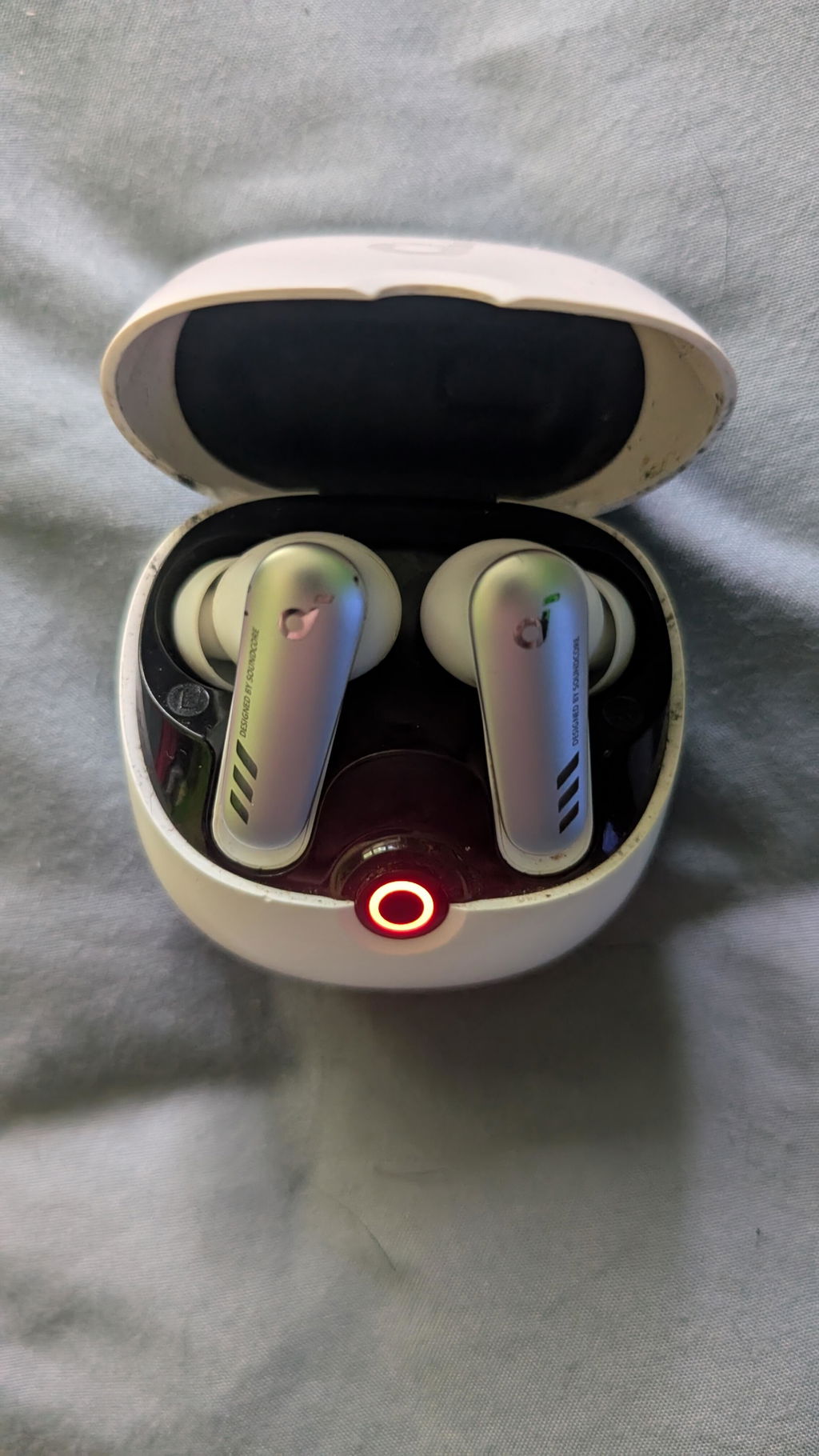
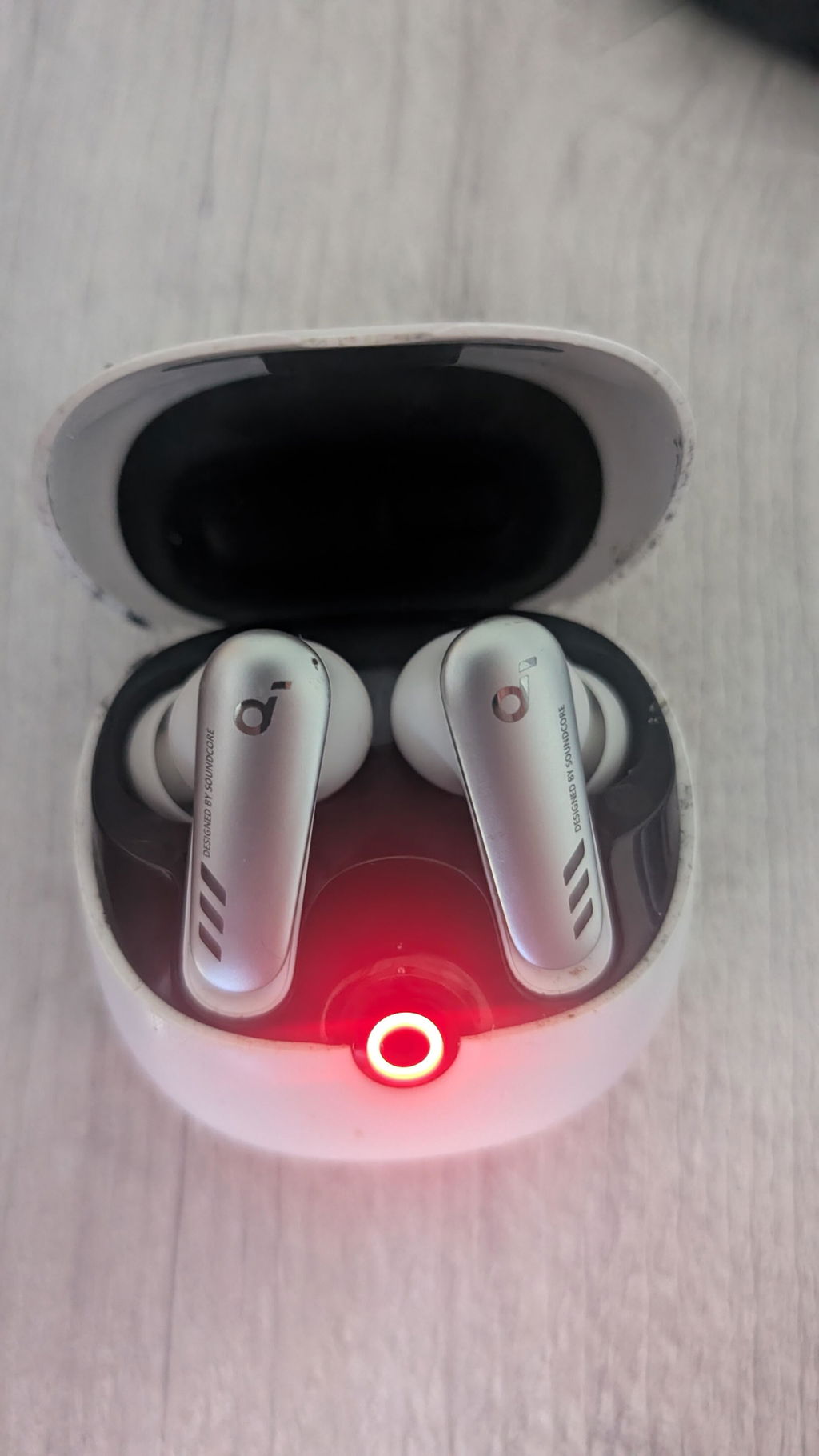
I wanted to know if this would be back in stock or do you have a similar earbud with type c connector
Excelente


