


$35
OFF
soundcore P40i | Smart ANC True-Wireless Earbuds
All-New True-Wireless Earbuds
Color
$79.99

Bulk Headphones, Earbuds, and Speakers for Business >>>>>
-
Smart Noise Cancelling: soundcore P40i noise cancelling earbuds feature adaptive ANC that automatically detects ambient noise and utilizes advanced algorithms to achieve effective noise cancellation, ensuring peace and tranquillity on the go.
-
Long, Powerful Battery Life: Enjoy 12 hours of battery life on a single charge with a case that extends it to 60 hours. That's long enough to last weeks, even a month.
-
Thumping Beats: soundcore P40i wireless earbuds feature 11mm composite drivers for an intensive audio experience, enhanced with BassUp™ technology for real-time intense bass.
-
Superior Call Quality: soundcore P40i noise cancelling earbuds enhanced by 6 mics and an AI algorithm allow you to enjoy clear communication. Whether on a call or via video chat, your voice is transmitted with clarity and strength.
-
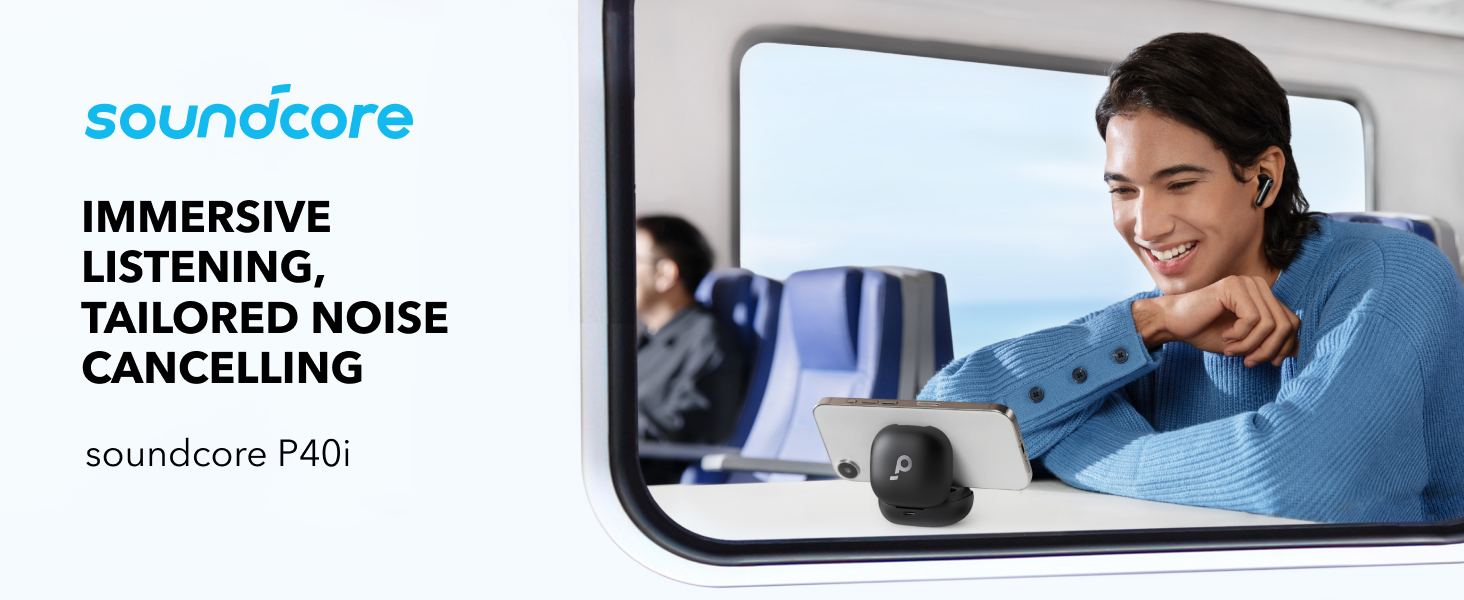
2-in-1 Charging Case and Phone Stand: soundcore P40i wireless earbuds feature a unique charging case, doubling as a phone stand, allowing you to enjoy shows hands-free. This multi-functional design enhances your video experience when you're on the go.
Shipping Info
Standard Shipping
Place your order now for estimated delivery within 3-7 business days.
Free
Next-Day Shipping
Place your order now for estimated delivery within 1-2 business days.
$9.99
Members only
Express Shipping
Place your order now for estimated delivery within 1-3 business days.
$6.99
Members only
See available shipping areas here.
Express shipping is only available to registered users who are logged in.
Services and benefits
Want More Perks?
1. Priority Shipping2. Member Pricing on Selected Products 3. Birthday Gift4. Unlock Benefits with soundcoreCredits Learn More
30 Days Price Match
Payment Method
Delivery Method

soundcore P40i | Smart ANC True-Wireless Earbuds
$79.99
A3955 video title


Learn More about soundcore P40i
Product Snapshot
soundcore P40i is a pair of adaptive noise-cancelling earbuds whose charging case doubles as a phone stand for hands-free video. It plays 12 hours per charge and 60 hours with the case, and a 10-minute charge adds 5 hours. 11mm composite drivers with BassUp deliver deep bass, 6 microphones with AI handle calls, and the earbuds are rated IPX5. It's built for commuters who watch videos on the go and want long playtime. It is a different product from soundcore P31i, which offers lab-rated ANC up to 52 dB.
Best for / Not for
- Watching videos hands-free — the charging case doubles as a phone stand
- Long battery between charges — 12H per charge, 60H with the case
- Bass-heavy music — 11mm composite drivers with BassUp
- Workouts and rainy commutes — IPX5 water resistance
- Long battery between charges — 12H per charge, 60H with the case
- Bass-heavy music — 11mm composite drivers with BassUp
- Workouts and rainy commutes — IPX5 water resistance
- The strongest ANC under $80 — P40i's ANC is not quantified; for up to 52 dB ANC, see soundcore P31i
Before You Buy
P40i offers 12H per charge (60H with case), IPX5, and a charging case that doubles as a phone in landscape. P31i offers up to 52 dB adaptive ANC, LDAC Hi-Res audio, Bluetooth 6.1, AI translation in 100+ languages, and IP55.
Yes. The case lid folds out to hold your phone in landscape for hands-free video viewing.
P40i uses 6 microphones with an AI algorithm to isolate your voice from background noise on calls and video chats.
Yes. soundcore P40i has a Wind Noise Reduction setting in the soundcore app for outdoor use. Turn it off in calm environments, since it can change the sound when there's no wind.
Most phones, in landscape only. The soundcore P40i case stand doesn't hold phones upright, and it isn't designed for iPads, foldable phones, or phones in very thick cases. Take the earbuds out of the case before using it as a stand.
It takes around 50mins to fully charge the earbuds (Room temperature 25 +/- 3 degrees Celsius laboratory data)
It takes around 3 hours to fully charge the charging case via a wall charger. 4 hours via a wireless charger.
Yes, placing one earbud in the box and closing the charging case allows the other one to be used independently.
Normal: 12 hours of playtime for earbuds and 60 hours for the charging case.
ANC: 10 hours of playtime for earbuds and 50 hours for the charging case.
Transparency: 10 hours of playtime for earbuds and 50 hours for the charging case.
ANC: 10 hours of playtime for earbuds and 50 hours for the charging case.
Transparency: 10 hours of playtime for earbuds and 50 hours for the charging case.
How to Use
Power On:
For subsequent use, place the earbuds in the charging case. Just open the charging case to turn them on. Please be advised that this model does not support the functionality of turning them on without the case or manually powering them on.
Power Off:
1) Place the earbuds in the charging case and close the charging case to turn them off.
For subsequent use, place the earbuds in the charging case. Just open the charging case to turn them on. Please be advised that this model does not support the functionality of turning them on without the case or manually powering them on.
Power Off:
1) Place the earbuds in the charging case and close the charging case to turn them off.
Log in to the soundcore app, click "Soundcore Effects" > "HearID Sound". After the test, the results will be automatically saved and used.
Double-tap the L or R earbud to answer a call, and press and hold either the left or right earbud for 2 seconds to hang up the call.
By default, double-tapping the left earbud will play the next track. Please note the touch function can be customized via the soundcore app.
In the soundcore app P40i interface, click on "Controls" - "Customize Volume Adjustment".
Battery Level Indication:
1) Charging case low battery: 0-20%. When the case is opened, the central red light turns on for 5 seconds and then turns off.
2) Charging case battery <60%: When the case is opened, the central white light turns on for 5 seconds and then turns off.
3) Charging case battery 60-100%: When the case is opened, the entire white light turns on for 5 seconds and then turns off.
1) Charging case low battery: 0-20%. When the case is opened, the central red light turns on for 5 seconds and then turns off.
2) Charging case battery <60%: When the case is opened, the central white light turns on for 5 seconds and then turns off.
3) Charging case battery 60-100%: When the case is opened, the entire white light turns on for 5 seconds and then turns off.
Press and hold the L or R button for 2 seconds to switch modes, in the following order: ANC -> Transparency. The button operations can be customized in the APP
1. Don't leave the earbuds unused for extended periods. It is recommended to use them at least once a month. A completely discharged battery can lead to over-discharging, which affects the battery life.
2. Try not to use the earbuds until the remaining battery is only 20% or wait until low battery shutdown before charging. This also greatly impacts the battery life.
3. The charging case should not be in a state of red light or no power for a long time. When storing, it should be in a state indicated by a white light.
4. Clean the earbuds and the charging pins of the charging case promptly after use, as well as the speaker outlet and ear caps (It is recommended to clean the charging pins at least once or twice a month using a cotton swab or cloth dipped in alcohol).
2. Try not to use the earbuds until the remaining battery is only 20% or wait until low battery shutdown before charging. This also greatly impacts the battery life.
3. The charging case should not be in a state of red light or no power for a long time. When storing, it should be in a state indicated by a white light.
4. Clean the earbuds and the charging pins of the charging case promptly after use, as well as the speaker outlet and ear caps (It is recommended to clean the charging pins at least once or twice a month using a cotton swab or cloth dipped in alcohol).
When taking out, placing, or adjusting the earbuds, try to avoid touching the Touch area (located at the Logo).
For Windows systems:
1. If you only want to listen to the audio on the computer, select "soundcore P40i Stereo" for the computer audio. If you need to adjust the volume, adjust both the software and the computer volume.
2. If you need to use a conference app on your computer such as Zoom/Microsoft Teams, please set the input and output of the software as stated below:
- Microphone on the conference software: soundcore P40i Hands-Free
1. If you only want to listen to the audio on the computer, select "soundcore P40i Stereo" for the computer audio. If you need to adjust the volume, adjust both the software and the computer volume.
2. If you need to use a conference app on your computer such as Zoom/Microsoft Teams, please set the input and output of the software as stated below:
- Microphone on the conference software: soundcore P40i Hands-Free
Please customize the volume via the soundcore app.
1. Look at the L/R logo on the back of the earbuds to ensure that the left and right earbuds are being worn on the correct sides. Turn the earbuds while wearing them and find the most comfortable position.
2. Try other sizes of ear tips to ensure the one you're using fits well and creates a tight seal. If one of your earbuds doesn't fit well, please try a combination of the ear tips, such as medium in the left and large in the right.
3. Take the Fit Test on the soundcore app to check if you're wearing the earbuds in the perfect position.
4. Put the earbuds in your ears and twist until they feel secure in your ears.
2. Try other sizes of ear tips to ensure the one you're using fits well and creates a tight seal. If one of your earbuds doesn't fit well, please try a combination of the ear tips, such as medium in the left and large in the right.
3. Take the Fit Test on the soundcore app to check if you're wearing the earbuds in the perfect position.
4. Put the earbuds in your ears and twist until they feel secure in your ears.
1. Place the earbuds into the charging case and ensure that the case remains open.
2. Press and hold the button on the back of the charging case for 10 seconds. Keep holding until the LED indicator on the charging case flashes white rapidly three times. This confirms a successful reset.
It's important to note that when resetting the earbuds, they should be properly connected to the charging case. To ensure a successful reset, make sure that when the left earbud is put into the case, the left LED of the charging case lights up white, and when the right earbud is put into the case, the right LED of the charging case lights up white.
2. Press and hold the button on the back of the charging case for 10 seconds. Keep holding until the LED indicator on the charging case flashes white rapidly three times. This confirms a successful reset.
It's important to note that when resetting the earbuds, they should be properly connected to the charging case. To ensure a successful reset, make sure that when the left earbud is put into the case, the left LED of the charging case lights up white, and when the right earbud is put into the case, the right LED of the charging case lights up white.
There are two methods.
Method 1:
Method 1:
For Windows systems:
1. If you only want to listen to the audio on the computer, select "soundcore P40i Stereo" for the computer audio. If you need to adjust the volume, adjust both the software and the computer volume.
2. If you need to use a conference app on your computer such as Zoom/Microsoft Teams, please set the input and output of the software as stated below:
1. If you only want to listen to the audio on the computer, select "soundcore P40i Stereo" for the computer audio. If you need to adjust the volume, adjust both the software and the computer volume.
2. If you need to use a conference app on your computer such as Zoom/Microsoft Teams, please set the input and output of the software as stated below:
When already connected to one device, there are two methods to pair with a second device:
Method 1: Press and hold both the left and right earbuds for 5 seconds. Upon hearing the pairing prompt sound, you can enter the one-to-two pairing mode.
Method 2: Click the settings in the top right corner of the app>More Settings>Dual Connections.
Method 1: Press and hold both the left and right earbuds for 5 seconds. Upon hearing the pairing prompt sound, you can enter the one-to-two pairing mode.
Method 2: Click the settings in the top right corner of the app>More Settings>Dual Connections.
Customize the button function in the app. Open the app >select "Controls" > choose the corresponding touch operation mode > Voice Assistant. Please note that single-click operation cannot be set to activate the voice assistant.
Troubleshooting
1. Try other sizes of ear tips. If one of your earbuds doesn't fit comfortably, please try a combination of ear tips, such as medium in the left and large in the right.
2. Turn the earbuds while wearing to find the most comfortable position. To check if you're wearing the earbuds in the perfect position, take the Fit Test on the soundcore app.
3. After wearing your earbuds for a period of time, take a rest to your ears can relax.
2. Turn the earbuds while wearing to find the most comfortable position. To check if you're wearing the earbuds in the perfect position, take the Fit Test on the soundcore app.
3. After wearing your earbuds for a period of time, take a rest to your ears can relax.
1. Try other sizes of ear tips to ensure the ones you're using fit well and create a tight seal. If one earbud feels stable and the other does not, try a combination of ear tips such as medium in the left and large in the right.
2. To check if you're wearing the earbuds in the perfect position, take the Fit Test on the soundcore app for more information. If the earbuds are not worn properly in your ears, you may not experience the best noise cancellation.
3. Make sure you turn on "Active Noise Cancellation". You can check its status in the soundcore app.
4. When using both earbuds for the first time, select "Adaptive Noise Cancelling", so that the most appropriate noise reduction parameters will be selected according to your ear canals.
5. Test the earbuds in a different environment and with a different Bluetooth device to see if that makes any difference.
Note: In a noisy environment and at high volume, you may feel that the noise cancellation performance is not as strong.
2. To check if you're wearing the earbuds in the perfect position, take the Fit Test on the soundcore app for more information. If the earbuds are not worn properly in your ears, you may not experience the best noise cancellation.
3. Make sure you turn on "Active Noise Cancellation". You can check its status in the soundcore app.
4. When using both earbuds for the first time, select "Adaptive Noise Cancelling", so that the most appropriate noise reduction parameters will be selected according to your ear canals.
5. Test the earbuds in a different environment and with a different Bluetooth device to see if that makes any difference.
Note: In a noisy environment and at high volume, you may feel that the noise cancellation performance is not as strong.
Select "Low Level Noise Cancellation" manually to see if it makes any difference.
1. Open the soundcore app, click on "Settings", and turn on "Wind Noise Reduction" to see if it helps at all.
2. To ensure a good user experience, it is recommended that customers do not activate the wind noise reduction feature within the app when in environments without wind noise.
2. To ensure a good user experience, it is recommended that customers do not activate the wind noise reduction feature within the app when in environments without wind noise.
1. Since the fitting will cause the noises, please make sure you follow the steps below to wear your earbuds correctly and stably.
- Look at the L/R logo on the back of the earbuds to ensure that the left and right earbuds are being worn on the correct sides. Turn the earbuds while wearing them and find the most comfortable position.
- Try other sizes of ear tips to ensure the one you're using fits well and creates a tight seal. If one of your earbuds doesn't fit well, please try a combination of the ear tips, such as medium in the left and large in the right.
2. Open the app, switch to "Manual Mode", and adjust to "Min Noise Cancellation" or select the corresponding "Ambient Sound" mode to see if it helps at all.
3. Try these earbuds with a different audio input and Bluetooth device (phone/tablet/etc.) and see if the issue persists.
- Look at the L/R logo on the back of the earbuds to ensure that the left and right earbuds are being worn on the correct sides. Turn the earbuds while wearing them and find the most comfortable position.
- Try other sizes of ear tips to ensure the one you're using fits well and creates a tight seal. If one of your earbuds doesn't fit well, please try a combination of the ear tips, such as medium in the left and large in the right.
2. Open the app, switch to "Manual Mode", and adjust to "Min Noise Cancellation" or select the corresponding "Ambient Sound" mode to see if it helps at all.
3. Try these earbuds with a different audio input and Bluetooth device (phone/tablet/etc.) and see if the issue persists.
1. Upgrade your firmware to V1.5 or above.
2. Reset your earbuds per the following steps:
- Place the earbuds into the charging case and ensure that the case remains open.
- Press and hold the button on the back of the charging case for 10 seconds. Keep holding until the LED indicator on the charging case flashes white rapidly three times. This confirms a successful reset.
- It's important to note that when resetting the earbuds, they should be properly connected to the charging case. To ensure a successful reset, make sure that when the left earbud is put into the case, the left LED of the charging case lights up white, and when the right earbud is put into the case, the right LED of the charging case lights up white, indicating that the earphones are in good contact with the charging pins.
3. Test your earbuds with a different Bluetooth device in a different environment to see if the problem still persists or not.
2. Reset your earbuds per the following steps:
- Place the earbuds into the charging case and ensure that the case remains open.
- Press and hold the button on the back of the charging case for 10 seconds. Keep holding until the LED indicator on the charging case flashes white rapidly three times. This confirms a successful reset.
- It's important to note that when resetting the earbuds, they should be properly connected to the charging case. To ensure a successful reset, make sure that when the left earbud is put into the case, the left LED of the charging case lights up white, and when the right earbud is put into the case, the right LED of the charging case lights up white, indicating that the earphones are in good contact with the charging pins.
3. Test your earbuds with a different Bluetooth device in a different environment to see if the problem still persists or not.
1. Reboot the Bluetooth device (e.g., phone or computer). Forget all the previous pairing records on your device and disable Bluetooth.
2. Fully charge your earbuds and reset the earbuds as per the steps below:
- Place the earbuds into the charging case and ensure that the case remains open.
- Press and hold the button on the back of the charging case for 10 seconds. Keep holding until the LED indicator on the charging case flashes white rapidly three times. This confirms a successful reset.
- When resetting the earbuds, make sure the earbuds are well connected with the charging case, or it may cause the reset to fail. To ensure a successful reset, make sure that when the left earbud is put into the case, the left LED of the charging case lights up white, indicating that the earphones are in good contact with the charging pins.
3. Turn on the Bluetooth of your device and search for soundcore P40i and pair.
4. Please try it with another device (phone/tablet) and see if the issue persists.
If there is a pop-up window to confirm pairing for "soundcore P40i", please select "pair" if you accidentally select "cancel" you need to refresh (turn off and turn on) the Bluetooth of your device and pair the earbuds again.
2. Fully charge your earbuds and reset the earbuds as per the steps below:
- Place the earbuds into the charging case and ensure that the case remains open.
- Press and hold the button on the back of the charging case for 10 seconds. Keep holding until the LED indicator on the charging case flashes white rapidly three times. This confirms a successful reset.
- When resetting the earbuds, make sure the earbuds are well connected with the charging case, or it may cause the reset to fail. To ensure a successful reset, make sure that when the left earbud is put into the case, the left LED of the charging case lights up white, indicating that the earphones are in good contact with the charging pins.
3. Turn on the Bluetooth of your device and search for soundcore P40i and pair.
4. Please try it with another device (phone/tablet) and see if the issue persists.
If there is a pop-up window to confirm pairing for "soundcore P40i", please select "pair" if you accidentally select "cancel" you need to refresh (turn off and turn on) the Bluetooth of your device and pair the earbuds again.
Please note that this doesn't necessarily mean there is an issue with the earbuds but may have something to do with the connected device and environment. Bluetooth signals may be influenced by obstructions, such as walls, pillars, home appliances, Wi-Fi, and more. To ensure a stable connection, we recommend avoiding such obstructions.
To fix this issue, please try the following:
1. Fully charge your earbuds and reset the earbuds as per the steps below:
- Place the earbuds into the charging case and ensure that the case remains open.
- Press and hold the button on the back of the charging case for 10 seconds. Keep holding until the LED indicator on the charging case flashes white rapidly three times. This confirms a successful reset.
- It's important to note that when resetting the earbuds, they should be properly connected to the charging case. To ensure a successful reset, make sure that when the left earbud is put into the case, the left LED of the charging case lights up white, and when the right earbud is put into the case, the right LED of the charging case lights up white, indicating that the earphones are in good contact with the charging pins.
2. Turn off "Dual Connections" in your soundcore app.
3. Check the earbuds by listening to downloaded music/videos.
4. Use the earbuds in a different environment with another device to see if it works well.
To fix this issue, please try the following:
1. Fully charge your earbuds and reset the earbuds as per the steps below:
- Place the earbuds into the charging case and ensure that the case remains open.
- Press and hold the button on the back of the charging case for 10 seconds. Keep holding until the LED indicator on the charging case flashes white rapidly three times. This confirms a successful reset.
- It's important to note that when resetting the earbuds, they should be properly connected to the charging case. To ensure a successful reset, make sure that when the left earbud is put into the case, the left LED of the charging case lights up white, and when the right earbud is put into the case, the right LED of the charging case lights up white, indicating that the earphones are in good contact with the charging pins.
2. Turn off "Dual Connections" in your soundcore app.
3. Check the earbuds by listening to downloaded music/videos.
4. Use the earbuds in a different environment with another device to see if it works well.
It's important to note that there may be a slight delay when using Bluetooth headphones, which is a common limitation of Bluetooth technology. In most cases, this delay is minimal and should not impact your experience. However, it's worth mentioning that the delay can be influenced by various factors such as the Bluetooth headphones themselves, the connected device, the audio source, the specific application being used, and even the network conditions.
To fix this issue, please try the following:
1. "Forget" the earbuds in your device's Bluetooth history. Reboot your Bluetooth device such as your phone or computer.
2. Fully charge your earbuds and reset the earbuds as per the steps below:
- Place the earbuds into the charging case and ensure that the case remains open.
- Press and hold the button on the back of the charging case for 10 seconds. Keep holding until the LED indicator on the charging case flash white rapidly three times. This confirms a successful reset.
3. Test your earbuds with different Bluetooth device, app, and downloaded music/video to see if the problem still persists.
4. Turn off "Dual Connection"
5. If you require minimal latency, you have the option to switch to "Game Mode" via the soundcore app. Please note that in this mode, the audio quality and other features might not be as superior as in the standard mode.
Make sure the Bluetooth device and earbuds are within Bluetooth range, and there is no signal interference between them.
To fix this issue, please try the following:
1. "Forget" the earbuds in your device's Bluetooth history. Reboot your Bluetooth device such as your phone or computer.
2. Fully charge your earbuds and reset the earbuds as per the steps below:
- Place the earbuds into the charging case and ensure that the case remains open.
- Press and hold the button on the back of the charging case for 10 seconds. Keep holding until the LED indicator on the charging case flash white rapidly three times. This confirms a successful reset.
3. Test your earbuds with different Bluetooth device, app, and downloaded music/video to see if the problem still persists.
4. Turn off "Dual Connection"
5. If you require minimal latency, you have the option to switch to "Game Mode" via the soundcore app. Please note that in this mode, the audio quality and other features might not be as superior as in the standard mode.
Make sure the Bluetooth device and earbuds are within Bluetooth range, and there is no signal interference between them.
Normally, the earbuds can be used for around 10 hours on ANC mode and 12 hours in Normal mode at 50% volume, but playtime may vary slightly based on the music content and volume. If you use the earbuds to make/receive calls, playtime will be shorter as it consumes more power than playing music. Please note that a difference of less than 1 hour between the left and right earbuds is considered normal.
If the difference is beyond 1 hour, please try the following:
1. Use a dry cloth/cotton swab with rubbing alcohol to clean the charging pins in the charging case and on the earbuds to ensure a better connection. Ensure the ear tips are not blocking the charging connectors and fully charge your earbuds.
2. Fully charge your earbud.
3. Test the battery when playing music.
ANC is turned on by default. If you want to test the playtime in Normal mode, switch to Normal mode first.
If the difference is beyond 1 hour, please try the following:
1. Use a dry cloth/cotton swab with rubbing alcohol to clean the charging pins in the charging case and on the earbuds to ensure a better connection. Ensure the ear tips are not blocking the charging connectors and fully charge your earbuds.
2. Fully charge your earbud.
3. Test the battery when playing music.
ANC is turned on by default. If you want to test the playtime in Normal mode, switch to Normal mode first.
1. Ensure that the ear tips are not blocking the charging pins on the earbuds and in the charging case. Make sure that the earbuds are connected to the charging case. If you place the left and right earbuds in the charging case and the LED indicators on the charging case flash white, it means they are connected properly.
2. Use a dry cloth or cotton swab with a bit of rubbing alcohol to clean the charging pins in the charging case and on the earbuds to ensure a better connection.
3. Charge your charging case with a different charging cable and wall charger, and make sure the charging case has enough power.
If your earbuds haven't been used for a long time, please make sure you charge them for at least 2 hours to see if it helps at all.
2. Use a dry cloth or cotton swab with a bit of rubbing alcohol to clean the charging pins in the charging case and on the earbuds to ensure a better connection.
3. Charge your charging case with a different charging cable and wall charger, and make sure the charging case has enough power.
If your earbuds haven't been used for a long time, please make sure you charge them for at least 2 hours to see if it helps at all.
1. Try different sizes of ear tips and make sure you're wearing the earbuds in the correct position so that they create a tight seal. If one earbud feels stable and the other does not, try a combination of ear tips such as medium in the left and large in the right. This will enhance the sound quality.
2. Try different types of music and make sure the input audio source has no distortion or noise.
3. Try different EQ modes in the soundcore app and customize the EQ to your preference.
2. Try different types of music and make sure the input audio source has no distortion or noise.
3. Try different EQ modes in the soundcore app and customize the EQ to your preference.
If the audio source doesn't have much bass, the earbuds will have poor bass. To confirm the problem, please try the following:
1. Make sure the charging case has enough power and reset the earbuds as per the steps below:
- Place the earbuds into the charging case and ensure that the case remains open.
- Press and hold the button on the back of the charging case for 10 seconds. Keep holding until the LED indicator on the charging case flashes white rapidly three times. This confirms a successful reset.
2. Try different types of music and turn up the volume on the connected device to see if it helps at all.
3. Find the most suitable ear tips for your ears, then check the app to see if it has improved at all. If the earbuds are not worn properly in your ears, you may not experience the best bass performance. If one earbud feels stable and the other does not, try a combination of ear tips such as medium in the left and large in the right.
4. Try selecting "Sound Effect" in the soundcore app and choose the "Bass Booster" or "Bass Reducer" EQ from the 22 available EQ options.
5.Try selecting the "Custom EQ" option in the app to customize the EQ curve style.
6. Try using your earbuds with a different Bluetooth device to see if there is a difference.
1. Make sure the charging case has enough power and reset the earbuds as per the steps below:
- Place the earbuds into the charging case and ensure that the case remains open.
- Press and hold the button on the back of the charging case for 10 seconds. Keep holding until the LED indicator on the charging case flashes white rapidly three times. This confirms a successful reset.
2. Try different types of music and turn up the volume on the connected device to see if it helps at all.
3. Find the most suitable ear tips for your ears, then check the app to see if it has improved at all. If the earbuds are not worn properly in your ears, you may not experience the best bass performance. If one earbud feels stable and the other does not, try a combination of ear tips such as medium in the left and large in the right.
4. Try selecting "Sound Effect" in the soundcore app and choose the "Bass Booster" or "Bass Reducer" EQ from the 22 available EQ options.
5.Try selecting the "Custom EQ" option in the app to customize the EQ curve style.
6. Try using your earbuds with a different Bluetooth device to see if there is a difference.
1. Make sure the charging case has enough power and reset the earbuds as per the steps below:
- Place the earbuds into the charging case and ensure that the case remains open.
- Press and hold the button on the back of the charging case for 10 seconds. Keep holding until the LED indicator on the charging case flashes white rapidly three times. This confirms a successful reset.
2. Clear all the pairing records on your Mac computer and re-pair your earbuds. Turn the volume down one notch on your Mac computer. Then turn up the volume of both your Mac computer and earbuds with the music/video set to maximum volume.
3. Use a Q-tip with a bit of rubbing alcohol to gently clean the metal mesh filter under the rubber ear tips.
- Place the earbuds into the charging case and ensure that the case remains open.
- Press and hold the button on the back of the charging case for 10 seconds. Keep holding until the LED indicator on the charging case flashes white rapidly three times. This confirms a successful reset.
2. Clear all the pairing records on your Mac computer and re-pair your earbuds. Turn the volume down one notch on your Mac computer. Then turn up the volume of both your Mac computer and earbuds with the music/video set to maximum volume.
3. Use a Q-tip with a bit of rubbing alcohol to gently clean the metal mesh filter under the rubber ear tips.
1. Make sure the charging case has enough power and reset the earbuds as per the steps below:
- Place the earbuds into the charging case and ensure that the case remains open.
- Press and hold the button on the back of the charging case for 10 seconds. Keep holding until the LED indicator on the charging case flashes white rapidly three times. This confirms a successful reset.
2. Clear all the pairing records on your phone and re-pair your earbuds. Turn the volume down one notch on your phone. Then turn up the volume of both your phone and earbuds with the music/video to the maximum.
3. Use a Q-tip with a bit of rubbing alcohol to gently clean the metal mesh filter under the rubber ear tips.
- Place the earbuds into the charging case and ensure that the case remains open.
- Press and hold the button on the back of the charging case for 10 seconds. Keep holding until the LED indicator on the charging case flashes white rapidly three times. This confirms a successful reset.
2. Clear all the pairing records on your phone and re-pair your earbuds. Turn the volume down one notch on your phone. Then turn up the volume of both your phone and earbuds with the music/video to the maximum.
3. Use a Q-tip with a bit of rubbing alcohol to gently clean the metal mesh filter under the rubber ear tips.
1. Turn on "Absolute Volume" in the developer options or select the "Bluetooth device volume to sync with the phone" in the Bluetooth settings.
2. Make sure the charging case has enough power and reset the earbuds as per the steps below:
- Place the earbuds into the charging case and ensure that the case remains open.
- Press and hold the button on the back of the charging case for 10 seconds. Keep holding until the LED indicator on the charging case flashes white rapidly three times. This confirms a successful reset.
3. Clear all the pairing records on your phone and re-pair your earbuds. Turn the volume down one notch on your phone. Then turn up the volume of both your phone and earbuds with the music/video to the maximum.
4. Use a Q-tip with a bit of rubbing alcohol to gently clean the metal mesh filter under the rubber ear tips.
2. Make sure the charging case has enough power and reset the earbuds as per the steps below:
- Place the earbuds into the charging case and ensure that the case remains open.
- Press and hold the button on the back of the charging case for 10 seconds. Keep holding until the LED indicator on the charging case flashes white rapidly three times. This confirms a successful reset.
3. Clear all the pairing records on your phone and re-pair your earbuds. Turn the volume down one notch on your phone. Then turn up the volume of both your phone and earbuds with the music/video to the maximum.
4. Use a Q-tip with a bit of rubbing alcohol to gently clean the metal mesh filter under the rubber ear tips.
1. Remove the maximum volume limit on your phone. Go to Settings > Sounds & Haptics > Headphone Safety and turn off Reduce Loud Sounds.
2. Make sure the charging case has enough power and reset the earbuds as per the steps below:
- Place the earbuds into the charging case and ensure that the case remains open.
- Press and hold the button on the back of the charging case for 10 seconds. Keep holding until the LED indicator on the charging case flashes white rapidly three times. This confirms a successful reset.
3. Clear all the pairing records on your phone and re-pair your earbuds. Turn the volume down one notch on your phone. Then turn up the volume of both your phone and earbuds with the music/video to the maximum.
4. Use a Q-tip with a bit of rubbing alcohol to gently clean the metal mesh filter under the rubber ear tips.
5. Check whether the soundcore app has turned on the maximum volume limit: Safe Volume-->limit High Volume
2. Make sure the charging case has enough power and reset the earbuds as per the steps below:
- Place the earbuds into the charging case and ensure that the case remains open.
- Press and hold the button on the back of the charging case for 10 seconds. Keep holding until the LED indicator on the charging case flashes white rapidly three times. This confirms a successful reset.
3. Clear all the pairing records on your phone and re-pair your earbuds. Turn the volume down one notch on your phone. Then turn up the volume of both your phone and earbuds with the music/video to the maximum.
4. Use a Q-tip with a bit of rubbing alcohol to gently clean the metal mesh filter under the rubber ear tips.
5. Check whether the soundcore app has turned on the maximum volume limit: Safe Volume-->limit High Volume
1. Try different sizes of ear tips and make sure you're wearing the earbuds in the correct position so that they create a tight seal. If one earbud feels stable and the other does not, try a combination of ear tips such as medium in the left and large in the right.
2. Make sure "Wind Noise Reduction" mode and "Adaptive Environmental" mode are not enabled, as these may cause sound changes due to environmental variations.
3. It is recommended to turn off the "Wind Noise Reduction" mode in normal daily environments.
2. Make sure "Wind Noise Reduction" mode and "Adaptive Environmental" mode are not enabled, as these may cause sound changes due to environmental variations.
3. It is recommended to turn off the "Wind Noise Reduction" mode in normal daily environments.
1. Remove the EarTips from the earbud and clean the metal filter mesh.You can do this with cleaning alcohol by applying a few drops to a soft cloth and carefully wiping the affected areas. Please search for the video "GZT1nJdJ7Jw" in the search engine for more information.
2. Make sure the charging case has enough power and reset the earbuds as per the steps below:
- Place the earbuds into the charging case and ensure that the case remains open.
- Press and hold the button on the back of the charging case for 10 seconds. Keep holding until the LED indicator on the charging case flashes white rapidly three times. This confirms a successful reset.
3. You can also check the volume balance on your Bluetooth mobile phone:
- On Android: Go to "Settings" > "Accessibility" > "Audio and On-Screen Text" > "Audio" > "Balance".
- On iPhone: Go to "Settings" > "Accessibility" > "Audio/Visual" > "Balance".
- On Samsung: Go to "Settings" > "Accessibility" > "Hearing enhancements" > "Connected audio"
Please note: If you shift the balance to the left, the left headphone will get louder and the right one quieter. If you shift the balance to the right, the right headphones will get louder and the left one quieter
2. Make sure the charging case has enough power and reset the earbuds as per the steps below:
- Place the earbuds into the charging case and ensure that the case remains open.
- Press and hold the button on the back of the charging case for 10 seconds. Keep holding until the LED indicator on the charging case flashes white rapidly three times. This confirms a successful reset.
3. You can also check the volume balance on your Bluetooth mobile phone:
- On Android: Go to "Settings" > "Accessibility" > "Audio and On-Screen Text" > "Audio" > "Balance".
- On iPhone: Go to "Settings" > "Accessibility" > "Audio/Visual" > "Balance".
- On Samsung: Go to "Settings" > "Accessibility" > "Hearing enhancements" > "Connected audio"
Please note: If you shift the balance to the left, the left headphone will get louder and the right one quieter. If you shift the balance to the right, the right headphones will get louder and the left one quieter
1. Make sure you have raised both the volume of the earbuds and the connected device to the maximum.
2. Change the ear tips to ones that fit more snugly in your ears and make sure you're wearing the earbuds in the correct position to create a tight seal. If the earbuds are not worn properly in your ears, you may not obtain the correct call performance.
3. Try switching to the phone mic and make a call to see if the problem still persists.
4. Please test these earbuds in a quieter environment for the call to see if the problem still persists or not.
2. Change the ear tips to ones that fit more snugly in your ears and make sure you're wearing the earbuds in the correct position to create a tight seal. If the earbuds are not worn properly in your ears, you may not obtain the correct call performance.
3. Try switching to the phone mic and make a call to see if the problem still persists.
4. Please test these earbuds in a quieter environment for the call to see if the problem still persists or not.
1. If you are only using one earbud, ensure that the other earbud is in the charging case.
2. Replace the ear tips with ones that fit more snugly in your ears and ensure that you are wearing the earbuds in the correct position to create a tight seal. If the earbuds are not worn properly in your ears, you may not achieve the correct call performance.
3. Ensure that the audio output device selected is "soundcore P40i" on the connected device and turn up the volume on your device.
4. If you make a call through an app, try using your phone to make a call instead to see if the problem persists.
5. Try testing your earbuds with a different Bluetooth device in a different environment to see if there is any difference.
2. Replace the ear tips with ones that fit more snugly in your ears and ensure that you are wearing the earbuds in the correct position to create a tight seal. If the earbuds are not worn properly in your ears, you may not achieve the correct call performance.
3. Ensure that the audio output device selected is "soundcore P40i" on the connected device and turn up the volume on your device.
4. If you make a call through an app, try using your phone to make a call instead to see if the problem persists.
5. Try testing your earbuds with a different Bluetooth device in a different environment to see if there is any difference.
1. Replace the earbuds with ones that fit more snugly in your ears and ensure that you are wearing the earbuds in the correct position to create a tight seal. If the earbuds are not worn properly in your ears, you may not achieve the correct call performance.
2. Fully charge your earbuds and reset the earbuds as per the steps below:
- Place the earbuds into the charging case and ensure that the case remains open.
- Press and hold the button on the back of the charging case for 10 seconds. Keep holding until the LED indicator on the charging case flashes white rapidly three times. This confirms a successful reset.
3. Ensure that the audio output device selected is "soundcore P40i" on the connected device and turn up the volume on your device.
4. If you make a call through an app, please try using your phone to make a call instead to see if the problem persists.
5. Try testing your earbuds with a different Bluetooth device in a different environment to see if there is any difference.
2. Fully charge your earbuds and reset the earbuds as per the steps below:
- Place the earbuds into the charging case and ensure that the case remains open.
- Press and hold the button on the back of the charging case for 10 seconds. Keep holding until the LED indicator on the charging case flashes white rapidly three times. This confirms a successful reset.
3. Ensure that the audio output device selected is "soundcore P40i" on the connected device and turn up the volume on your device.
4. If you make a call through an app, please try using your phone to make a call instead to see if the problem persists.
5. Try testing your earbuds with a different Bluetooth device in a different environment to see if there is any difference.
1. Pair your earbuds with your phone.
2. Turn down the volume when making a call.
3. Restart Siri, and the volume should be lower.
2. Turn down the volume when making a call.
3. Restart Siri, and the volume should be lower.
1. Make sure your earbuds have enough power, and try downloading in an environment with a good network connection.
2. If installation fails, try uninstalling and reinstalling the soundcore app, and then restart your phone before trying again.
3. Try with a different phone.
If you keep getting an update failure message, provide us with the phone model and the SN on the app for further investigation.
2. If installation fails, try uninstalling and reinstalling the soundcore app, and then restart your phone before trying again.
3. Try with a different phone.
If you keep getting an update failure message, provide us with the phone model and the SN on the app for further investigation.
1. Download the latest version of the soundcore app from your App Store (if you already have the soundcore app, it is recommended to uninstall it and then download it again, overwriting installation is not recommended)
2. Pair your earbuds with your phone. Currently, the soundcore app does not support computers.
3. Open the app, click "Add Device" on the left page, the app will automatically connect to soundcore P40i (the first time you enter the app, you must agree to enable location permissions)
4.If the connection fails, click Set up Manually-->Other Series-->soundcore P40i to check whether it can be added manually (if you can't find the corresponding model on this page, you can take a screenshot).
5. Go into the region of the system, switch to English (United States), and switch the system language to English (United States).
6. If it still fails, please uninstall and reinstall the app and log in again.
If after the above you still cannot connect, provide the mobile phone model, app version, and screenshots in step 5 to our customer service.
First connection successful, subsequent connections unsuccessful:
1. Check if it's in Dual-Connections mode, if the user has connected to the app on phone A, it will not be possible to connect to the app on phone B. You can try exiting the app on phone A.
2. Restart the device, or try using a different device.
2. Pair your earbuds with your phone. Currently, the soundcore app does not support computers.
3. Open the app, click "Add Device" on the left page, the app will automatically connect to soundcore P40i (the first time you enter the app, you must agree to enable location permissions)
4.If the connection fails, click Set up Manually-->Other Series-->soundcore P40i to check whether it can be added manually (if you can't find the corresponding model on this page, you can take a screenshot).
5. Go into the region of the system, switch to English (United States), and switch the system language to English (United States).
6. If it still fails, please uninstall and reinstall the app and log in again.
If after the above you still cannot connect, provide the mobile phone model, app version, and screenshots in step 5 to our customer service.
First connection successful, subsequent connections unsuccessful:
1. Check if it's in Dual-Connections mode, if the user has connected to the app on phone A, it will not be possible to connect to the app on phone B. You can try exiting the app on phone A.
2. Restart the device, or try using a different device.
The soundcore P40i charging case stand is designed only for phones and small tablets (such as iPads, folding screens and phones in very thick cases are not supported). Earbuds must be removed while using the case as a phone stand.
1. Remove the maximum volume limit on your phone. Go to Settings > Sounds & Haptics > Headphone Safety and turn off Reduce Loud Sounds.
2. Make sure the charging case has enough power and reset the earbuds as per the steps below:
- Place the earbuds into the charging case and ensure that the case remains open.
- Press and hold the button on the back of the charging case for 10 seconds. Keep holding until the LED indicator on the charging case flashes white rapidly three times. This confirms a successful reset.
3. Clear all the pairing records on your phone and re-pair your earbuds. Turn the volume down one notch on your phone. Then turn up the volume of both your phone and earbuds with the music/video to the maximum.
4. Use a Q-tip with a bit of rubbing alcohol to gently clean the metal mesh filter under the rubber ear tips.
5. Check whether the soundcore app has turned on the maximum volume limit: Safe Volume-->limit High Volume
2. Make sure the charging case has enough power and reset the earbuds as per the steps below:
- Place the earbuds into the charging case and ensure that the case remains open.
- Press and hold the button on the back of the charging case for 10 seconds. Keep holding until the LED indicator on the charging case flashes white rapidly three times. This confirms a successful reset.
3. Clear all the pairing records on your phone and re-pair your earbuds. Turn the volume down one notch on your phone. Then turn up the volume of both your phone and earbuds with the music/video to the maximum.
4. Use a Q-tip with a bit of rubbing alcohol to gently clean the metal mesh filter under the rubber ear tips.
5. Check whether the soundcore app has turned on the maximum volume limit: Safe Volume-->limit High Volume
1. Try different sizes of ear tips and make sure you're wearing the earbuds in the correct position so that they create a tight seal. If one earbud feels stable and the other does not, try a combination of ear tips such as medium in the left and large in the right.
2. Make sure "Wind Noise Reduction" mode and "Adaptive Environmental" mode are not enabled, as these may cause sound changes due to environmental variations.
3. It is recommended to turn off the "Wind Noise Reduction" mode in normal daily environments.
2. Make sure "Wind Noise Reduction" mode and "Adaptive Environmental" mode are not enabled, as these may cause sound changes due to environmental variations.
3. It is recommended to turn off the "Wind Noise Reduction" mode in normal daily environments.
1. Remove the EarTips from the earbud and clean the metal filter mesh.You can do this with cleaning alcohol by applying a few drops to a soft cloth and carefully wiping the affected areas. Please search for the video "GZT1nJdJ7Jw" in the search engine for more information.
2. Make sure the charging case has enough power and reset the earbuds as per the steps below:
- Place the earbuds into the charging case and ensure that the case remains open.
- Press and hold the button on the back of the charging case for 10 seconds. Keep holding until the LED indicator on the charging case flashes white rapidly three times. This confirms a successful reset.
3. You can also check the volume balance on your Bluetooth mobile phone:
- On Android: Go to "Settings" > "Accessibility" > "Audio and On-Screen Text" > "Audio" > "Balance".
- On iPhone: Go to "Settings" > "Accessibility" > "Audio/Visual" > "Audio Balance".
- On Samsung: Go to "Settings" > "Accessibility" > "Hearing enhancements" > "Connected audio"
Please note: If you shift the balance to the left, the left headphone will get louder and the right one quieter. If you shift the balance to the right, the right headphones will get louder and the left one quieter
2. Make sure the charging case has enough power and reset the earbuds as per the steps below:
- Place the earbuds into the charging case and ensure that the case remains open.
- Press and hold the button on the back of the charging case for 10 seconds. Keep holding until the LED indicator on the charging case flashes white rapidly three times. This confirms a successful reset.
3. You can also check the volume balance on your Bluetooth mobile phone:
- On Android: Go to "Settings" > "Accessibility" > "Audio and On-Screen Text" > "Audio" > "Balance".
- On iPhone: Go to "Settings" > "Accessibility" > "Audio/Visual" > "Audio Balance".
- On Samsung: Go to "Settings" > "Accessibility" > "Hearing enhancements" > "Connected audio"
Please note: If you shift the balance to the left, the left headphone will get louder and the right one quieter. If you shift the balance to the right, the right headphones will get louder and the left one quieter
1. Make sure you have raised both the volume of the earbuds and the connected device to the maximum.
2. Change the ear tips to ones that fit more snugly in your ears and make sure you're wearing the earbuds in the correct position to create a tight seal. If the earbuds are not worn properly in your ears, you may not obtain the correct call performance.
3. Try switching to the phone mic and make a call to see if the problem still persists.
4. Please test these earbuds in a quieter environment for the call to see if the problem still persists or not.
2. Change the ear tips to ones that fit more snugly in your ears and make sure you're wearing the earbuds in the correct position to create a tight seal. If the earbuds are not worn properly in your ears, you may not obtain the correct call performance.
3. Try switching to the phone mic and make a call to see if the problem still persists.
4. Please test these earbuds in a quieter environment for the call to see if the problem still persists or not.
1. If you are only using one earbud, ensure that the other earbud is in the charging case.
2. Replace the ear tips with ones that fit more snugly in your ears and ensure that you are wearing the earbuds in the correct position to create a tight seal. If the earbuds are not worn properly in your ears, you may not achieve the correct call performance.
3. Ensure that the audio output device selected is "soundcore P40i" on the connected device and turn up the volume on your device.
4. If you make a call through an app, try using your phone to make a call instead to see if the problem persists.
5. Try testing your earbuds with a different Bluetooth device in a different environment to see if there is any difference.
2. Replace the ear tips with ones that fit more snugly in your ears and ensure that you are wearing the earbuds in the correct position to create a tight seal. If the earbuds are not worn properly in your ears, you may not achieve the correct call performance.
3. Ensure that the audio output device selected is "soundcore P40i" on the connected device and turn up the volume on your device.
4. If you make a call through an app, try using your phone to make a call instead to see if the problem persists.
5. Try testing your earbuds with a different Bluetooth device in a different environment to see if there is any difference.
1. Replace the earbuds with ones that fit more snugly in your ears and ensure that you are wearing the earbuds in the correct position to create a tight seal. If the earbuds are not worn properly in your ears, you may not achieve the correct call performance.
2. Fully charge your earbuds and reset the earbuds as per the steps below:
- Place the earbuds into the charging case and ensure that the case remains open.
- Press and hold the button on the back of the charging case for 10 seconds. Keep holding until the LED indicator on the charging case flashes white rapidly three times. This confirms a successful reset.
3. Ensure that the audio output device selected is "soundcore P40i" on the connected device and turn up the volume on your device.
4. If you make a call through an app, please try using your phone to make a call instead to see if the problem persists.
5. Try testing your earbuds with a different Bluetooth device in a different environment to see if there is any difference.
2. Fully charge your earbuds and reset the earbuds as per the steps below:
- Place the earbuds into the charging case and ensure that the case remains open.
- Press and hold the button on the back of the charging case for 10 seconds. Keep holding until the LED indicator on the charging case flashes white rapidly three times. This confirms a successful reset.
3. Ensure that the audio output device selected is "soundcore P40i" on the connected device and turn up the volume on your device.
4. If you make a call through an app, please try using your phone to make a call instead to see if the problem persists.
5. Try testing your earbuds with a different Bluetooth device in a different environment to see if there is any difference.
1. Pair your earbuds with your phone.
2. Turn down the volume when making a call.
3. Restart Siri, and the volume should be lower.
2. Turn down the volume when making a call.
3. Restart Siri, and the volume should be lower.
1. Make sure your earbuds have enough power, and try downloading in an environment with a good network connection.
2. If installation fails, try uninstalling and reinstalling the soundcore app, and then restart your phone before trying again.
3. Try with a different phone.
If you keep getting an update failure message, provide us with the phone model and the SN on the app for further investigation.
2. If installation fails, try uninstalling and reinstalling the soundcore app, and then restart your phone before trying again.
3. Try with a different phone.
If you keep getting an update failure message, provide us with the phone model and the SN on the app for further investigation.
1. Download the latest version of the soundcore app from your App Store (if you already have the soundcore app, it is recommended to uninstall it and then download it again, overwriting installation is not recommended)
2. Pair your earbuds with your phone. Currently, the soundcore app does not support computers.
3. Open the app, click "Add Device" on the left page, the app will automatically connect to soundcore P40i (the first time you enter the app, you must agree to enable location permissions)
4.If the connection fails, click Set up Manually-->Other Series-->soundcore P40i to check whether it can be added manually (if you can't find the corresponding model on this page, you can take a screenshot).
5. Go into the region of the system, switch to English (United States), and switch the system language to English (United States).
6. If it still fails, please uninstall and reinstall the app and log in again.
If after the above you still cannot connect, provide the mobile phone model, app version, and screenshots in step 5 to our customer service.
First connection successful, subsequent connections unsuccessful:
1. Check if it's in Dual-Connections mode, if the user has connected to the app on phone A, it will not be possible to connect to the app on phone B. You can try exiting the app on phone A.
2. Restart the device, or try using a different device.
2. Pair your earbuds with your phone. Currently, the soundcore app does not support computers.
3. Open the app, click "Add Device" on the left page, the app will automatically connect to soundcore P40i (the first time you enter the app, you must agree to enable location permissions)
4.If the connection fails, click Set up Manually-->Other Series-->soundcore P40i to check whether it can be added manually (if you can't find the corresponding model on this page, you can take a screenshot).
5. Go into the region of the system, switch to English (United States), and switch the system language to English (United States).
6. If it still fails, please uninstall and reinstall the app and log in again.
If after the above you still cannot connect, provide the mobile phone model, app version, and screenshots in step 5 to our customer service.
First connection successful, subsequent connections unsuccessful:
1. Check if it's in Dual-Connections mode, if the user has connected to the app on phone A, it will not be possible to connect to the app on phone B. You can try exiting the app on phone A.
2. Restart the device, or try using a different device.
Please note the phone cannot be placed vertically. The phone stand is not suitable for iPads, folding screens and phones with very thick cases. Earbuds must be removed while using the case as a phone stand.
1. Keep your hands clean and dry.
2. Ensure you are touching in the touch area (at the Logo).
3. Follow the rhythm shown below for the touch operation. Keep the click interval within 400ms. For a single click, ensure the interval between two clicks is more than 1 second
2. Ensure you are touching in the touch area (at the Logo).
3. Follow the rhythm shown below for the touch operation. Keep the click interval within 400ms. For a single click, ensure the interval between two clicks is more than 1 second
Documents & Drivers
soundcore P40i is a pair of adaptive noise-cancelling earbuds whose charging case doubles as a phone stand for hands-free video. It plays 12 hours per charge and 60 hours with the case, and a 10-minute charge adds 5 hours. 11mm composite drivers with BassUp deliver deep bass, 6 microphones with AI handle calls, and the earbuds are rated IPX5. It's built for commuters who watch videos on the go and want long playtime. It is a different product from soundcore P31i, which offers lab-rated ANC up to 52 dB.
Specs
| Playtime | 12H/60H |
| Sound | Big Bass |
| Water Resistance | IPX5 |
| Active Noise Cancellation | Adaptive ANC |
| Fast Charging | 10M = 5H |
| Calls | 6 Mics with AI |
| Customized EQ | HearID |
| Design | 2-in-1 Phone Stand |
| Control | Touch Control |


