








How to Pair a Bluetooth Speaker with Your Phone: Step-by-Step Instructions
Many users still run into problems when a speaker will not connect to a phone or when a Bluetooth pairing issue appears during setup. It is frustrating, especially when everything seems ready to go.
In most cases, the fix takes less than 30 seconds. This guide shows exactly how to connect a speaker step by step. We use soundcore models as examples, but the process is very similar for nearly all Bluetooth devices.
What You Need Before Pairing a Bluetooth Speaker
A quick setup check often prevents Bluetooth pairing issues.
Prepare the following:
- A charged Bluetooth speaker
- A smartphone with Bluetooth enabled
- Both devices within roughly 10 metres of each other
Before pairing:
- Switch on the speaker and wait for the start-up prompt
- Turn on Bluetooth on your phone
- Disconnect the speaker from other devices
- Keep both devices within 1 metre at first
Skipping one of these steps is a common reason for a Bluetooth pairing issue.
Step by Step: How to Pair a Bluetooth Speaker with Your Phone
1. Power it on and check the status
Press and hold the power button. A light or short sound confirms start-up.
If nothing happens, charge the speaker briefly and try again.
2. How to enable pairing mode
The key is knowing how to enable pairing mode. Most speakers enter it automatically the first time.
If not, press and hold the Bluetooth button for 2 to 3 seconds.
On soundcore models such as Motion X600 or Boom 2 Plus, a flashing blue light shows that pairing mode is active.
If the speaker has been connected before, it may not switch into pairing mode straight away. This is often the cause of a Bluetooth pairing issue.
3. Turn on Bluetooth on your phone
Open Settings and go to Bluetooth.
On Android, this is part of Android Bluetooth pairing. On iPhone, the path is essentially the same.
Turn Bluetooth on and wait for devices to appear. If the speaker is not listed, switch Bluetooth off and on again.
4. Select the speaker and confirm the connection
Tap the name of your speaker, for example “soundcore Boom 2 Plus”.
Follow the Bluetooth connection prompts. After a few seconds, you will hear a tone or see the LED change.
The device will appear as “Connected”, and the speaker will become the default audio output.

How to Reset a Bluetooth Speaker
Resetting helps when a Bluetooth pairing issue keeps returning or the speaker cannot be found.
Reset it if:
- The speaker does not appear
- It disconnects immediately
- Pairing works inconsistently
To reset a Bluetooth speaker:
- Most soundcore models: hold Bluetooth and press the volume-up button for 4 seconds
- soundcore Rave 3S: hold Bluetooth and press the next-track button for 8 seconds
After resetting, pair it again from the beginning.
What to Do If the Speaker Will Not Connect to Your Phone
Check the basic issues first
If the speaker will not connect to your phone, the cause is usually simple:
- Already connected to another device
- An old or “ghost” connection remains stored
- Bluetooth is switched off
- The devices are too far apart
- The battery is low
Common quick fixes
Try these first:
- Restart both devices
- Move them closer together
- Charge the speaker
- Turn Bluetooth off and on again
- Remove old connections
These steps solve most Bluetooth pairing issues quickly.
Problem |
Likely Cause |
Quick Fix |
Speaker not visible |
Not in pairing mode |
Restart and enable pairing mode |
Disconnects quickly |
Low battery / interference |
Charge it and move closer |
Already connected |
Connected to another device |
Disconnect or reset |
No sound |
Wrong output selected |
Re-select the speaker |
Unstable connection |
Distance / obstacles |
Keep within 1–2 metres |
Tips for a Stable Bluetooth Connection
To avoid future Bluetooth pairing issues:
- Keep devices within about 10 metres
- Avoid interference from other wireless devices
- Keep software up to date
The soundcore app can help you update firmware and improve stability over time.
Bluetooth Speakers Designed for Stable Connections
If you want fewer connection issues, it is worth choosing a speaker designed for easy pairing and stable everyday use.
soundcore Motion X600: simple pairing for everyday listening
Motion X600 enters pairing mode quickly, which makes enabling pairing mode more straightforward.
It maintains a stable connection during daily use, even when moving between rooms. The app also supports firmware updates that may improve reliability.
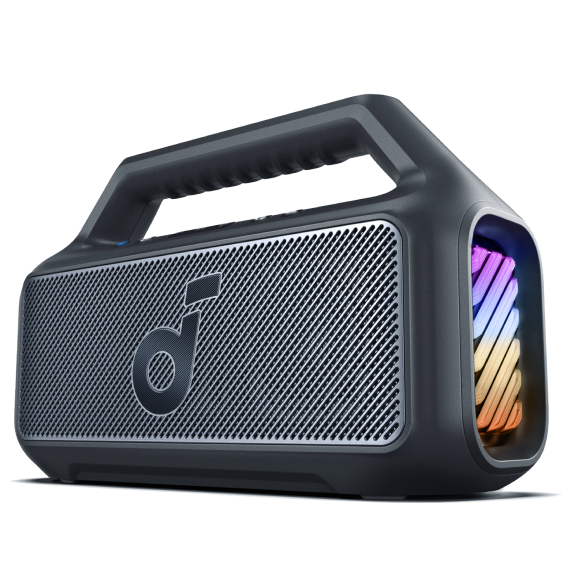
soundcore Boom 2 Plus: reliable connections for outdoor use
Boom 2 Plus maintains a stable connection outdoors, where distance matters more.
A strong Bluetooth signal helps reduce dropouts, and the long battery life prevents unexpected disconnections. PartyCast also makes multi-speaker use easier.
soundcore Rave 3S: easy pairing for shared devices
Rave 3S is built for shared use. Multiple people can connect without complicated steps.
App control helps manage connections, which is useful during longer sessions or gatherings where devices change often.
Conclusion
Once paired, the speaker will usually reconnect automatically. That is what makes Bluetooth so convenient in daily life.
If problems appear, the simplest solution still works: forget the device and pair it again. Choosing a speaker designed for stable connections also makes a real difference.
FAQs
1. How do I pair two soundcore speakers together?
Use PartyCast or a similar feature. Turn on pairing mode on both speakers and follow the instructions.
2. Why is my Bluetooth not connecting to the speaker?
A Bluetooth pairing issue may be caused by distance, battery level, or existing connections. Restarting usually helps.
3. How can I tell if the speaker is in pairing mode?
Look for a flashing blue light or a tone. That confirms pairing mode has been enabled successfully.
4. How do I reset a Bluetooth speaker?
To reset a Bluetooth speaker, press the required button combination for a few seconds.
5. Why does Bluetooth audio keep cutting out?
Interference or distance is often the cause. Keeping the devices close together and updating software improves stability.


