


$10
OFF
soundcore Space Q45 | Long-Lasting Noise Cancelling Headphones
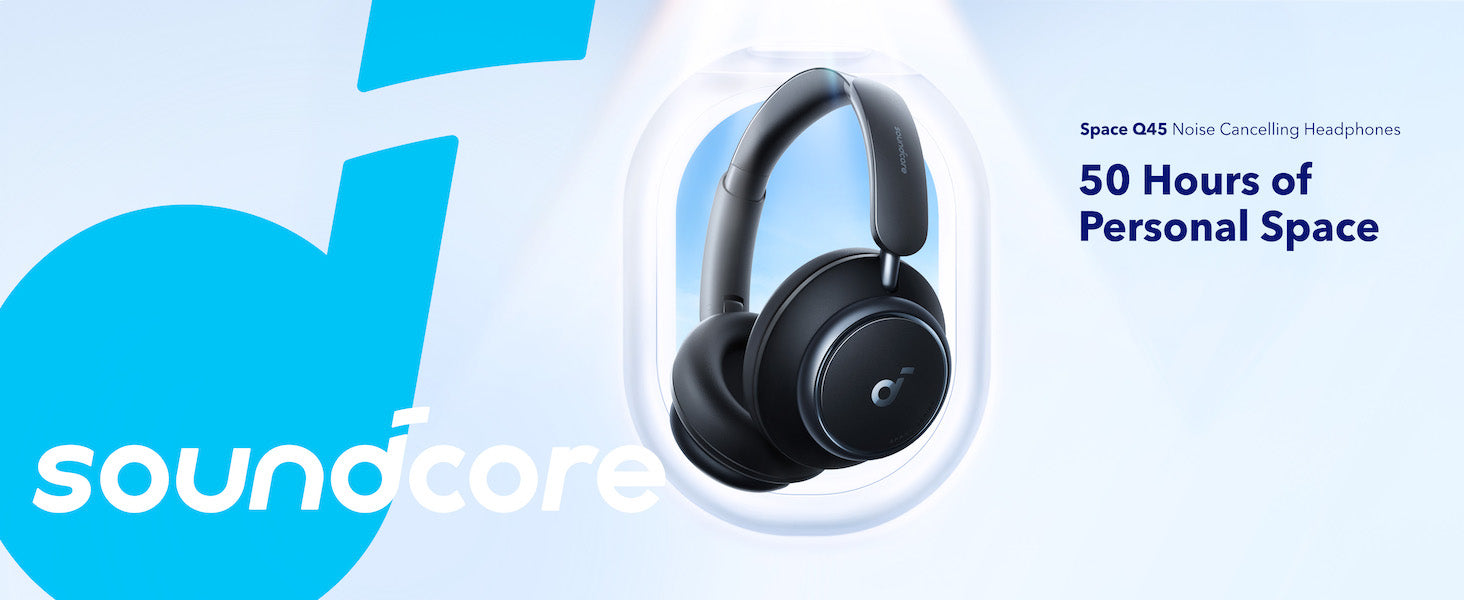
All-New Noise Cancelling Headphones with 50-Hour Playtime
Color

Bulk Headphones, Earbuds, and Speakers for Business >>>>>
- Upgraded noise cancelling system reduces noise by up to 98%
- Make every space your own with adaptive noise cancelling
- Ultra-long 50-hour playtime for travel
- Sound with exceptional detail
- Secure and comfortable fit
- TCO Certified: For Better Sustainability
Standard Shipping
Place your order now for estimated delivery within 3-7 business days.
Free
Next-Day Shipping
Place your order now for estimated delivery within 1-2 business days.
$9.99
Express Shipping
Place your order now for estimated delivery within 1-3 business days.
$6.99
Services and benefits
Payment Method
Delivery Method

Sold Out


Upgraded Noise Cancelling
The ultra-wide, 3-stage noise cancelling system targets and blocks out noises precisely.

Upgraded Noise Cancelling
The ultra-wide, 3-stage noise cancelling system targets and blocks out noises precisely.


Ideal for Traveling
Enjoy up to 50 hours of playtime in ANC mode and up to 65 hours in standard mode.

Ideal for Traveling
Enjoy up to 50 hours of playtime in ANC mode and up to 65 hours in standard mode.


Aluminum Alloy Hinges
The hinges can rotate and are foldable for convenient storage.


Stay connected to two devices with Bluetooth 5.3 and multipoint connection. Instantly switch between music, calls, videos, and more on different devices hassle-free to save you time and effort.

Length: 161mm / 6.3in
Height: 190mm / 7.5in
Wide: 88mm / 3.5in
Learn More about soundcore Space Q45
- Long trips — 50H with ANC on, 65H with ANC off
- Fine-tuning quiet — Adaptive ANC or 5 custom levels
- Outdoor walks — Wind Noise Reduction in the app
- The lightest over-ear option — 292g; see soundcore Space 2 (264g) or Space One (265g)
- Playtime with active noise cancelling on: 50 hours at 60% volume
- A 5-minute charge gives you 4 hours of listening
Note: The playing time may vary slightly based on the music content. If you use the headphones to make/receive a call, the playtime will be reduced as the microphone consumes more power than when listening to music.
Custom Noise Cancelling: There are 5 levels of noise reduction. The higher the noise reduction level, the stronger the low frequency noise reduction effect.
2. Double click the Power button to put the Space Q45 enter the pairing status again. The LED will flash blue.
3. Select "soundcore Space Q45" in the Bluetooth device list of the second device. The headset will be paired with the second device. The indicator will be steady blue for 3 seconds, then turn off.
1. You need to manually disconnect a connected device, so that the headset will directly enter the pairing status.
2. You can view the connection status and connected device history in the soundcore app. You need to disconnect one of the devices and then connect a new device in the app.
1. System settings:
Output settings: soundcore Space Q45 Stereo
Input settings: soundcore Space Q45 Hands-Free AG Audio
2. Call software settings:
Mic and speaker options: soundcore Space Q45 Hands-Free AG Audio
For Mac computers, use the following steps:
1. System Preferences > Sound > Output > Select "soundcore Space Q45 Stereo"
System Preferences > Sound > Input > Select "soundcore Space Q45 Hands-Free AG Audio"
2. Call software settings:
Mic and speaker options: soundcore Space Q45 Hands-Free AG Audio
2. Pair Space Q45 with your phone.
3. Open the soundcore app, and go to Add Devices > Headphones. The app will identify your device, and you can press "Space Q45" to connect it.
Fully charged: Off
Power on: Flashes white 3 times quickly, then turns on
Press the "NC" button to cycle between the modes. The order is: Noise Cancelling (default) > Transparency > Normal.
Method 2: soundcore app
- Long press the Volume- button for 2 seconds to go to the previous song.
2. Go to Settings > Sound Mode > Preferred Audio Quality (LDAC) to turn on.
2. Go to Settings > Wind Noise Reduction to turn on.
2. Go to Settings > Prompt Tone to turn off.
2. Try charging Space Q45 before the battery drains completely or is lower than 20%.
3. If Space Q45 gets wet, use a hairdryer on the cool setting to dry it. Do not use excessive external force to avoid causing irreversible damage.
2. Make sure the wall charger and cable you're using work correctly with other devices.
3. Reset Space Q45 by holding down the power button and Volume + for 5 seconds.
2. Make sure the wall charger and cable you're using work correctly with other devices.
3. After fully charging Space Q45, test the playtime again at 60% volume.
2. Hold the Power and Volume+ buttons at the same time for 5 seconds to reset Space Q45. The indicator will flash red 3 times. This confirms that the reset is successful.
3. Turn on the Bluetooth of your device and search for soundcore Space Q45 and pair.
4. Test your Space Q45 with a different Bluetooth device to see if the problem still persists.
To fix this issue, please try the following:
1. "Forget" Space Q45 in your device's Bluetooth history.
2. Fully charge Space Q45 and hold the Power and Volume+ buttons at the same time for 5 seconds to reset. The indicator will flash red 3 times. This confirms that the reset is successful.
3. Check Space Q45's settings in the soundcore app.
4. Check Space Q45 with another Bluetooth device in a different environment to see if it works well.
5. Try to turn off the Bluetooth Codec SBC and turn on AAC.
To locate the issue, try the following:
1. "Forget" Space Q45 in your device's Bluetooth history and restart your Bluetooth device.
2. Reset Space Q45 by holding down the Power and Volume+ buttons for 5 seconds.
3. Test Space Q45 with a different Bluetooth device, app, and downloaded music/video to see if the problem still persists or not.
4. Ensure there are no physical objects hindering the Bluetooth connection from Space Q45 to the device they're connected to (such as a doorway or wall).
2. Reset the headphones by holding down the Power and Volume+ buttons for 5 seconds.
3. Press the NC button to switch Space Q45 to other modes (noise cancelling/normal/transparency) to see if the problem still persists or not.
4. Try using Space Q45 with another device.
5. Use Space Q45 in wired mode to see if it works.
6. Make sure that the sound setting of your Bluetooth device is not skewed to one side.
2. Hold the Power and Volume+ buttons at the same time for 5 seconds to reset Space Q45. The indicator will flash red 3 times. This confirms that the reset is successful.
3. Test these headphones with a different Bluetooth device and audio source.
4. Press the NC button to switch Space Q45 to other modes (noise cancelling/normal/transparency) to see if the problem still persists or not.
5. Try Space Q45 in a different environment. Does this issue persist in a busy street or on a quiet environment?
6. Upgrade the firmware to the latest version via the soundcore app.
2. Try different types of music and make sure the sound source has no distortion or noise.
3. Try direct EQ modes in the soundcore app and customize to EQ to your preference.
4. If you're using an Android phone that supports LDAC, turn it on and see if it helps.
5. Hold the Power and Volume+ buttons at the same time for 5 seconds to reset Space Q45. The indicator will flash red 3 times. This confirms that the reset is successful.
2. Try different types of music and make sure the input audio source quality has no distortion or noise.
3. Try using the AUX cable with your other devices to see if there's a problem with it.
4. Use another AUX cable to connect to Space Q45 headphones to see if it works.
2. "Forget" the headphones in your device's Bluetooth history. Hold the Power and Volume+ buttons at the same time for 5 seconds to reset Space Q45. The indicator will flash red 3 times. This confirms that the reset is successful.
3. Test Space Q45 with a different Bluetooth device and audio source.
4. Upgrade the firmware to the latest version via the soundcore app.
5. Please note, LDAC mode is disabled when using multipoint connection because of the Bluetooth transmission limit.
2. Make sure you're using noise cancelling mode and not Transparency mode to hear sounds around you.
3. Test Space Q45 in different environments to see if it affects the performance.
Note: Space Q45's noise cancelling detect and cancels out a wide range of low and mid-frequency noises such as cars and airplane engines, but they can't cancel all the noise around us. Human voices can be reduced but can not be completely eliminated.
2. Choose Space Q45 as the microphone output on the connected device.
3. "Forget" Space Q45 in your device's Bluetooth history and reset by holding down the Power and Volume+ buttons for 5 seconds, and then re-pair.
4. Test Space Q45 with a different Bluetooth device in a different environment to see if it makes any difference.
5. If you make a call via an app, please try using your phone to make a call instead to see if the problem still persists.
6. Upgrade the firmware to the latest version via the soundcore app.
2. Hold the Power and Volume+ buttons at the same time for 5 seconds to reset Space Q45. The indicator will flash red 3 times. This confirms that the reset is successful.
3. Use noise cancelling mode while making calls to see if it helps.
4. Try testing Space Q45 with a different Bluetooth device in a different environment to see if it makes any difference.
5. Upgrade the firmware to the latest version via the soundcore app.
2. Pair Space Q45 with your phone.
3. Open the soundcore app and go to Add Devices > Headphones. The app will identify your device and you can press "Space Q45" to connect it.
4. If you cannot find Space Q45, select "Don't See Your Device" at the bottom and go to Space series > Space Q45.
5. If you still cannot find Space Q45 in the list, please update the app to the latest version or uninstall then reinstall the app.
Note:
- The soundcore app can only be opened on one Bluetooth device, and it cannot be opened when the iPhone is on call status.
- Currently, the soundcore app is only available on phones.
- Don't upgrade the firmware when there are other sources of interference around. If it fails, try to upgrade it again.
- Uninstall and reinstall the soundcore app.
- Hold the Power and Volume+ buttons at the same time for 5 seconds to reset Space Q45. The indicator will flash red 3 times. This confirms that the reset is successful.
Specs
| Al Note-Taker | / |
| Drivers | 40mm |
| Frequency Response | 20Hz - 40KHz |
| Playtime | 65H/50H |
| AUX-Eingang | Yes |
| Sound | 40mm Double-Layer Drivers |
| Bluetooth Version | 5.3 |
| Aux in | Yes |
| Active Noise Cancellation | Adaptive ANC |
| Fast Charging | 5 Mins = 4 Hrs |
| Calls | 2 Mics with AI |
| Multipoint Connection | ✔️ |
| Customized EQ | Hear ID |
| Weight | 292g (10.30 oz) |
| Special Features | Protective Case, AUX |
| Design | Over-Ear |
| Control | Button Control |
| Dimensions | 161*190*88MM |


