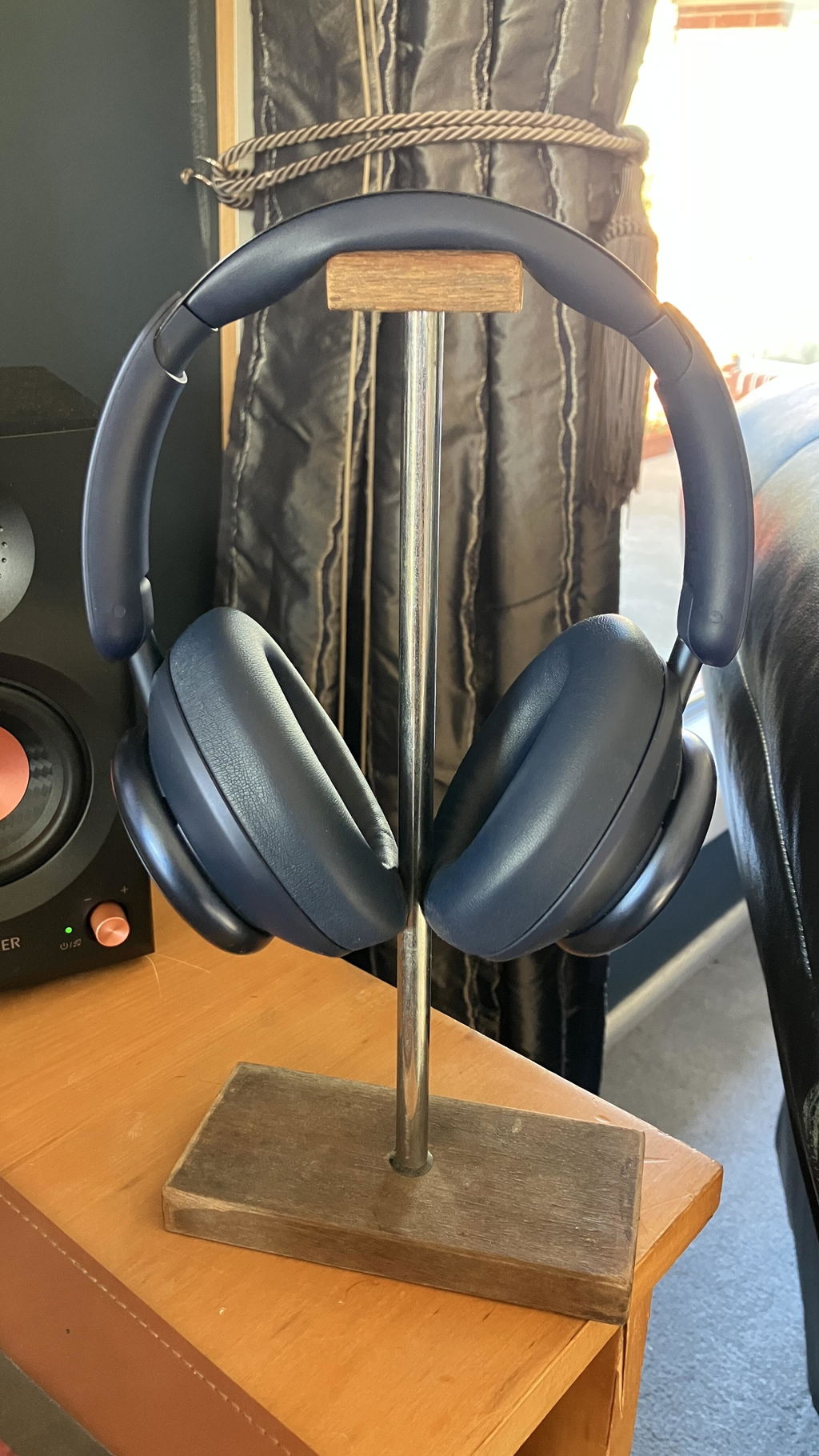




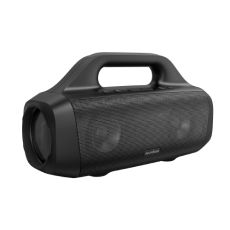


Space Q45 | Long-Lasting Noise Cancelling Headphones
All-New Noise Cancelling Headphones with 50-Hour Playtime
Color:
- 98% Less Noise for Your Journey: The fully-upgraded noise cancelling system targets and blocks out a wider range of noises—from plane engines to crying babies. Enjoy personal space wherever you go with Space Q45 noise cancelling headphones.
- Make Every Space Your Own: Whether you're indoors, outdoors, commuting, or on a flight, Space Q45's adaptive noise cancelling will automatically select a suitable level to match your location. Also, use the app to choose 1 of 6 noise cancelling levels.
- Ideal for Traveling: 50 hours of playtime in noise cancelling mode will cover an around-the-world flight without needing to recharge. In normal mode, get up to 65 hours of playtime and if you are low on battery, charge for 5 minutes for 4 hours of playtime.
- Hear Every Detail: The 40mm drivers have a pioneering double-layer diaphragm made from silk and ceramic materials to produce sound with intense bass and crisp treble. Space Q45 noise cancelling headphones also support LDAC for Hi-Res Audio Wireless sound.
- More Than Comfort: Space Q45 noise cancelling headphones balance a refined design, ergonomic build, and comfort-enhancing details for a harmonious wearing experience.
Services and Benefits

Fast Shipping
Payment Method
Sold Out


Adaptive Noise Cancelling
Space Q45's noise cancelling automatically adapts based on the noise from your surroundings.

Adaptive Noise Cancelling
Space Q45's noise cancelling automatically adapts based on the noise from your surroundings.


Ideal for Traveling
Enjoy up to 50 hours of playtime in ANC mode and up to 65 hours in standard mode.

Ideal for Traveling
Enjoy up to 50 hours of playtime in ANC mode and up to 65 hours in standard mode.


Aluminum Alloy Hinges
The hinges can rotate and are foldable for convenient storage.


Whether you're in a cafe, on the train, or just on a walk, be heard in crystal-clear clarity thanks to two microphones and an AI algorithm that identifies and picks up your voice precisely from your surroundings, no matter where you are.

Stay connected to two devices with Bluetooth 5.3 and multipoint connection. Instantly switch between music, calls, videos, and more on different devices hassle-free to save you time and effort.
Compare soundcore Headphones
 |  |  |  | |
Space Q45 | Space One | Q35 | Q30 | |
| Sound | Hi-Res Wireless, Hi-Res, LDAC | Hi-Res Wireless, LDAC, HearID | Hi-Res Wireless, Hi-Res, LDAC | Hi-Res, Customized EQ |
| Active Noise Cancellation | Adaptive ANC | Adaptive ANC | Hybrid ANC with multiple modes | Hybrid ANC with multiple modes |
| Playtime | 65H (ANC off), 50H (ANC on) | 55H (ANC off), 40H (ANC on) | 60H (ANC off), 40H (ANC on) | 60H (ANC off), 40H (ANC on) |
| Fast Charging | 5 mins = 4 hours | 5 mins = 4 hours | 5 mins = 4 hours | 5 mins = 4 hours |
| Connectivity | Bluetooth 5.3, AUX | Bluetooth 5.3, AUX | Bluetooth 5, AUX with mic, NFC | Bluetooth 5, AUX, NFC |
| Calls | 2 mics with AI algorithm | 3 mics with AI algorithm | 2 mics with AI algorithm | 2 mics |
| Charging Port | USB-C | USB-C | USB-C | USB-C |
| soundcore App | ✔ | ✔ | ✔ | ✔ |
| Recommended For | Travel, flight, train, commute | Travel, flight, train, commute | Travel, flight, train, commute | Travel, flight, train, commute |
FAQ
- Playtime with active noise cancelling on: 50 hours at 60% volume
- A 5-minute charge gives you 4 hours of listening
Note: The playing time may vary slightly based on the music content. If you use the headphones to make/receive a call, the playtime will be reduced as the microphone consumes more power than when listening to music.
2. Make sure the wall charger and cable you're using work correctly with other devices.
3. Reset Space Q45 by holding down the power button and Volume+ for 5 seconds.
2. Make sure the wall charger and cable you're using work correctly with other devices.
3. After fully charging Space Q45, test the playtime again at 60% volume.
2. Hold the Power and Volume+ buttons at the same time for 5 seconds to reset Space Q45. The indicator will flash red 3 times. This confirms that the reset is successful.
3. Turn on the Bluetooth of your device and search for soundcore Space Q45 and pair.
4. Test your Space Q45 with a different Bluetooth device to see if the problem still persists.
2. Double click the Power button so that Space Q45 enters the pairing status again. The LED will flash blue.
3. Select "soundcore Space Q45" in the Bluetooth device list of the second device. The headset will be paired with the second device. The indicator will be steady blue for 3 seconds, then turn off.
1. You need to manually disconnect a connected device, so that the headset will directly enter the pairing status.
2. You can view the connection status and connected device history in the soundcore app. You can manually disconnect one of the devices and then connect a new device in the app.
To fix this issue, please try the following:
1. "Forget" Space Q45 in your device's Bluetooth history.
2. Fully charge Space Q45 and hold the Power and Volume+ buttons at the same time for 5 seconds to reset. The indicator will flash red 3 times. This confirms that the reset is successful.
3. Check Space Q45 by listening to downloaded music/video.
4. Check Space Q45 with another Bluetooth device in a different environment to see if it works well.
5. Try to turn off the Bluetooth Codec SBC and turn on AAC.
To locate the issue, try the following:
1. "Forget" Space Q45 in your device's Bluetooth history and restart your Bluetooth device.
2. Reset Space Q45 by holding down the Power and Volume+ buttons for 5 seconds.
3. Test Space Q45 with a different Bluetooth device, app, and downloaded music/video to see if the problem still persists or not.
4. Ensure there are no physical objects hindering the Bluetooth connection from Space Q45 to the device they're connected to (such as a doorway or wall).
2. Reset the headphones by holding down the Power and Volume+ buttons for 5 seconds.
3. Press the NC button to switch Space Q45 to other modes (noise cancelling/normal/transparency) to see if the problem still persists or not.
4. Try using Space Q45 with another device.
5. Use Space Q45 in wired mode to see if it works.
6. Make sure that the sound setting of your Bluetooth device is not skewed to one side.
2. Hold the Power and Volume+ buttons at the same time for 5 seconds to reset Space Q45. The indicator will flash red 3 times. This confirms that the reset is successful.
3. Test these headphones with a different Bluetooth device and audio sources.
4. Press the NC button to switch Space Q45 to other modes (noise cancelling/normal/transparency) to see if the problem still persists or not.
5. Try Space Q45 in a different environment. Does this issue persists on a busy street or on a quiet environment?
6. Upgrade the firmware to the latest version via the soundcore app.
2. Try different types of music and make sure the input audio source has no distortion or noise.
3. Try different EQ modes on the soundcore app and customize the EQ to your preference.
4. If you're using an Android phone that supports LDAC, turn it on and see if it helps.
5. Hold the Power and Volume+ buttons at the same time for 5 seconds to reset Space Q45. The indicator will flash red 3 times. This confirms that the reset is successful.
2. Try different types of music and make sure the input audio source quality has no distortion or noise.
3. Try using the AUX cable with your other devices to see if there's a problem with it.
4. Use another AUX cable to connect to Space Q45 headphones to see if it works.
2. "Forget" the headphones in your device's Bluetooth history. Hold the Power and Volume+ buttons at the same time for 5 seconds to reset Space Q45. The indicator will flash red 3 times. This confirms that the reset is successful.
3. Test Space Q45 with a different Bluetooth device and audio sources.
4. Upgrade the firmware to the latest version via the soundcore app.
5. Please note, LDAC mode is disabled when using multipoint connection because of the Bluetooth transmission limit.
Custom Noise Cancelling: There are 5 levels of noise reduction. The higher the noise reduction level, the stronger the low frequency noise reduction effect.
2. Make sure you are using noise cancelling mode and select Level 5 noise canceling on the soundcore app.
3. Test Space Q45 in different environments to see if it affects the performance.
Note: Space Q45's noise cancelling detect and cancels out a wide range of low and mid-frequency noises such as cars and airplane engines, but they cannot cancel all the noise around us. Human voices can be reduced but can not be completely eliminated.
1. System settings:
Output settings: soundcore Space Q45 Stereo
Input settings: soundcore Space Q45 Hands-Free AG Audio
2. Call software settings:
Mic and speaker options: soundcore Space Q45 Hands-Free AG Audio
For Mac computers, use the following steps:
1. System Preferences > Sound > Output > Select "soundcore Space Q45 Stereo"
System Preferences > Sound > Input > Select "soundcore Space Q45 Hands-Free AG Audio"
2. Call software settings:
Mic and speaker options: soundcore Space Q45 Hands-Free AG Audio
2. Choose Space Q45 as the microphone output on the connected device.
3. "Forget" Space Q45 in your device's Bluetooth history and reset by holding down the Power and Volume+ buttons for 5 seconds, and then re-pair.
4. Test Space Q45 with a different Bluetooth device in a different environment to see if it makes any difference.
5. If you make a call via an app, please try using your phone to make a call instead to see if the problem still persists.
6. Upgrade the firmware to the latest version via the soundcore app.
2. Hold the Power and Volume+ buttons at the same time for 5 seconds to reset Space Q45. The indicator will flash red 3 times. This confirms that the reset is successful.
3. Use noise cancelling mode while making calls to see if it helps.
4. Try testing Space Q45 with a different Bluetooth device in a different environment to see if it makes any difference.
5. Upgrade the firmware to the latest version via the soundcore app.
2. Pair Space Q45 with your phone.
3. Open the soundcore app, and go to Add Devices > Headphones. The app will identify your device, and you can press "Space Q45" to connect it.
2. Pair Space Q45 with your phone.
3. Open the soundcore app, and go to Add Devices > Headphones. The app will identify your device and you can press "Space Q45" to connect it.
4. If you cannot find Space Q45, select "Don't See Your Device" at the bottom and go to Space series > Space Q45.
5. If you still cannot find Space Q45 in the list, please update the app to the latest version or uninstall then reinstall the app.
Note:
- The soundcore app can only be opened on one Bluetooth device, and it cannot be opened when the iPhone is on call status.
- Currently, the soundcore app is only available on phones.
Fully charged: Off
Power on: Flashes white 3 times quickly, then turns on
Power off: Flashes white 3 times quickly, then turns off
In pairing mode: Flash blue quickly
When connected: Steady blue for 3 seconds, then turns off
Out of Bluetooth connection range (waiting to reconnect): Flash blue slowly
Bluetooth and charging indicators: On left ear cup
Reset: Flashes red slowly 3 times
Press the "NC" button to cycle between the modes. The order is: Noise Cancelling (default) > Transparency > Normal.
Method 2: soundcore app
Manually switch between the three modes and customize the level of noise cancelling and transparency.
Note: On the soundcore app, you can also customize the button functions by going to "Controls".
- Long press the Volume- button for 2 seconds to go to the previous song.
2. Go to Settings > Sound Mode > Preferred Audio Quality (LDAC) to turn on.
2. Go to Settings > Wind Noise Reduction to turn on.
2. Go to Settings > Prompt Tone to turn off.
- Don't upgrade the firmware when there are other sources of interference around. If it fails, try to upgrade it again.
- Uninstall and reinstall the soundcore app.
- Hold the Power and Volume+ buttons at the same time for 5 seconds to reset Space Q45. The indicator will flash red 3 times. This confirms that the reset is successful.
- Try to upgrade the firmware using another device.
2. Try charging Space Q45 before the battery drains completely or is lower than 20%.
3. Space Q45 should be stored in a clean, dry area, and placed in a box or bag to avoid excessive external damage.
4. The ear pads and headband pads should be cleaned frequently.
5. Long-term storage after sweating will cause the leather to become moldy and discolored. It is recommended to clean it with a cotton cloth after use.
- Playtime with active noise cancelling on: 50 hours at 60% volume
- A 5-minute charge gives you 4 hours of listening
Note: The playing time may vary slightly based on the music content. If you use the headphones to make/receive a call, the playtime will be reduced as the microphone consumes more power than when listening to music.
2. Make sure the wall charger and cable you're using work correctly with other devices.
3. Reset Space Q45 by holding down the power button and Volume+ for 5 seconds.
2. Make sure the wall charger and cable you're using work correctly with other devices.
3. After fully charging Space Q45, test the playtime again at 60% volume.
Specs
| Playtime | 65H/50H |
| Sound | 40mm Double-Layer Drivers |
| Active Noise Cancellation | Adaptive ANC |
| Fast Charging | 5 Mins = 4H |
| Calls | 2 Mics with AI |
| Multipoint Connection | ✔️ |
| Customized EQ | Hear ID |
| Weight | 292g (10.30 oz) |
| Special Features | Protective Case, AUX |
So i used those headphones for 3 months. i loved their sound but just as i wanted to listen to some Music they snapped after 3 months of normal usage. I filed for a refund now. I hope they do find for me a solution that fixes this Problem for me, so htat i wouldn"t experience such a snap again.
i have been using this one for about an year now and i have to say its one of the best headphones out in the market for the price. I also own their Space One, and that one is amazing as well.
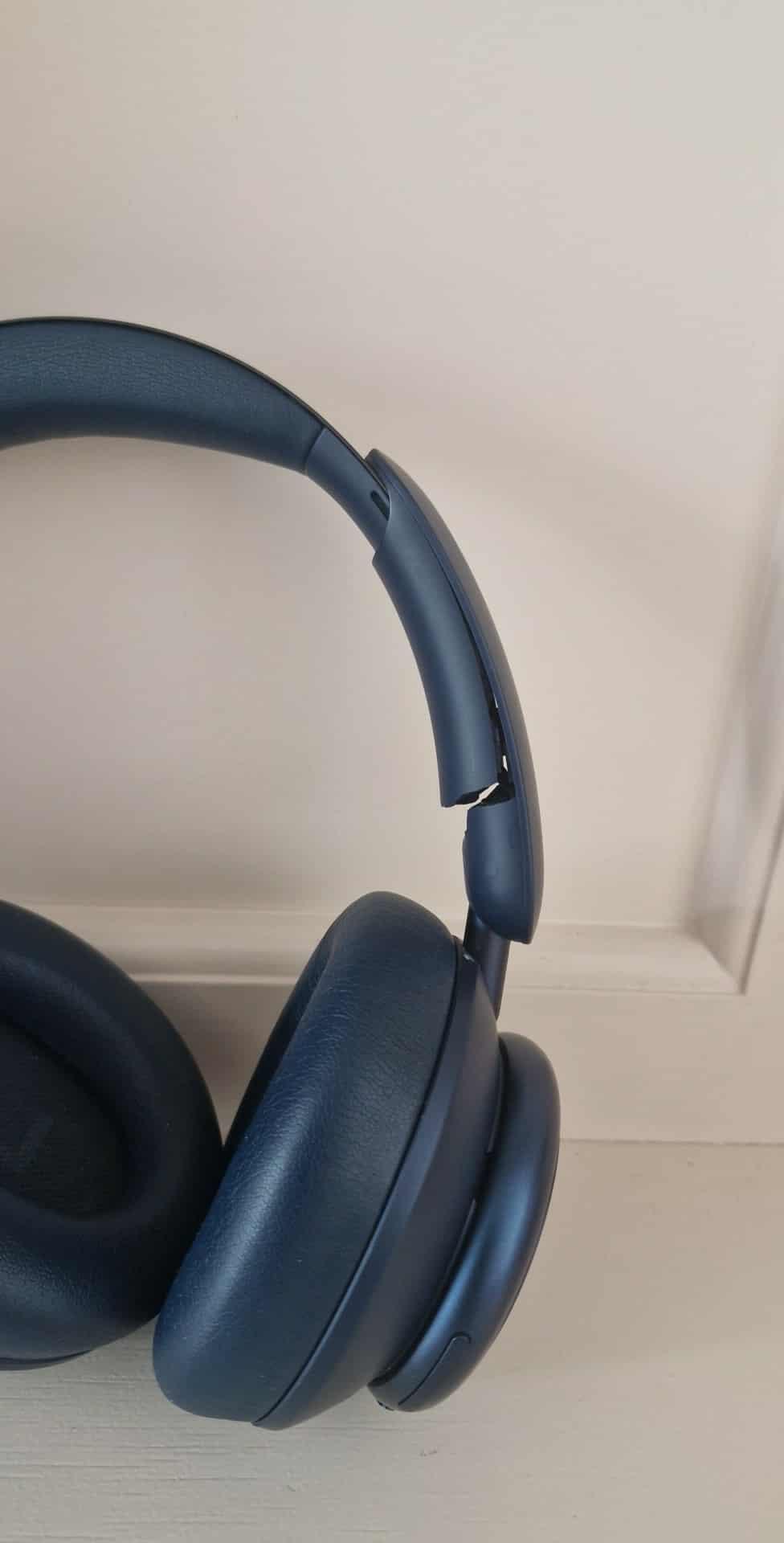
The sound on these headphones is honestly excellent. I have 2 daughters who both have Sony headphones and the noise cancellation is far better on these. Sadly, thats where the positives stop. After about 2 months of happy listening, I picked up my headphones to find the head band part had snapped, and now there is no noise cancelling... (the ear covers no longer suck down on my ears.
Shame really, as they were quality before this happened (see attached shot) but now theyre hardly usable...
This is not the first time I buy from this brand, and after trying other brands in the same category and price, this headphone is much better in terms of manufacturing quality, features, and sound quality. It is the best value for the price.
I like the fact that you can turn on the bass with the touch of a button. Also listening to the headphones via Bluetooth 5.3 works extremely well with the iPhone and the iMac computer. When you get a phone call it switches seamlessly. Initially, I was truly impressed and the ease. the volume is nice and loud. Ive tried the wired options by listening through various DACs and this is also impressive as it can be even louder. with the Hi-Resolution audio, it's been a big learning curve. especially not having to charge them every day with over 6-7-8 hours of listening is a huge comfort. Thank you Soundcore for making such an impressive headphone. you don't know how long I had been umming and aahing about which Hi-Res Headphones I was going to get. My brother has the Space One 30 and got me on to these. Q45s. Awesome headphones. which fit my large head. My stepdad has the black version, ive got the blue one.