








Bluetooth Headphones Connected but No Sound: Ultimate Troubleshooting Guide
Have your Bluetooth headphones ever displayed a "connected" status but you still couldn't hear any sound? It's a frustrating experience, especially when you want to relax, take a call, or enjoy your favourite music. Whether you're using a phone, laptop, or gaming console, this problem can stem from various causes such as incorrect settings, outdated drivers, or even Bluetooth signal interference.
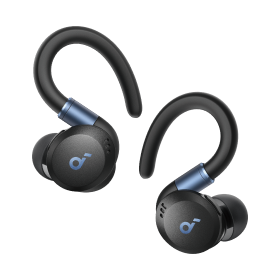
In this comprehensive guide, we'll walk you through all possible reasons and solutions. You'll learn why wireless headphones don't work as they should, and how to prevent such problems in the future. Before we dive into details, you can check out reliable from soundcore. They're designed to offer seamless connectivity and stable performance.
Understanding Why Your Bluetooth Headphones Are Connected But Produce No Sound
When your Bluetooth headphones show as connected but you still can't hear anything, the cause may lie in software, hardware, or configuration. Analysing these potential causes will help you find a solution faster and determine why wireless headphones don't work in your specific setup.
In most cases, sound issues result from incorrect audio settings, outdated Bluetooth drivers, or connection interference. Sometimes the solution is surprisingly simple and comes down to changing the default audio output device on your device. Below we discuss the most common reasons and explain step by step how to fix them.
Incorrect Audio Output Settings
Your device may still be directing sound to built-in speakers, even if you've already managed to connect your Bluetooth headphones. This usually happens when the system doesn't automatically switch the audio source.
How to fix it:
Windows: Right-click the sound icon → Select Sound settings → Choose your Bluetooth headphones → Click Set as default.
Mac: Open System Preferences → Sound → Select your Bluetooth headphones in the Output tab.
Mobile: Go to Bluetooth Settings → Tap connected headphones → Ensure Multimedia (or Audio) option is enabled.
Once you select the appropriate output, sound should immediately appear in your headphones.

Muted Volume or Multimedia Settings
Sometimes the solution is simpler than you might think. Devices may automatically lower volume when connecting a new Bluetooth device.
Try this: • Increase volume in both your device's multimedia settings and using buttons on the Bluetooth headphones themselves. • If using a computer, open Volume Mixer and check that sound isn't muted for specific applications.
This solution alone can eliminate many "device is connected but no sound" problems.
Outdated Bluetooth or Audio Drivers
Old drivers can interfere with communication between your Bluetooth headphones and computer or phone.
To fix this:
Windows: Open Device Manager → Expand Bluetooth and Sound, video and game controllers sections → Right-click your device → Select Update driver.
Mac: Ensure system software is up to date.
Mobile: Restart device after checking for firmware update availability.
Updated drivers restore proper audio transmission and often improve sound stability.
Fixing Sound Issues in Bluetooth Headphones on Different Devices
Sound problems vary depending on device type. What works on Windows may not apply to Android or iOS. Below we present solutions tailored to specific devices, whether you're using a phone, PC, or gaming console.
From refreshing Bluetooth connections to adjusting privacy permissions. These steps are proven ways to effectively resolve sound issues on different platforms.
Troubleshooting on iPhone or iPad
If your Bluetooth headphones connect but don't produce sound on iPhone or iPad, follow these steps:
Forget and reconnect: Go to Settings → Bluetooth → Tap the "i" icon next to your device → Forget this device → Pair again.
Reset network settings: Settings → General → Transfer or Reset iPhone → Reset → Reset network settings.
Check app permissions: Some apps have individual sound or microphone permissions that may block the output signal.
After resetting, reconnect your Bluetooth headphones and test music or video playback.
Android – Sound Fix
Android devices may encounter background connection conflicts, especially when multiple Bluetooth devices are paired.
Try this: • Unpair all other Bluetooth devices. • Clear Bluetooth cache: Settings → Apps → Bluetooth → Storage → Clear cache and data. • Restart phone and reconnect headphones.
This helps eliminate interference and ensures sound is transmitted directly through your wireless Bluetooth headphones.
Windows PC or Laptop – Audio Fix
Windows often defaults to selecting the "Hands-Free AG Audio" profile – this is a low-quality profile designed for calls, not for listening to music.
Here's how to change it: • Right-click sound icon → Sounds → Playback tab. • Select your Bluetooth headphones (stereo mode), then click Set as default device. • Disable "Hands-free" option if available.
This will immediately restore high-quality stereo sound.
macOS – Sound Troubleshooting
If your Bluetooth headphones connect but you can't hear sound, macOS may have selected the wrong audio output.
To fix this: • Click Apple Menu → System Settings → Sound → Output. • Select your Bluetooth headphones. • If the problem persists, disconnect and reconnect headphones.
Finally, restart your Mac to completely refresh the connection.
Preventing Bluetooth Sound Problems in the Future
Once you've resolved the sound issue, a few proactive habits can prevent it from recurring. Bluetooth connectivity largely depends on signal strength, firmware version, and stable device pairing management.
Regular device maintenance — updating software (firmware), keeping them charged, and proper storage — ensures uninterrupted audio playback. Below you'll find key preventive tips to help maintain the highest listening quality.

Keep Devices Updated
Manufacturers frequently release updates to improve Bluetooth compatibility and fix sound-related bugs. Ensure both your Bluetooth headphones and connected devices are always up to date.
Firmware updates improve connection speed, reduce latency, and eliminate random device disconnections.
Maintain Proper Bluetooth Range
Bluetooth signal weakens through walls, furniture, or interference from other electronic devices. To ensure consistent sound quality, try to keep your Bluetooth headphones within approximately 9 metres of the source device.
Also avoid connecting multiple devices simultaneously unless your headphones support multi-device pairing functionality.
Fully Charge Before Use
Low battery levels can interfere with Bluetooth signal transmission. Always charge your Bluetooth headphones before longer listening sessions. Steady power supply ensures stable pairing and better audio output quality.
Choose Reliable Audio Solution
If you've tried all steps and the no-sound problem still frequently returns, it may be time to upgrade to newer hardware. Modern headphones feature smarter connectivity systems and advanced codecs that drastically reduce audio interruptions and latency.
A great example is the — a premium model designed to deliver exceptional clarity, comfort, and uninterrupted wireless sound.
soundcore Space Q45 – Intelligent Noise Cancellation and Seamless Connectivity
Discover soundcore Space Q45, next-generation wireless headphones with adaptive noise cancellation and ultra-stable Bluetooth connection. Equipped with advanced LDAC technology, Space Q45 delivers high-resolution audio transmission and balanced acoustics even in noisy environments.
Their adaptive noise cancellation intelligently adjusts to surroundings — making them ideal for work, travel, or study. Long battery life and premium comfort construction make them a great choice for all-day listening. Most importantly, reliable Bluetooth stability means you'll never have to wonder why your wireless headphones aren't working despite showing "connected" status.
Conclusion
The situation where Bluetooth headphones don't work despite showing "connected" status can be irritating — however, it's also one of the easiest problems to solve once you understand its causes. By adjusting output settings, updating drivers, and keeping your device software current, you can quickly restore pristine sound.
And if you're ready to enjoy the highest audio quality without connectivity stress, upgrading to the soundcore Space Q45 model offers effortless, high-performance solution designed for daily reliability.


